Hello There!

Lorem ipsum dolor sit amet, consectetur adipiscing elit,

conversion optimization services product conversion rate ecommerce conversion analysis

This post aims to develop an understanding of how to calculate product-specific conversion rates and discuss the potential analysis & insights that can be generated from it.

Quite often the business problems or questions that most e-commerce websites encounter are one of the following:

  1. How much product to stock?
  2. Which products are fast-moving? 
  3. How can I move some of the products quickly?
  4. How to measure how many views different products have received?
  5. Are the product views turning into transactions & revenue? What actions can I take based on such data?

What is the product conversion rate?

There are many ways to define what we can call the product conversion rate. For example, you can check the number of transactions for any given product divided by the number of visits to that specific product. Moreover, you can also use the quantity to no. of visits ratio to calculate the product conversion rate.

Based on the product conversion rate, an automobile e-commerce website was able to update its recommendations section, which in turn led to a 20% increase in transactions.

For our understanding, we will use the ratio of quantity sold to the no. of visits for the different products as a product conversion rate.

Why product conversion rate?

There are many ways to define what we can call the product conversion rate. For example, you can check the number of transactions for any given product divided by the number of visits to that specific product. Moreover, you can also use the quantity to no. of visits ratio to calculate the product conversion rate.

Based on the product conversion rate, an automobile e-commerce website was able to update its recommendations section, which in turn led to a 20% increase in transactions.

For our understanding, we will use the ratio of quantity sold to the no. of visits for the different products as a product conversion rate.

How to get data from Google Analytics?

There are two approaches that can be used for obtaining the data for product views:

Approach 1: Ecommerce / Enhanced Ecommerce:-

Here is the syntax that you can use to generate product views statistic in event tracking:

  1. Event Category: Enhanced Ecommerce
  2. Event Action: Product Detail View
  3. Event Label: {{current page path}}

This needs to fire on all your product pages in Google Analytics.

As a result of this, you will be able to create a custom report with “Product” as the dimension, and “Product Detail Views” as the metric.

Report Image Source: Google Merchandise Store

Approach 2: Custom Events Implementation:-

You can implement the following data layer snippet to pass an event every time a product detail page is loaded.

  1. Event Category: Product Detail View
  2. Event Action: {{Product Name}}
  3. Event Label: {{current page path}}

Based on this implementation, you will get the Product Names in your event tracking report. You will not need to go through the process of implementing E-Commerce tracking on your website, and will still be able to get unique product views as well as total product views of each product.

By putting this data together, here is what you can get as an output for different products. Please note that in the third column you can create conversion rates for your different products.

Product Name (based on Event Action) Unique Views (based on Unique Events) Quantity Sold Product Conversion Rate Product Revenue

Google Utility BackPack

260

9 3.46% 2231

Chrome Dino Collectible Figurines

658

29 4.41%

1840

Google Black Eco Zip Hoodie

713

27 3.79%

1721

Google Incognito Zip Pack

322

35 10.87% 1611

Google Eco Tee Black

133

15 11.28%

1364

Google Incognito Techpack V2

413

15 3.63% 1160

Google Campus Unisex Zip Hoodie

142 17 11.97% 1119
Chrome Dino Marine Layer Tee

300

12 4.00% 1079
Noogler Android Figure 250 20 8.00%

1872

Google Cloud Unisex Zip Hoodie 129 24 18.60%

1654

Some of the products have a high conversion rate as shown in highlighted portion. These are your winners.

Plot this conversion data with the product’s revenue and you will be able to analyze various aspects of your product performance indicators, including:

  • Know whether high converting products are getting sold or not
  • Use the advanced segments to calculate the product conversion rate for different traffic sources
  • Figure out low-converting products, reduce them from your stocks and save money from the warehouse!

How to Setup Google Analytics Android Mobile Apps Tracking?

enter image description here

We’re in the era of mobile, where there are 5.3 billion mobile subscribers worldwide and these numbers are increasing very rapidly. Most of the mobile subscribers are using mobile apps for either shopping or accessing social networking sites or playing games or listening to online songs and etc.

There are so many mobile apps in the market whether it’s for iPhone or Android or Blackberry or Symbian-based mobile phones or Windows OS-based smartphones.

There are so many mobile development companies or mobile developers who build mobile applications but afterward, they don’t know the effectiveness of their application in terms of how many persons actually use it after downloading, what’s bounce rate is, from which mobile handset your application is being accessed and so many factors.

For that, you should start tracking mobile applications using an analytics tool like Google Analytics. Here I’m going to explain google analytics implementation for the following mobile applications.

  1. Android
  2. iPhone

Initializing the project

To start with the tracking we first need to add the tracking SDK to the app project. The SDK is included in the latest Google Play service package.

First step - Add permissions

In order to collect data for the app, we need to add permission for accessing the Internet.

Adding the below permissions to your application’s AndroidManifest.xml manifest file would ensure that your app can send data to Google Analytics.

<uses-permission android_name=”android.permission.INTERNET” />
<uses-permission android_name=”android.permission.ACCESS_NETWORK_STATE” />

Second step - setting up a View in Google Analytics

You’ll have to set up a new profile or view in google analytics, then note down the UA number of your view which would be of the format UA-XXXXX-Y

Third step - implementation

The implementation involves adding code snippets in your app codebase at appropriate places. You can track the below activities as per your Android application :

  1. Screen View Level
  2. Event Level
  3. Custom dimension and metric
  4. E-commerce Tracking

For instance, we’ve implemented screen view level and event level tracking of google analytics for My Music Player Android app. It has 3 to 4 different tabs i.e. Albums, Artists, Songs, and Playlist. We’ve implemented screen view level implementation for tracking screen view details of different tabs/screens as with reference to the below image.

enter image description here
Creating an app tracker
// Get tracker.
    Tracker t = ((AnalyticsSampleApp) getActivity()
                    .getApplication())
                    .getTracker(TrackerName.APP_TRACKER);
Screen View level implementation

Through screen view level implementation of an application, you can get an idea about unique screen views of your application’s screen like traditional apps, like unique screen view for setting section or help section.

For getting screen view level information you’ll have to implement the below standard code across all the tabs or classes or screens of your application,

// Set screen name.
// Where path is a String representing the screen name.
t.setScreenName(path);

// Send a screen view.
t.send(new HitBuilders.AppViewBuilder().build());
Event tracking

Through event tracking implementation, you can get an idea about which actions i.e. play, pause or stop have been taken in your Android application through applying event tracking in Google Analytics.

For Instance, we’ve implemented event tracking for tracking which action has been taken in My Music Player App i.e. play or pause or stop or share it with Facebook or Twitter with reference to the below image.

For event tracking implementation, you’ll have to add the below code across the classes or functions where buttons are called

// Build and send an Event.
t.send(new HitBuilders.EventBuilder()
    .setCategory("Clicks")  // category i.e. Player Buttons
    .setAction("Button")    // action i.e.  Play
    .setLabel("clicked")    // label i.e.  any meta-data
    .build());

Google Analytics Reports for Android Applications

After the implementation of the Android application successfully, you can view the analytics report for your application in your Google Analytics account. You can see the Overview Section report that includes Sessions, Screen Views, Screens/Sessions, and # of new and returning users in your application.


You can view the screen level performance of your Android application in Google Analytics with detailed information like average time on screen, unique screen views, etc in the below image.


In the next series of mobile apps tracking blog posts, I’ll be covering iPhone Application Tracking through Google Analytics. Stay tuned here for more updates on Google Analytics Implementation.

Google Analytics IOS & Android Mobile Tracking Guide

featured

featured

In this post, I will share 10 ways to make your data collection for mobile apps easier and smarter. This would save the time you invest in iterating over and over again to collect correct and meaningful data. After all, “A stitch in time saves nine”.
From a programmer’s perspective, data collection on an abstract level involves only three steps,

  • Finalize what data you need to collect
  • Identify the events(triggers) that would be useful in capturing data
  • Write some program to send the captured data to the database.

Basic steps every tracker of the mobile app needs to take:

  • List down the screens your app has and the events associated with them.
  • In the source code, identify the triggers for the above-mentioned screen views and events.(For screen views it would be Activity.onStart() and Activity.onStop() methods. While for the events it would be one of the Input event listeners, of which few are listed here)
  • Now we would have short code snippets so as to send the data to our database.

The database referred to here can be anything, either your own custom service implemented to collect data or some popular analytics service such as Google Analytics, Omniture, or Piwik.

Now we will see how to implement Google Analytics for a sample Android app.

There are basically two ways to send data in Google Analytics from a mobile app, either using Google Tag Manager or using Google Analytics SDK.
Both of these require you to include an SDK library from Google.

Integrating the Google Analytics SDK (GA-SDK) requires you to follow the steps below,

While the Google Tag Manager does the same thing as the GA-SDK, it acts as more of a middleware with everything being sent to the data layer. The tag manager acts as a middleware between your application and Google Analytics. Your application pushes each and every user interaction data to the data layer. The data layer is then evaluated/parsed by the tag manager based on the predefined/user-defined macros and tags are fired based on the rules.
The prerequisite for using GTM for tracking user interaction is that you should have GTM integrated into your app, which involves you creating a GTM account and opening the default container.

In the implementation, the differences between Google Analytics and Google Tag Manager :

  • the code snippets of EasyTracker would be replaced by the DataLayer.push()
  • the UA-ID is replaced by GTM-CONTAINER_ID
  • the UA-ID is specified in the Tag Manager Web Console

The steps to send a ScreenView to Google Analytics via Google Tag Manager involve the below 4 steps

Lets move on to some of the smart ways to have a full proof data collection methodology.

#1 Screen Views

The EasyTracker methods take the Activity context as an argument and hit GA with the full qualified name of the Activity. e.g. FeatureOne activity would be seen in the Screen view reports as com.example.main.FeatureOne

Such reports would expose your application package names which are undesirable and the reports get messy too with such long names.

To avoid this in the analytics.xml add a string resource name for each Activity in the below form.

e.g.

<string name=”com.example.main.FeatureOne”>Feature One</string>
<string name=”com.example.main.FeatureTwo”>Feature Two</string>

Also, in your app, you might have certain reusable activities that load content based on the Intent parameters they are provided. Say for an e-commerce app, the product page activity would show the product based on the id it is provided.

In such a scenario it would be appropriate to send a custom Screen Name instead of a static Screen Name, i.e. Appending the product name/id to the static Screen Name. For this, you need to invoke the EasyTracker method with a custom Screen View name.

 EasyTracker.getInstance(this).activityStart(<screen-name-with-product-name>)
#2 Tracking interactions with respect to visitor id

You can always track user interactions anonymously by assigning a random visitor-id to each user. Tagging users with the visitor id would give you a detailed analysis which would be an added advantage while fulfilling your user’s requirement.

Below is a utility class for generating a visitor id and persisting it across users’ multiple sessions.

public class Installation {
   private static String sID = null;
   private static final String INSTALLATION = "INSTALLATION";
   public synchronized static String id(Context context) {
       if (sID == null) {
           File installation = new File(context.getFilesDir(), INSTALLATION);
           try {
               if (!installation.exists())
                   writeInstallationFile(installation);
               sID = readInstallationFile(installation);
           } catch (Exception e) {
               throw new RuntimeException(e);
           }
       }
       return sID;
   }
   private static String readInstallationFile(File installation) throws IOException {
       RandomAccessFile f = new RandomAccessFile(installation, "r");
       byte[] bytes = new byte[(int) f.length()];
       f.readFully(bytes);
       f.close();
       return new String(bytes);
   }
   private static void writeInstallationFile(File installation) throws IOException {
       FileOutputStream out = new FileOutputStream(installation);
       String id = new BigDecimal(Math.floor(Math.random() * 1000000) + new Date().getTime()).toString();
       out.write(id.getBytes());
       out.close();
   }
}

This generates a random number of 13 digits sufficient enough to identify a lot of users individually,

String id = new BigDecimal(Math.floor(Math.random() * 1000000) + new Date().getTime()).toString();

The only public method here is the id() which would create a random integer when called for the first time. The random id() is stored in a file named INSTALLATION and returned for subsequent calls.

For doing the above, you need to add a WRITE_EXTERNAL_STORAGE permission to the Manifest file.

  <uses-permission android_name="android.permission.WRITE_EXTERNAL_STORAGE" />

NOTE:- Limit your visitor id length according to the tools you would use for performing the data processing and analysis.

#3 Visitor Id in Custom Dimension

The mobile app analytics from Google only supports Universal Analytics tags. There is no support for a custom variable, instead, we have custom dimensions that can be used. Create a dimension for the visitor id and send the random number generated in the app.

EasyTracker easyTracker = EasyTracker.getInstance();

// Send the custom dimension value with a screen view.
// Note that the value only needs to be sent once, so it is set on the Map,
// not the tracker.
easyTracker.send(MapBuilder
   .createAppView("Home screen")
   .set(Fields.customDimension(1), Installation.id(this));
   .build()
);

Here, the argument to Fields.customDimension(index) is the index of the custom dimension.

custom-dimension

#4 Measure your campaigns

If you are running campaigns for your apps then you should know which campaigns and traffic sources are sending users to download your app from the Google Play Store.

Only two changes you would require for this to work,

<!-- Used for Google Play Store Campaign Measurement-->;
<service android_name="com.google.analytics.tracking.android.CampaignTrackingService" />
<receiver android_name="com.google.analytics.tracking.android.CampaignTrackingReceiver" android_exported="true" />
 <intent-filter>
   <action android_name="com.android.vending.INSTALL_REFERRER" />
 </intent-filter>
</receiver>
  • Adding campaign parameters to the Play Store URL for all your campaigns. The Url Builder would be useful for this.
#5 Installation date

In certain use cases knowing the installation date would be really important. For this, a specific event for the same can be sent to Google Analytics. A small change in the Installation utility class would do the trick. Here, a custom dimension for the Installation date can also be created.

public synchronized static String id(Context context) {
       if (sID == null) {
           File installation = new File(context.getFilesDir(), INSTALLATION);
           try {
               if (!installation.exists()){
                   writeInstallationFile(installation);
EasyTracker.getInstance(this).send(MapBuilder
     .createEvent("Install Date",
                  ,readInstallationFile(installation)  // Event action - Visitor Id
)
     .build()
  }
               sID = readInstallationFile(installation);
           } catch (Exception e) {
               throw new RuntimeException(e);
           }
       }
       return sID;
   }
#6 Things to keep in mind while setting up tracking ID

Track different apps in separate properties.

Operating System is a default dimension in Google Analytics. Tracking different platforms of an app in the same property. You might want to create different Views filtered as per the operating system.
App Version is tracked as a dimension in Google Analytics. So, track different app versions in the same property. (This would facilitate comparing the reports of earlier versions of wrt to the latest build )

#7 GTM Binary Container

You can always download the latest binary container from the Web Console and save it in your application. This would allow you to see tags being fired in Google Analytics Real Time.

  • download_container
#8 Versioning of container

Set up one container per mobile app. Each new major version of your app should have a new container. Minor updates to an app can use the same container

#9 Testing your app
  • For testing purposes, you can use the Google Analytics Realtime feature. Apart from this, you can set the Google Analytics Log Level to VERBOSE and use the log for debugging purposes. The sample log file would be as in the image below -

tagmanager-debug-log

  • If you do not want testing data to appear in Google Analytics reports you can set a “Dry Run” flag in the SDK,
    GoogeAnalytics.getInstance(this).setDryRun(true);

    (When a dry run is set, hits will not be dispatched, but will still be logged as though they were dispatched.)

#10 Miscellaneous

Lastly, after all, your implementation is done either via Google Tag Manager SDK or Google Analytics SDK, you need to update the app on Market Place. Some of the points to bear in mind are as below,

  • Once you have inserted the data collection code snippets in your application you need to push an update to the App Market for users to download. The data would be collected for the users who download the new build and the users who update their applications.
  • The cycle of pushing an app update is required after every change you make to your source code, so identify every feature of your application and start collecting data for it in the first update itself.

This was all about tagging your mobile app. There are many other features of Google Tag Manager for Mobile Apps, and many more are to come. Google has now released content experiments for Mobile Apps. Stay tuned for more updates about Google Tag Manager and Google Analytics.


How to make tagging plan for Google Analytics| Google tag manager

tagging plan for ga/gtm

A Tagging plan is a running document that web analysts and implementation teams use to keep track of data collected from respective web analytics tools. When starting some engagement for Google Analytics, many times, I have seen enthusiastic developers firing GA events everywhere and the possible claim being we are tracking everything, but when asked why it is getting tracked, most of them lack proper reason. The standard Google Analytics tracking code works great for basic tracking. And most online businesses can benefit from careful planning and using advanced tags, such as Events or Custom Variables, Custom Dimensions, etc. Documentation in such cases is very very important to keep good control over your web analytics tool.

Why A Good Tagging Plan Is Important?

1. Data Quality & Testing

All your great data analysis & reporting is a function of good data. Good data will enable your team to take fruitful(in our case ROIData Quality generating) data-based decisions. As a web analyst, I see this as a huge win for carrying out other heavy-duty analyses.

In the absence of good documentation support, what tags are firing, and what data points are collected will not be coherent. Often as an analyst, you will not know/remember what tags are firing on what page and eventually, lose the track of data collected and its meaning.

Moreover, with a good tagging plan, you can use tools like Hubscan to make it easy for tools to carry out automated testing of data collection & improve the quality of data collected by Google Analytics/Adobe SiteCatalyst.

2. Smoother Entry To Your Analytics Team

A good tagging plan ensures that every analyst/developer within the organization will know which tag fires on what pages related conditions for it.

This ensures smoother entry for any new analyst. Quite often analyst would have backgrounds in statistics & data analysis theoretically but not how to practically carry out data analysis and what tools or techniques facilitates the same. This sort of plan helps them understand what data is available and how they can make use of this data for their analysis.

3. Agency CollaborationAgency Collaboration

When you have many agencies working for you on different campaigns, having different teams follow one standard practice of data collection is of huge advantage. With a good tagging plan & standard guide, you can just ship it over to the agency that is launching a new site so that the Agency IT team exactly knows what are they supposed to do for different tags.

What Is The Content Of a Good Tagging Plan?

1. Analysis And Regular Reporting

A tagging plan must have background information on what analysis & reporting is required. This way tagging plan can ensure that the required data is being collected in the desired format. A tagging plan must have report samples and current & future analysis planned so that data collection is smooth.

2. Coverage Of Domains, Pages

A good tagging plan must have coverage defined in the form of which all domains a given tagging plan covers & what are pages (URI)are covered for customization. This should be generally in the form of a spreadsheet that has at least the following details.

3. Naming Convention & Standards For Custom Implementation

A standard naming convention helps in ensuring that the data collected is consistent across multiple sites. For e.g. when we work with clients, we have following global rules that we follow:
a. Never use space in passing values
b. Always use lowercase values for variables
c. Always use names with less than 30 characters
d. Always use names rather than IDs (e.g. use product name vs. product id)

When such global rules are set as an analyst, it is easy for a new developer to develop new tags, or a new analyst to start a new analysis project.

4. Configuration Details

Often what & how your data is available in your web analytics tool is decided by some configuration parameters e.g. if you use filters & profiles in Google Analytics, you can see the entire URL of the page vs. the path that you normally see in content reports. Having a centralized repository for knowing the configurations, helps analysts to know in exact detail as to what data he/she is seeing. Generally, to start with Google Analytics it should contain the following:

List of goals & the URLs associated with it
List of profiles & associated filters with a purpose for each filter/profile
Settings summary (different settings for GA)

5. Campaign Tags

Most successful online businesses run a variety of campaigns e.g. AdWords campaigns, email campaigns, and publisher-driven campaigns. Very likely these campaigns would run via different agencies or different internal teams. But data collection happens at a central place i.e. your web analytics tool. To ensure that all the campaigns are tagged properly so that campaign ROI is successfully measured, it is imperative that your tagging plan includes the details as to how different campaigns should be tagged. If you are using Google Analytics, this boils down to how you use the UTM parameters to track different pieces of incoming traffic to your website. A generic policy that we use is as follows:

Medium: This should be the simplest way to describe the general channel being used to draw visitors.
CPC (as a proxy for “paid search”), display, content-text (for contextual text ads), social, email, affiliate, pse (product search engine), video, local
Source: This should be a clear indication of where the traffic originated from. Should not include www. or .com (for consistency)
Campaign: Should describe the common feature(s) of a marketing effort, such as the name of the media campaign, target audience or geography, or the desired outcome
Content: Should provide any additional valuable context that could be used for optimization: ad copy and format, time sent (for social media or email), etc.
Term: Should only be used for paid search, but could include category targeting for display

To automatically append bulk URLs with these parameters, you can use this tool.

Guide to Measure Googe Adwords Campaign Analysis Data

Google Adwords campaign

Google Adwords campaign
Whenever we want to research for information or services on the internet, we open a search engine page, like Google, and we type the words that refer to what we are looking for.

Most of the times when results are listed, we notice that the very first ones are “sponsored links”. These links are advertisements, which are identified through Google Adwords, an advertisement service provided by Google in order to help you market your products and services on its search engine and affiliate websites.

But how does it work and how much does it cost?

Once you create an ad, you need to identify which are the words that you want to be related to it. Then, every time visitors search for phrases or keywords that you have linked to your offer, your ad will be shown to them at the top of the page, as a “sponsored link”. As the payment system is called “Pay per click”, you will only pay for that advertisement if visitors click on the same. This way, you can bid for series of phrases or keywords, but you will pay only for the successful ones.

As a marketer, you need to identify whether visitors come to your website just to collect information (“browsing traffic”) or if they come looking for specific products and services. Google Adwords helps you identify and differentiate these segments of visitor, impacting directly on your website’s revenue.

Moreover, researches indicate that 87% of people who are researching through search engines do not scan past their first page. Google Adwords allows you to decide in which page of search you want your ad to be shown. You can even choose in which order you want your ad to appear, to increase its effectiveness, once visitors are more likely to click on ads that are placed on the top of search page.

Analyzing data from Google Adwords

Internet is the best medium to measure advertisement effectiveness. Marketers need to analyze data of every single online advertisement and for that they need to extract the data from their Google Adwords account to a MS Excel spreadsheet. Tatvic’s Excel Plugin for Google Adwords simplifies this step of data extraction from Google Adwords, saving tons of time for marketers/analysts. It can really make maketers’ lives easier by:

  • Extracting data from multiple accounts simultaneously. There is no need to extract data separately from different accounts.
  • Updating data with changed parameters by “Single click on refresh”.
  • Sharing saved query with your team members, so that they won’t need to spend extra time to generate the same queries again.
  • Being compatible with MAC and DFP.
Tutorial video of Excel Plugin for Google Adwords

Through this video, we explain how to use Tatvic’s Excel Plugin for Google Adwords. Once you have the plugin installed in your computer, this “how to” video will teach you its very first steps, like opening MS Excel and logging in, and its features.

If you need any further information related to this tool, please feel free to contact me!

Would you like to reduce the amount of time you usually spend on data extraction from your Google Analytics / Google Adwords account? We think you may like to watch our Webinar - How to simplify and automate data extraction process using Tatvic Excel Plugin. Watch the Replay Now!

How to Google Analytics Calendar Heatmaps?

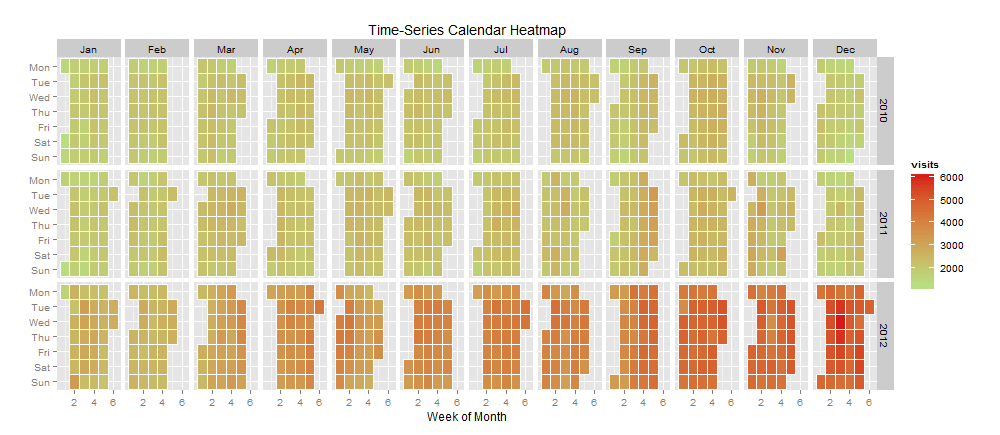
visits

As a data analytics consulting firm, we think we are fortunate that we keep finding problems to find. Recently my teammate found a glaring problem of not having any connector for R with Google. With inspiration from Michael, and Ajay O, it soon becomes a worthwhile problem to solve.

With the RGoogleAnalytics package now, we have solved the problem of data extraction into R from Google Analytics a new breed of ideas started emerging primarily around visualization. I have been playing with GGplot2 has been a great package to convert data into visualization. Thanks, Dr. Hadley Wickham. Once you have followed this blog post, you are with the code there in a position to have the data required to get these calendar heatmaps done. Take up the below-given code and paste it into the R console and play around to see if you find it easy to work thru. If you have trouble, feel free to reach out to us.

Here is the code for extracting the Google Analytics data using the R-google Analytics package. Before running the following code, download the RGoogleAnalytics package and install it.

#Load RGoogleAnalytics library
library("RGoogleAnalytics")

# Create query builder object
query

For this example of a Calender heatmap, I am using data from an e-commerce store with data for more than 2 years in business. I will be plotting visits as well as transactions on the calendar so that I’d get perspective on how they interact viz-a-viz timeline.

Here is the code for plotting the heat map after you get data and have it stored in ‘data’. This frame is used to reference the source of data for the visualization below.

# Recommended R version - 2.15.1 or higher 
# install required  library by using the command install.packages(“libraryname”)
# For example install.packages(“ggplot2”)
# Required library
library(“quantmod”)
library(“ggplot2”)
library(“reshape2”)
library(“plyr”)
library(“scales”)

# Set extracted data  to this data frame
data

Once you run the code, you will be in a position to get the output like the below:

Now that we have a calendar heat map for visits, let me pull it off for transactions. In the above code for Google Analytics data extraction, you have to use transactions as well as visits as metrics. Since the data is already available in the ‘data’. we are ready by changing in code of visualization to choose the heat map for the transaction now.

It’s quite interesting now that you can make super nice inferences as I did below:

  • Tuesdays have high visits days but Wed has been the day when most transactions occur.
  • Visits increase towards the end of the year (shopping season) and then slow down towards the year’s start.

Visualization is an interactive process. Based on the feedback received from some of our readers, I tried plotting both KPIs on the same graph. With ggplot2, it was as simple as adding a line of code. Again some minor tweaks in the background colors and we are ready with another heat map.

ggplot(data, aes(monthweek, weekdayf, fill = visits)) +
 geom_tile(colour="white") +
 facet_grid(year~monthf) + 
 scale_fill_gradient(high="steelblue",low="white") +
 theme_bw() + 
 geom_point(aes(monthweek, weekdayf, size=transactions,alpha=transactions),color="firebrick") +
 theme(panel.grid.minor=element_blank(), panel.grid.major=element_blank()) +
 labs(title = "Time-Series Calendar Heatmap") +
 xlab("Week of Month") +
 ylab("")


Would you like to understand the value of predictive analysis when applied to web analytics data to help improve your understanding relationship between different variables? We think you may like to watch our Webinar - How to perform predictive analysis on your web analytics tool data. Watch the Replay now!


Web Page Sequencing Analysis Using Google Analytics

Recently on a project, we were trying to implement the network path diagram and carry out an analysis with the website’s page sequence data to know if there exists a specific traversing pattern among visitors.

While there is a lot of visual representation available (such as Paditrack) of a sequence of pages visitor follows the real beauty is having a such sequence as row data to have them analyzed.

For example, if you know a specific visitor pattern is always observed before a visitor initiates the sale, it would be great to know that. If you know a specific content consumption results in visitors returning to the website the next day, it would be awesome for you.

By having data for sequences in raw format, you are aided with a tool that you can collect those data and eventually carry out such beautiful analysis.

We are using an anonymous visitor id for each visitor in one custom variable on the visitor level and set another custom variable on the page level to have the incremented counter value which is stored and accessed from the cookies.

Implementation:

  1. Download the script “Page Counter Script” from the JavaScript Resource section (PageCounter Script).
  2. Unzip the content and include the script on all the pages of your website.
  3. When you are done with the implementation on all pages of your website check with the implementation using “Omnibug” in Firefox or using the Developer tool in Google Chrome.
  4. Once you see the gif requests are made to the GA server and data would show under All Pages in Google Analytics.
  5. Don’t forget to create a different view to separate the page counter virtual Pageviews from the main view so that it does not affect the bounce rate.

Note: We have used one custom variable and virtual pageview as follows:

Custom Variable 5 Visitor Level Constant through the visitor-level cookie existence. Stores randomly generated anonymous visitor id
Virtual Pageview Page Level Page sequence counter stores page URL with sequence counter incremented by 1 on each visit of a page as a virtual pageview

How does it work?

  1. We initialize a visitor id in one custom variable which sets to visitor level upon first visit using the Visitor Id script and set a page counter cookie value to 1 and send it to GA using virtual pageview. You can download the Visitor Id script from the JavaScript Resource section (Visitor ID tracking). In our case “vid” is customVar5.
  2. Once the visitor browses through other pages in session; the page counter value is incremented by one and the value is submitted to GA using trackpageview or trackEvent call.
  3. On the next visit, the page counter cookie value resets to 1 and begins the new counter for the new session
  4. This page counter value and the page URL are sent to GA using trackpageview (Virtual pageview). Note: You can also use Events to send page counter data to GA using trackEvent.
  5. All the data can be extracted using GA API as mentioned below. Which can be used to represent the visual flow from a page to another page.

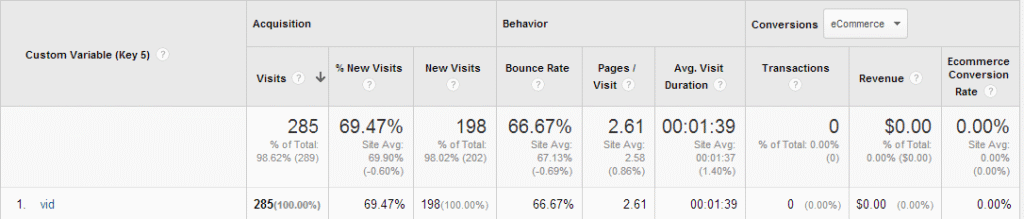
Google Analytics would show reports as follows:

Visitor Id Data:

Page Counter Data:


Note: it would show the above data only when using trackpageview. You can use event data for the calls made through trackevents.

Data extraction of the data collected:

Once the tracking is implemented on all pages and data is collected on the GA interface. You can use data query feed explorer from Google Analytics using GA API v3 or use our Excel plugin Data should be similar to the image below.

Reference:

  1. Visitor Id: Unique visitor id.
  2. Virtual pageview: Pageviews with the page URL and page sequence data.
  3. Visit Count: Visit count of a visitor.
Dimensions, Metrics, and Filters
Dimensions: ga:customVarValue5, ga:pagePath, ga:visitCount Note: Change the custom Variable number if you have changed while implementation
Metrics: ga:pageviews (Virtual pageview call to send page counter info to GA in the script)
or
ga:totalEvents (Event call to send page counter info to GA in the script)
Filter: ga:customVarName5== vid;ga:pagePath=@ /vp/pgc Note: if you have changed the custom variable names then please update here too.


How it is different from Page-Depth
Page Depth gives you a count of pages viewed by visitors in a session. Whereas Page Sequence gives you which pages a visitor visited in a session along with its sequence.

Benefits:

  • You can know how user follows through pages and can know the navigation trail easily.
  • You can find what are the pages which are important and makes users interact with your website
  • Helps you identify pages from where a user leaves your website if conversions are not happening. So that you can implement strategies to win your customers.

Want to implement this solution on your website and do the data analysis? Contact us

Anonymous Tracking of visitor using visitor id

Visitor Id reporting in Google Analytics

When a user visits your website and performs any activity involved with your website. i.e. viewing videos, purchasing products, requesting services that you may offer. Now in this competitive age it becomes necessary to keep up to the pace with the taste of your user base and constantly upgrading with your offerings. Using Google Analytics as a constant input always helps website owners to decide on the critical business needs, to grow or to reach to end user. Now if you can identify user’s behavior tagging them anonymously would give a detailed analysis which would give you additional advantage while fulfilling your user’s requirement.

For example, if an e-commerce owner would know that people from certain region prefer free-shipping and from other region they prefer using discount coupon codes and purchases more. While identifying such users would help website owner to create unique offers on his web store.

How to do anonymous tracking

Now we have come up with a small piece of JavaScript code that tags each visitor as a uniquely generated number and sets it into custom variable on visitor level and pushes it to Google Analytics. Once the data is collected in your Google Analytics profile. You can analyze these data for each user’s behavior, which would help you to create unique offerings from your website.

Solution

You can download the code “Visitor Id Tracking” from our JavaScript Resource section. Once you download the code you need to integrate it on your website using the instructions provided with it.

Note: This solution uses custom variable 1 on visitor level so make sure if you are already using custom variable on your site update the code accordingly to use available custom variable on your website.

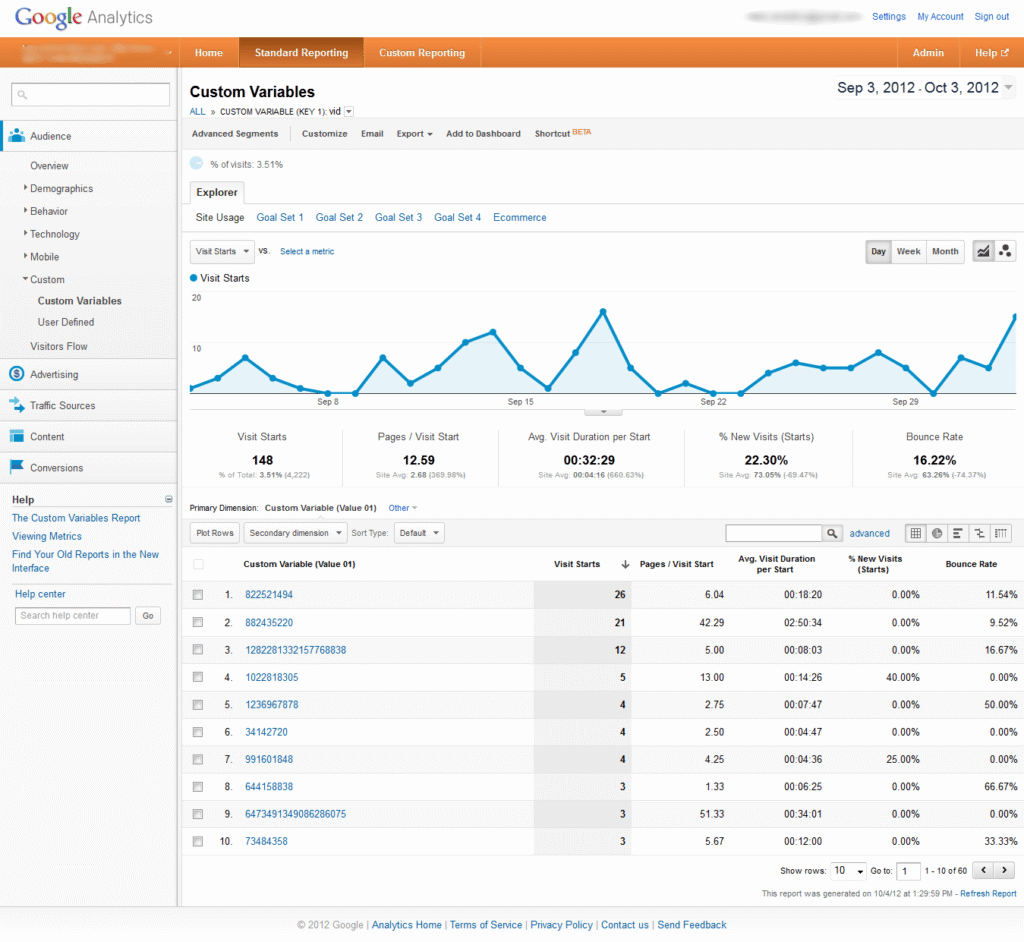
Once you have all the data collected you can view it in your GA interface like below:

Now you can either use GA interface to create different reports or extract data using GA API v3 and use the data for your next level of analysis.

Some use cases of implementation:

  • You can use this script to identify browsing behavior of your users.
  • You can know what kind of offerings works best on your e-commerce store and how individual user reacts to it.
  • You can create unique offers based on user’s behavior i.e. providing free shipping if you see constant drop after shipping calculations in checkout process.
  • Promote specific products for specific users.
  • Provide unique contents.

Want us to help you implement or analyze the data for your visitors. Contact us

Regression with Google Prediction API

Prediction API

Welcome to the last part. In the previous blog, we have discussed about the model improvement and seen the summary of the improved model. In this post, I will discuss about regression with Google prediction API, compare it with our regression model and predict the bounce rate. When I used Google prediction API on the our data set, I found  following  result.


Let’s understand result first. Id of the model is “a1”, model type is “REGRESSSION”, number of instances are 8488(i.e. data set contains 8488 rows) and most important result is mean squared error which is 704.82. Here, there is no information about the coefficients of the model. Then, question arise how to evaluate model? Don’t worry, I will explain.

In the first part, I have explained about cost and if the cost is minimum then model is better. Cost of Google prediction API result is calculated as the square root of the mean square error and it is 26.55. However the cost of our improved model is termed as residual standard error and it is 24.83. If we compare these two costs , then we can say that R regression model is similar to the Google prediction API model.

After understanding the relationships between the bounce rate and time components, let’s predict the bounce rate through regression model. R provides predict() function to generate prediction. Suppose we have following observation for a webpage

  • avgServerResponseTime - 0.427189189
  • avgServerConnectionTime - 0.007081081
  • avgRedirectionTime - 0.318081081
  • avgPageDownloadTime - 0.416432432
  • avgDomainLookupTime - 0.033351351
  • avgPageLoadTime - 3.395026316

R code to generate prediction is as follow.

>insert_frame<- data.frame(avgServerResponseTime=0.427189189,avgServerConnectionTime=0.007081081,avgRedirectionTime=0.318081081,avgPageDownloadTime=0.416432432,avgDomainLookupTime=0.033351351,avgPageLoadTime=3.395026316)
>predict(Model_2,insert_frame,type='response')
Output
50.14

Let’s check the prediction of the above observation with Google Prediction API. This is shown below.

From the above result, we can see that prediction for observation is 48.39 and it is similar to the our prediction model.

Would you like to understand the value of predictive analysis when applied on web analytics data to help improve your understanding relationship between different variables? We think you may like to watch our Webinar - How to perform predictive analysis on your web analytics tool data. Watch the Replay now!

Bot Icon
Bot Icon

Tatvic Bot

Explore About Tatvic and Services