Hello There!

Lorem ipsum dolor sit amet, consectetur adipiscing elit,

PHP code to check existence of Google Analytics on a webpage and extract UA-ID

snapshot_ga

Integration of Google Analytics (GA) code to a website is very easy. But what if you want to know whether a page has Google Analytics implemented or not?

One should have a clear understanding about how a Google analytics code looks like if it is implemented on any webpage.  Below is an example of GA script on www.liftsuggest.com

snapshot_ga

If you will observe few more pages, you will come to know that there are few common word phrases in GA’s script and it is obvious.   We will take advantage of it and presence of such words on a webpage will let us know the existence of Google Analytics. We will consider some of these words and they are,

  • ga.js
  • _trackPageview
  • UA-ID

If all these three words are present on a webpage, we can say that GA is implemented.

Why do we need to check whether GA is implemented or not?

Let’s think of a scenario. In most of the cases, if GA is implemented on 1 or 2 pages of a website, then the owner is aware about it.   But what if a website has many pages (more than hundreds or thousands) and they all must have GA implemented? How to ensure that every page is having GA implementation script? It is very important to get proper analytics data.

To track UA-ID and to know existence of GA for a single page, we have to follow some steps technically. Overview of such steps is as below.

  1. Set a url for which we have to extract Google Analytic’s UA-ID
  2. Grab content of the url using CURL
  3. Extract all the script tags of the content using regular expression (Because GA script is always implemented between <script> and </script> tags.)
  4.  Check for ga.js and _trackPageview in all <script> tag
  5. Extract UA-ID using regular expression
  6. Check whether all 3 word phrases are present or not.

From the overview, you will come to know that Knowing presence of GA is nothing but grabbing content of a webpage and firing some regular expression on the content. However, which regular expression should be used is very important.

How to do this using PHP code?

Code which follows previously mentioned steps is as below.

Create one PHP file and name it Ga_track.php. Write following code.

<?php

class Ga_track
{
    function get_ga_implemented($url)
    {
    $options = array(
        CURLOPT_RETURNTRANSFER => TRUE, // return web page
        CURLOPT_HEADER => TRUE, // don't return headers
        CURLOPT_ENCODING => "", // handle all encodings
        CURLOPT_USERAGENT => "Mozilla/5.0 (Windows NT 6.1; WOW64)", // who am i
        CURLOPT_SSL_VERIFYHOST => FALSE, //ssl verify host
        CURLOPT_SSL_VERIFYPEER => FALSE, //ssl verify peer
        CURLOPT_NOBODY => FALSE,
    );

    $ch = curl_init($url);
    curl_setopt_array($ch, $options);

        //2> Grab content of the url using CURL
    $content = curl_exec($ch); 
   
    $flag1_trackpage = false; //FLag for the phrase '_trackPageview'
    $flag2_ga_js = false; //FLag for the phrase 'ga.js'

    // Script Regex
    $script_regex = "/<scriptb[^>]*>([sS]*?)</script>/i"; 

    // UA_ID Regex
    $ua_regex = "/UA-[0-9]{5,}-[0-9]{1,}/";

    // Preg Match for Script
    //3> Extract all the script tags of the content    
        preg_match_all($script_regex, $content, $inside_script); 
    //4> Check for ga.js, analytics.js, gtag() and _trackPageview in all <script> tag
    try{
        for ($i = 0; $i < count($inside_script[0]); $i++)
    {                               
        if ((stristr($inside_script[0][$i], "ga.js") || stristr($inside_script[0][$i], "function gtag()") || stristr($inside_script[0][$i], "analytics.js")))
            $flag2_ga_js = TRUE;
            
        if (stristr($inside_script[0][$i],"_trackPageview")||stristr($inside_script[0][$i],"gtag('js', new Date())")        
        || stristr($inside_script[0][$i], "ga('send', 'pageview')"))
            $flag1_trackpage = TRUE;
            
    }
    }catch(Exception $e) {
        echo 'Message: ' .$e->getMessage();
        print "error in identifying the snippet";
      }

    // Preg Match for UA ID
    //5> Extract UA-ID using regular expression
    try {
        preg_match_all($ua_regex, $content, $ua_id);
        //6> Check whether all 3 word phrases are present or not.       
        if ($flag2_ga_js && $flag1_trackpage && count($ua_id > 0))
            return($ua_id);
        else
            return(NULL);
    } catch(Exception $e) {
        echo 'Message: ' .$e->getMessage();
        print "error in pregmatch";
      }
    }

}

$ga_obj = new Ga_track();
//1> Set a url for which we have to extract  UA-ID
$url = "url for which we have to extract ID "; 


//===========Block 2===========//
/*You can also make array here from database as below,
set_time_limit(0);
$urls=array();
$con = mysql_connect("localhost","username","password");
if (!$con)
  {
  die('Could not connect: ' . mysql_error());
  }

mysql_select_db("database", $con);

$result = mysql_query("SELECT url_field FROM table");

while($row = mysql_fetch_array($result))
  {
  $urls[]=$row['url_field'];
  }
mysql_close($con);

foreach ($urls as $url)
{
    Copy block 1 here.
}
*/
//===========Block 2 over===========//

//===========Block 1===========//
try{
    $ua_id = $ga_obj->get_ga_implemented($url); //Call to a function to extract details
}catch(Exception $e) {
    echo 'Message: ' .$e->getMessage();
    print "error in the function to extract details";
  }
print_r($ua_id);
if ($ua_id == NULL)
{
    echo "<br/>Google Analytics is not implemented";
}
else
{
    echo "<pre>";
    print_r($ua_id);
    echo "</pre>";
    echo "<br/>Google Analytics is implemented.";
}
//===========Block 1 over===========//

?>
If you have multiple pages, you can store them in database or in an array and use previously mentioned steps in a looping manner by extracting each page from database. (Block 2)

You can suggest more cases where we can use this solution or Please feel free to reach out to me if you have faced such case and want solution related to this.

 

How to use GA URL Query Strings & Parameters to track a Site’s User Behavior?

event action data

One of our client has an e-commerce store which sells mobile phones. We suggested to enable query parameter event tracking so that they can identify what brands of mobile visitors are looking for most.

For all websites which are having non-SEO friendly URLs or URLs which have query parameters to control the website’s content dynamically, it’s important to know how user is navigating through the site.

We can track such parameters with human friendly information in GA interface that can be used in many ways.

How we did it?

In the case of the mobile phone selling website, we uploaded a small javascript file which split query parameter string in array and we tracked required parameters with event tracking.

After we did it for our client, we decided to keep it open for all. Here’s how you can achieve it too:

How you can use it?
  1. You can download the script.
  2. You may need to modify the script for the parameter “name” in switch case to assign with appropriate assignment of “Event Category”, “Event Action”, and “Event Label” values. Additionally you may append multiple parameters in one category/action/label to include more than 3-4 parameters at once. Note: Appropriate group of category, action and label value will be needed for helpful GA reporting.
  3. Include the javascript after your asynchronous GA code and before the </head> tag of your pages.
  4. You’re done!!

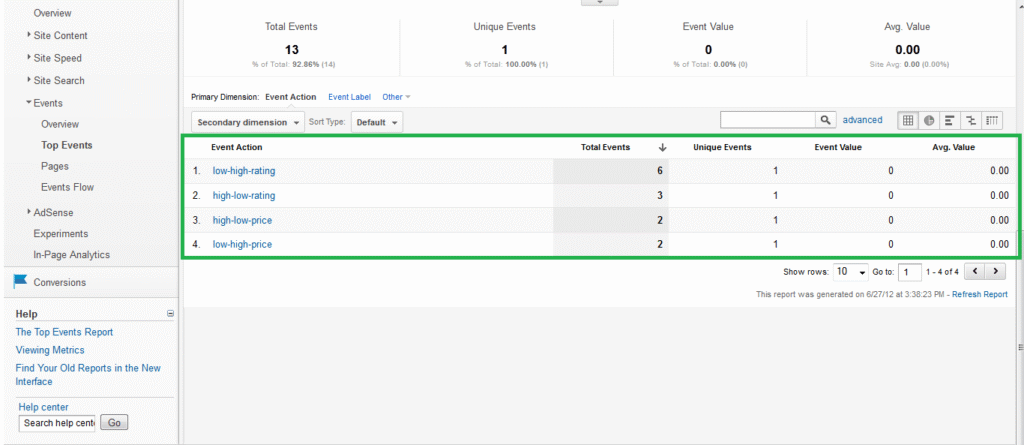
Here are some sample screenshots of the data collected in GA interface for a test on our client’s site.

URLs which were parsed with script are:

  1. products.html?category=mobile&sort=high-low-rating&type=os
  2. products.html?category=mobile&sort=low-high-rating&brand=samsung
  3. products.html?category=mobile&sort=high-low-rating&brand=sony


1. Event category data

2. Event Action Data

3. Event Label Data

With the help of additional enhancement in query parameter tracking, we were able to identify what kind of phones users are looking for. Additionally we got to know what brands and price range user is looking for over other phone categories.

Let us know in comments how this script helped you.


How to fix: Google Analytics Excel add-in reporting skewed data for “Time on site”

Avg. time on site formula

If you are using Google Analytics API or any other third-party Excel Add-ins that use the API, you might have faced some issues. e.g., reporting of values in different formats as compared to reports from the GA web interface.

One common issue is also observed where the average time on site is presented as a skewed number which we cannot understand. This happens when we extract reports from Google Analytics API or Excel add-ins.

In this post, we’ll discuss how to identify the different formats of the “Time on site & Avg. time on site” value in Excel Add-in and GA web interface and convert it into proper time(“hh:mm: ss”) format.


The problem
Let’s take a case for example.
Google Analytics API returns the “Time on-site” and “Avg. Time on site” values as total seconds (i.e. 616625 instead of “3:17:05”). For example, I am using the Tatvic Excel Add-in for generating the Google Analytics reports. Here, I am generating a simple report which contains the dimension “Medium” and metrics as “Time on Site” & “Avg. Time on Site”. So this will return the result as shown in the screenshot below (the “Medium” column is not shown here).

Because Google Analytics API will return the Total no. of seconds spent on the site instead of the “h:mm: ss” format like the GA web Interface presents (as shown in the screenshot below).

So while we are dealing with the API response in Excel, we must need to format the values of “Time on-site” and “Avg. Time on-site” using Simple Excel formulas and format.

Solution
The above values are just numbers for any user until it’s not in a proper format. Now, we will format the values using simple steps:

  1. Convert values into hours
  2. Format value in “h:mm: ss”
  3. Apply the formula and format to all the cell values
    1. Convert values into hours

Apply for both, “Time on site” & “Avg. Time on Site”:
In a new column next to the “Time on site” & “Avg. Time on site” columns, select the first cell in the column and apply the following formula:

=(Cell Address of the time on site)/86400
Or
=(Cell Address of the time on site)/60/60/24
Here, 86400=24*60*60 (Because, 24hr in a day, 60 minutes in an hour, and 60 seconds in an hour).

For Time on site:

For Avg. Time on site:

    1. Format value as “h:mm: ss”

Now, Format the cell using the “Custom” cell format as shown below:

      • Right-click on the Cell and select “Format Cells”, which will open a window as shown in the screenshot below.

      • Now select the “Custom” category and find the “h:mm: ss” format from the “type” list. Select the “h:mm: ss” format and click on “OK” which will format the cell as shown in the screenshot below.

Formatted cell value

    1. Apply formula and format to all the cell value

Now select the cell of the new “Time on site” copy the value by “Ctrl+C” and paste it by “Ctrl+V” on a full column of the new “Time on-site”. Now apply the same thing for the “Avg. Time on site” even, which will result as shown below:

That’s it.

Here “Time on site and Avg. Time on site” are formatted as you get results in the Google Analytics User interface.

If you are facing any other issue like this with Google Analytics reporting via API or Excel Add-ins, then feel free to post here as comments or send a mail to sachin[at]tatvic[dot]com.

Would you like to reduce the amount of time you usually spend on data extraction from your Google Analytics / Google Adwords account? We think you may like to watch our Webinar - How to Simplify and Automate the data extraction process using Tatvic Excel Plugin. Watch the Replay Now!

Ruling the 3 seconds rule for improving usability of your website

mproving usability of your website

mproving usability of your website


What’s this 3 seconds rule for web?

Just Google it and you’ll get plenty of blog posts about it.

Basically, it matches with the 5 seconds rule for food. The way a dropped food is considered stale after 5 seconds, it happens for a new user on any website. Studies say that a new user spends only 3 seconds on a site to find what he wants, and hops on to another. Obviously no site wants to be the one. You can achieve this by improving usability of your page/website.

From Google, you’ll get a lot of tips for achieving this. But it’s important to know the methodology to get the page ready for 3 seconds rule. I will get in to why these tips are important and good practices for them.

Speed, the first and the best

There’s no reason why a new user will stay on a page if it takes beyond 3 seconds to load. You’ve got just 3, the more you save, the more convincing you can do. Improving usability is not limited to changing the design. While designing or re-designing, make sure that your page is on diet!

Focus on the first fold, it can make it, or break it!

The user will make his first decision to stay on the site by seeing whatever he can on his screen without scrolling down. The first fold is the only place to justify those 3 seconds. Other things work to keep the user on the page for more time towards the sale or conversion.

In the first fold:

Now, let’s talk about things to take care of in the first fold.

  1. Pleasant design

    After landing on the page, looks is the first thing to create interest. Visuals talk better than words. A cool looking and (especially) working design builds a trust in user’s mind that there’s a good company behind this website. Would you buy a Rolex watch from a hawker? Vibrant colors, big fonts, neat & clean layout, and optimum usage of white space are things to take care of while designing. Here’s a design I liked while surfing randomly today:

betternow

What’s in it for me factor

This question is there in every user’s mind from the moment he gets on a page. This question can be answered via many elements. e.g., tagline, headline, main communication, an enticing banner or just a logo, or by all of them. The list is below:

  1. Clear messaging
  • Prominent logo - The company logo is the identity. It has to be the first thing to be seen on the page. A well-designed and prominent logo tells a story.
  • Simple and crisp tagline - Sometimes, an intuitive tagline is enough to keep the user glued for more stuff. Check this tagline from Zendesk. The moment you land on the page and locate the logo, you see the purpose of the website right there.
  • Easy to understand headline - Headlines are great things to extend the tagline. Sometimes, it does the job of tagline as well. It can be a one-liner, or max. 2. 37signals does this job perfectly. It doesn’t need the tagline with this communication:

  1. Main communication

    This element communicates website’s business. This can either be the headline itself, or a good looking banner with 2-3 lines.

    Checkout a clear headline which works as tagline/headline/what’s in it for me factor.

  1. What does it offer

    You can either talk about the benefits first as the what’s in it for me factor, then explain product features, or directly explain the product as what’s in it for me factor.

    The page for iPhone communicates both points 4 & 5 above together, smartly with big product images. The product has such strong features, that it’s enough to get clicks.

  1. Call to action

    A great call-to-action does the job of extending those 3 seconds directly towards sale/conversion. If your call-to-action on the page is something like “Go” or “Submit”, then it’s better to have no call-to-action. An abstract call-to-action is a strict no. It’s not just a button; it should be used to explain what’s inside.

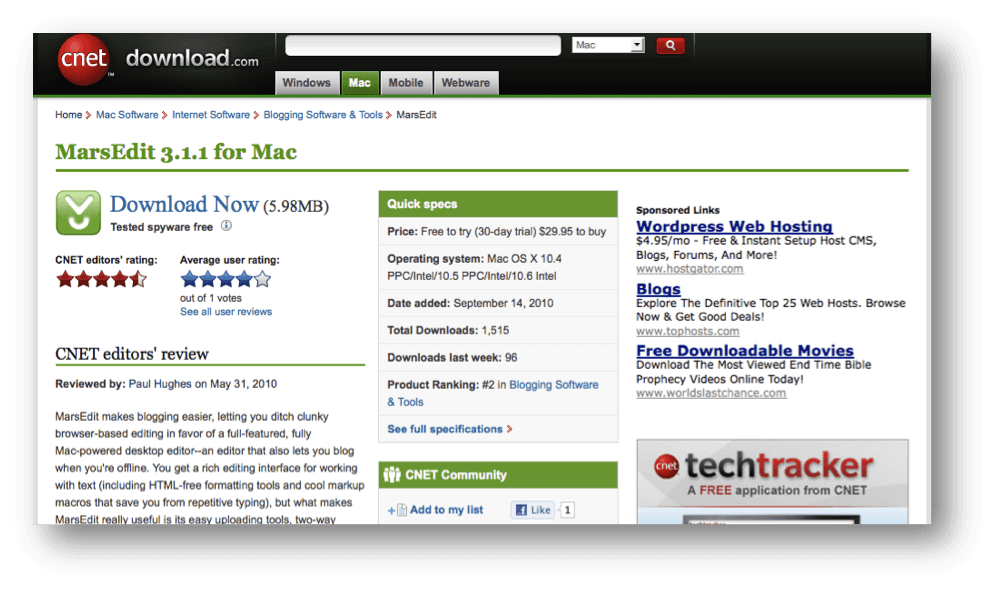
See the above design. Call-to-action is the brightest thing on the page, with “Free Download” message and OS requirements.

Just take care of these tips to make the user stay for more or perform an action. Yes, it’s important to follow other tips but the thing above should be on priority to beat the 3 seconds rule.

Beyond 3 seconds

After those 3 seconds, these are the things to take care of to get the user to start the shopping process, know more about the service, or at least stick for more time and come back again.

  • Building trust - After earning some trust in 3 seconds, it’s time to build it by these elements:
    • Testimonials
    • Product features
    • Celeb quotes
    • Social proof
  • Next steps - Now get the user to do more by serving more material to perform next actions towards the sale:
      • How it works
      • Why…
      • Pricing plans

Improving usability should be a primary thing for all website owners before spending in ad campaigns to get more visits. It’s great to generate thousands of ad clicks to the page/website, but even 1% improvement in conversion rate or bounce rate can save a lot of money to buy more visits!

Google Analytics Cross Domain OR Multiple Domain Tracking - Automatic

Google Analytics cross domain tracking

During the last several years if we have found one big problem that a lot of users face is Google Analytics Cross domain tracking OR Google Analytics Multiple Domain Tracking & how to handle pushing cookies to different domains or sub-domains. The reason for this is large corporates would have many websites for the same purpose and have several subdomains catering to specific needs. Often the solution is to get the cookie’s value passed via URL. At times such problems can be solved by structuring multiple trackers, but not always. This blog post aims to provide a solution to automate the cookie value passing via form or link using Jquery.

Why do we need cross-domain tracking?

Google Analytics cross domain tracking

Take a look at the above image, which represents a case when a visitor lands on the page xyz.com and he navigates to subdomain.xyz.com or abc.com and/or submits information on the form which is passed to abc.com. Here, Google Analytics cross-domain tracking is not enabled and all the websites are tracked under the same UA id of Google Analytics. One would not be able to visualize the data and would have duplication of data for the same visitor across all the domains.

What is required to enable cross-domain tracking?
  1. We require all domains, subdomains, and 3rd party domains tracked under 1 UA ID
  2. Use _setDomainName “none” - to enable cookie information to be passed across all domains, subdomains, and 3rd party domains.
  3. Use _setAllowLinker “true” before the call of _trackPageView
  4. We require all links and forms which are interconnected to the main domain/sub-domain or 3rd party domain appended with _link() or _linkByPost() function

Above steps would enable you to set up your Google Analytics for Multiple domains & Across different subdomains tracking under one UA id (UA-XXXXX-XX)

Now, one would need to update all links with the _link() function and all forms with _linkByPost() which are passing information to other domains. It will be a supremely time-consuming job to implement and verify through all domains. A quick easy solution is automated appending cookie values to all external domain links and forms.

Automated cross-domain/Multiple domain tracking for Google Analytics

Now, we have come up with an automated process to enable passing cookie information to all such links and forms which are external domains i.e. sub-domains or 3rd party domains.

Here are the 3 simple steps that you’ll need to do.

  1. Include Jquery javascript library reference
  2. Include default Google Analytics asynchronous tracking code with _setDomainName “none” and _setAllowLinker “true”
  3. Include the crossdomaintracking.js  - Download the crossdomaintracking.js

Your code will look like this.

<script type='text/javascript' src='http://code.jquery.com/jquery-1.7.min.js'></script>

<script type="text/javascript">
var _gaq = _gaq || [];
_gaq.push(['_setAccount', 'UA-XXXXX-X']); //set your account profile id
_gaq.push(['_setDomainName', 'none']); //set domain name none
_gaq.push(['_setAllowLinker', true]);
_gaq.push(['_trackPageview']);

(function() {
var ga = document.createElement('script');     ga.type = 'text/javascript'; ga.async = true;
ga.src = ('https:'   == document.location.protocol ? 'https://ssl'   : 'http://www') + '.google-analytics.com/ga.js';
var s = document.getElementsByTagName('script')[0]; s.parentNode.insertBefore(ga, s);
})();

</script>

<script type="text/javascript" src="crossdomaintracking.js" ></script>
What will crossdomaintracking.js do?

It will automatically identify all external multiple domains from a given page i.e. if you are on the page xyz.com and links of subdomain.xyz.com and abc.com would be appended with _getLinkerURL function of ga.js and it will append cookie information such as

http://subdomain.xyz.com/index.html?__utmb=….&__utmv=….&_utmk=88886746&__utma=1.789654.321654987…&utmz=..

Requirement

A Jquery Framework (If you are already using a jquery library you don’t need to copy the jquery library reference)
The script needs to be pasted through all pages of your website, where you want to track external links and mail to links.

Note:

When you use it with multiple javascript frameworks necessary safeguard needs to be added for the code. If you are using javascript functions to redirect to external links it wouldn’t work.

Feel free to write your feedback if you have any about it and let us know if we can improve it for you!


How to Integrate Google Search Console with Google Analytics?

Google Analytics - Top Countries Report

Being Web Analytics consulting firm, we know the value of either implementing or integrating Google Analytics with third party tools i.e. Google Webmaster, SEOMoz etc. for getting better insights. So we actively write posts for different Google Analytics Integration like the previous one for Google Analytics Integration with SEOmoz.

As we know google announced earlier this year integration of search engine optimization reports in Google Analytics. Hence Google made publicly available Search Engine Optimization reports in the Traffic Sources section of Google Analytics.

Let’s see what we need to do to integrate Search Engine Optimization Reports in Google Analytics

Step 1 - For enabling Search Engine Reports in Google Analytics. First you’ll have to click on button “Setup Webmaster Tools Data Sharing” as demonstrate in below image.

Step 2 - You’ll have to edit Web Property Settings to enable these Search Engine Optimization reports for a web property. Click on Edit to select the website that you want to configure in google analytics.

Important to note that for this integration, You’ll have to be Webmaster Tools verified site owner and a Google Analytics administrator of that Website. you can just check the google account of webmaster tools and add it to Google Analytics’ admin user to ensure that integration is possible. there after you can choose which profiles can see these reports.

Step 3 - In the next steps you will be asked to select specific web property & associated profile(s) to be integrated with webmaster tool. After selecting a google analytics profile & Web Property, setting will look like below image. After that you’re done with Google Analytics Setup.

Quick Glimpse on Search Engine Optimization Reports

Search Engine Optimization Reports offer google analytics advanced filtering and visualization capabilities for deeper data analysis. You can also use secondary dimensions to analyze your data in google analytics. Isn’t it amazing?  Below details are avail for deeper data analysis.

Queries - This report shows impressions, clicks, position, and CTR info for the top 1,000 daily queries.

Landing Pages - This report shows impressions, clicks, position, and CTR info for the top 1,000 daily landing pages.


Google Analytics - Top Landing Page url

Geographical Summary - This report shows impressions, clicks, and CTR by country.

If you’ve any suggestion or feedback on Google Webmaster Tool Integration with Google Analytics, then you can comment here in comment section.

Testing Landing Pages, The best way to increase Conversion rate

cnet
Are you testing your landing pages? It’s the best way to increase conversion rate and understand user behavior. This post takes on basics of A/B testing. After reading, you can contact us for a Free A/B Test campaign.

Is your Landing page really doing good? can it be better?

You must have heard someone saying, “wow, that’s an awesome Landing Page.” How awesome? Are you sure that the conversion rate you are getting on your current Landing page is the best? Are you carrying any A/B testing on  it? No? Then I doubt how do you say that.

On Internet, the same user changes his behavior from one web site to other. I might look for girls on Facebook with the purpose of dating, but i won’t do that on Linked in. I’ll become a serious guy in the latter, even if the same girl is there on both the sites. You can either change your site according to the user behavior or change the user behavior as per your site. The latter is very challenging but gives rewards.

e.g. On facebook, every 15 days you see a change, may be profile updates are changed in to news feeds. you don’t question it and change the way you surf facebook and remember it next time. ofcourse the changes are made keeping user in mind, but they tend you to change your behavior.

e.g. while on gmail, they knew that people have a lot of junk mails which don’t go to Spam folder, so they introduced Priority Inbox.

In both the cases, users are happy. It depends on which way you want to chose.

Any way you chose, but to see whether users are behaving the way you want them to, you’ve got to test your pages. Test your pages with variations.

How it  works?

in A/B tests, 2 versions of the same page are tested among 2 groups of users at the same time. All your users are split in two on random basis and are served the page they are selected to see. When they perform an action and land on a conversion page, it forms a conversion. It’s necessary to have only one conversion page for all version you are testing. A conversion page is normally a Thank you page for authenticating the action just performed. A conversion here can be just a click, or download, or a form fill.

How many pages can I execute A/B test at once?

Test 2 pages or 10, up to you. The thumb rule is  “the lesser pages you test, the quicker results you get”. Sites with huge traffic might see results in a few days.


These are the variations you should test:


Call to actions


Free download

Call to action can be a Text or a Button. Anything that tells a user to do something is a call to action. These are the things you should test in call to actions:

- Text - Test text variations.

e.g., “Buy now” vs “Add to cart”, “Free Download” vs “Get it free”, “Fill up this form” vs “Register here”

- Buttons colors

Some colors attract users more. But it depends on the background to foreground combination. Also depends on the Target Audience. Red button on a Travel site might not do well. But it might do great on a Music site.

e.g, red vs yellow

- Buttons and text - See if Buttons or Text is performing better.

A/B Testing for Sign up Forms

A/B Testing - Twitter

Form is the second most important thing on a Landing Page. It gets you more Form fills just a small change.
- Position - Change the position. Test Left vs Right, Horizontal vs vertical.

- Split - If you have a long form, Try splitting a log form in to 2-3 steps and justify each step. Then test Normal vs Split.

- Size - Drop some fields you think are not so important and can keep users from filling in. Try removing any “not so important fields”. Test Long vs Short.

A/B Testing for Header text

A/B Testing Sharekhan

Header does a very good job grabbing users attention. Always keep the header simple, descriptive and as short as possible.

Test different text in the header. e.g. “Great deals on Movie tickets” vs “Cheapest movie tickets in town”, “Great articles on Google analytics” vs “Google analytics at its best”

A/B Tests for Images / Banners

A/B Tests - Jet

Images are very easy to engage users. Sometimes, it helps convert more with a minor change in communication or call to action.

- Image size - it might happen that a smaller image with some breathing space might increase clicks by a good number. Sometimes, a bigger image can bring more users. Test sizes.

e.g., Small vs Big, Horizontal vs Vertical,

- Communication / Call to action - The call to action can be tested same as described above. The communication can be tested for variations of influential lines.

e.g., “Tack visits easily” vs “The best way to track visits”, “Great shirts at great prices” vs “Best deals on shirts in town”

It’s not necessary to test all the features of an object. Test one at a time. For testing features of call to action, test Text first, then test Button colors, and then Buttons and Text.

What types of Pages can be tested?

Any page where some action from the user is required. Here are examples:

Download page

cnet

A download page for software, articles, books, videos or photos.

What content to executing A/B test on :

Call to actions

Position of the button

Images if any. if there’s no image, try putting one.

A/B test on Lead generation page

mailchimp


Sign up page with a form for a website or free trial for a product. Or A lead generation page for a product trial or a bank account.

What to test:

Button

Header of the form, Position and size

Images


Product page

ipod

Page for a particular product display. Or a multiple product page. e.g., A T-shirt or an MP3 player.

What to test:

Button

Call to action

Images

Likewise, there can be many other pages and Variation you can test. But most important, Please test.

A/B Testing Tools

The most widely used tool is Google web optimizer. It’s free. There are other Free and Paid tools available, but when Google does the best job, why go anywhere else. However, for paid tools you can learn our review on new A/b Test tools.

We at tatvic are specialized in Conversion rate optimization projects and A/B test is our love. And to spread the love, we are offering 3 FREE A/B tests a month. You can be the lucky one to grab one. Doesn’t matter even if you test your pages, there’s no harm in trying for free. If you have never test your pages, then you have no right to wait,

Register for a FREE A/B test now!


Happy Testing!

How do you pass your online discounts

Recently, one of our e-commerce client requested that he would want to pass on few discounts in order to increase the revenue. We didn’t really had lot of time to analyze the market and plan what to offer and he already had something to offer in his mind. Then she was going to just put it on its website and doh done !!

at 1 AM morning here in India , we requested client to wait for 2 more hours before putting the offer into production. We just looked at google analytics for first hour, luckily we had set up google analytics very nicely for them. We found that

  1. The visits that coverts were mostly from returning visitors.
  2. The visits that converts were mostly between 2 PM to 10 PM on the local time.

That’s it pretty simple with google analytics and its advance segment features. So what happened after-wards ? See here is what we got. really nothing fancy , just a 5 grader !

We requested client to shed the offer budget by 30% and put it in buying some more traffic from Pay per click campaigns. We also wrote a quick piece of code which will only display offers/discounts between these hours and that’s it. It did not take really long.

The entire work got done at about 6 AM here in Bangalore and boh we were good. About 4 hours.

What are the results ??

  1. The campaigns brought about 10% more visits to the website
  2. The conversion rate dipped a little but it was offset by extra visits that we bought from PPC
  3. The net profit from this entire operation was about double the similar offer that they had ran earlier. In quantity it matched about $3500 of net benefit in 4 hours !! Whoppa !!

Thats the game ! more than money , it gives immense pleasure to see such results.

Guys, if you are really providing any discounts and offers please do check for the such things.Because, you do have consumers in the market who are willing to pay for your products/services happily. You only want to offer discounts to the guys who are sitting on the sidelines.

If it takes 4 hours to us to get such a great results, even if it takes about a day to do it, I guess its more than worth it.

Have you done such analysis in past ? can you try now ?

Bot Icon
Bot Icon

Tatvic Bot

Explore About Tatvic and Services