GA4 Data Manager API vs. Measurement Protocol: Which Should You Use?
Sending server-side events to Google Analytics 4 (GA4) can help bring online actions, CRM updates and offline conversions into your measurement setup. But choosing how to send those events matters.
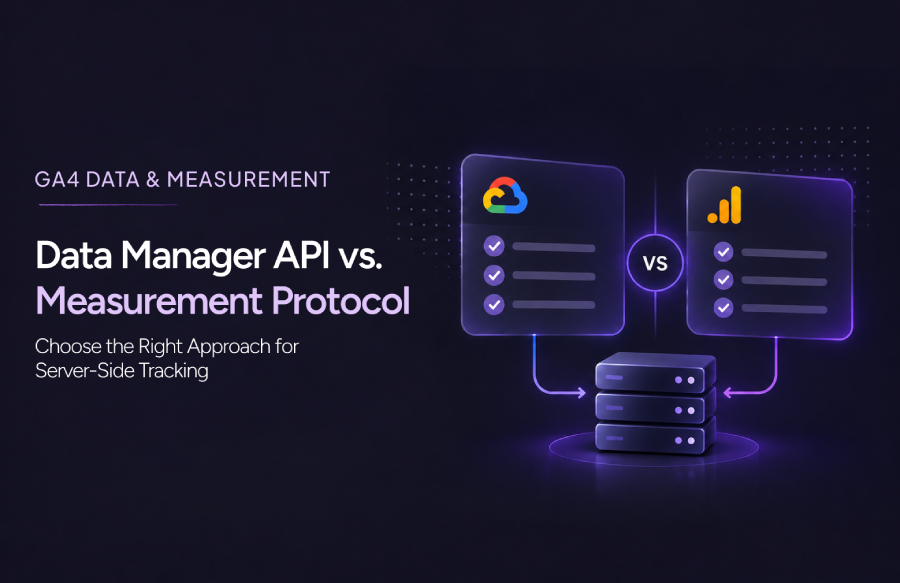
The Google Data Manager API and GA4 Measurement Protocol both support server-side event collection, but they differ in authentication, request limits, validation feedback and how you monitor processing.
This guide compares both approaches, explains when to use each, and walks through the practical considerations involved in implementation, migration and troubleshooting.
Quick Answer: Data Manager API or Measurement Protocol?
- Choose the Data Manager API when building a new server-side event pipeline that benefits from structured validation, larger batches or multiple destinations.
- Keep Measurement Protocol when an existing integration meets your needs or depends on functionality that is not available through the Data Manager API.
- Use both during a migration when you need to transition existing event feeds gradually, with clear ownership and duplicate-event safeguards.
The right choice depends on your event volume, integration requirements, access to Google Cloud, and how much visibility you need into processing errors.
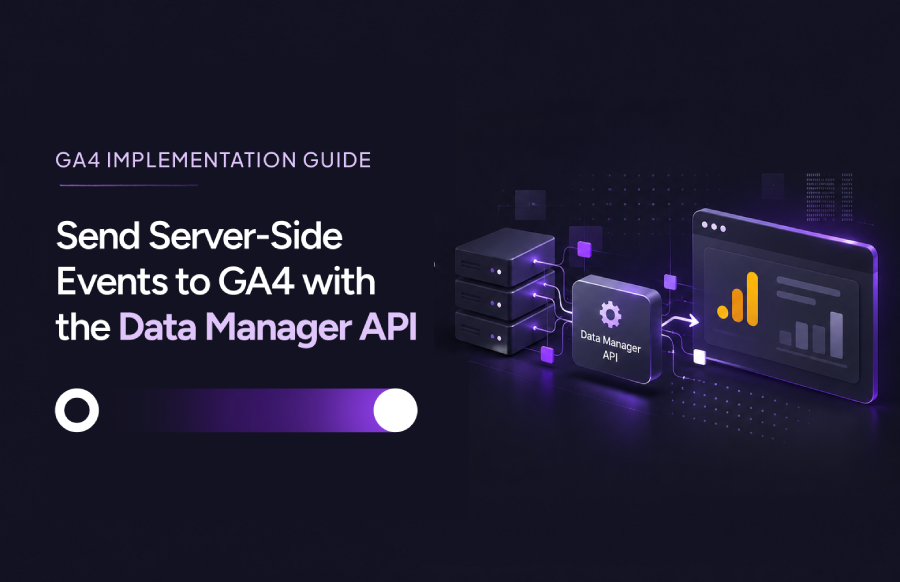
For a step-by-step implementation walkthrough, read our guide to sending server-side events to GA4 with the Data Manager API.
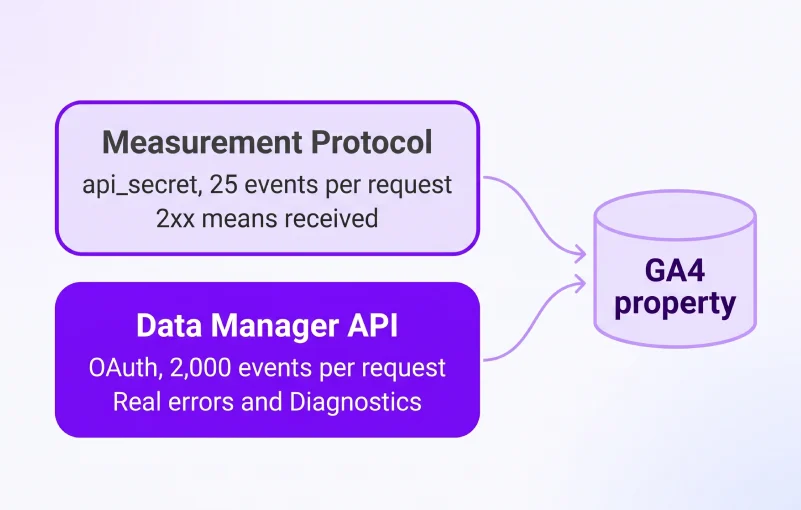
What Is the Data Manager API?
The Data Manager API is Google’s single endpoint for sending first-party data to its advertising and measurement products. For GA4, it lets you send events from your server, CRM or offline systems straight to a GA property. Events go to POST https://datamanager.googleapis.com/v1/events:ingest, and you check the result through a separate status endpoint, requestStatus.retrieve.
In a typical Measurement Protocol setup, you post a small batch of events with an api_secret and hope they were accepted. With the Data Manager API, you authenticate as a service account or an OAuth user, send up to 2,000 events in one request and get back a request ID you can trace. Errors come back as real HTTP errors.
The cost is extra setup: an OAuth and Google Cloud layer means credentials and access to manage.
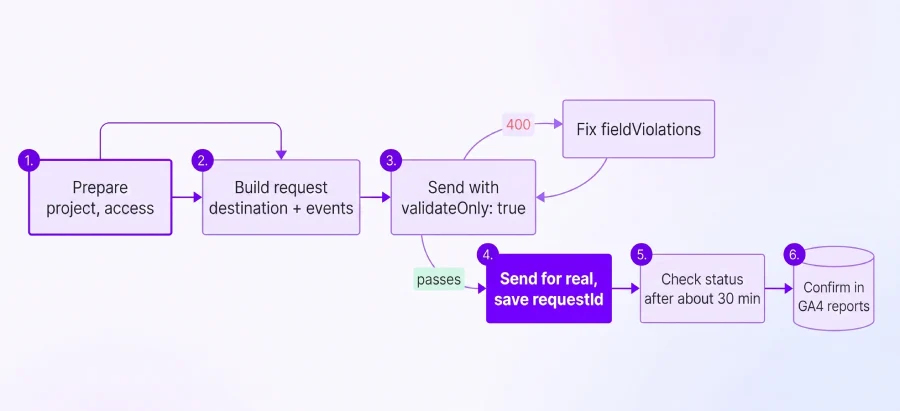
How the Data Manager API works
- Enable the Data Manager API in a Google Cloud project.
- Give the calling identity (a service account or a user) Editor or Administrator access on the GA4 property.
- Build the request: a destination (GA property ID plus Measurement ID or Firebase App ID), plus the events.
- Send it first with validateOnly: true. Nothing is ingested, but you get the same checks as a real send.
- Send it for real and save the requestId from the response.
- Check the request status starting about 30 minutes later. Processing can take up to 24 hours. Then confirm the events in GA reporting.
Key benefits of the Data Manager API
- Real error feedback: Invalid requests fail with HTTP 400 and a field-level explanation. Diagnostics report what happened after ingestion. You are not guessing why events are missing.
- Larger batches: Up to 2,000 events per request, compared with 25 for Measurement Protocol. A nightly batch of 50,000 events becomes 25 requests instead of 2,000.
- Multiple destinations: One request can reach up to 10 destinations, such as a web stream and an app stream.
- Online and offline in one place: Tie offline events like refunds and CRM leads to the same user using the web clientId or the app appInstanceId.
- User data support: Hashed identifiers such as email and phone can be sent with encryption supported.
Data Manager API vs. Measurement Protocol: Key Differences
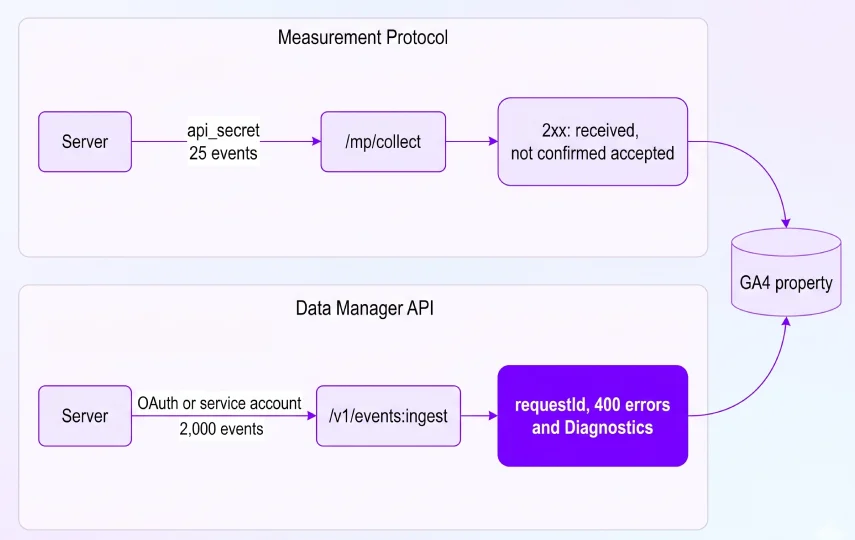
Both routes deliver server-side events into GA4, so they overlap more than they compete. The Data Manager API adds authenticated, validated, batch-friendly ingestion. Measurement Protocol stays simpler to start with. They are not direct substitutes where a feature exists in only one of them.
| Comparison area | Data Manager API | Measurement Protocol |
|---|---|---|
| Best suited for | New or more complex server-side event pipelines | Existing or straightforward integrations |
| Endpoint | POST /v1/events:ingest on datamanager.googleapis.com | POST /mp/collect on www.google-analytics.com (EU: region1.google-analytics.com) |
| Authentication | Service account or OAuth user token with the datamanager scope. That identity needs Editor or Administrator on the property | api_secret in the URL, plus measurement_id (web) or firebase_app_id (app) |
| Events per request | 2,000 | 25 |
| Rate limits | 300 requests/min and 100,000/day per Cloud project for ingestion writes | None published |
| Validation | validateOnly: true, HTTP 400 field errors and Diagnostics | Live endpoint: a 2xx response confirms receipt only, even for malformed payloads. Detailed validation messages come from /debug/mp/collect |
| Errors and retries | Real HTTP errors (400, 429). Retry only transient 5xx | 2xx means received, not accepted. Do not retry the same request |
| Destinations | Up to 10 per request | One data stream |
| User properties | Sent inside an event | Up to 25 per request |
| Per-user-property timestamps | Not supported. The event timestamp is used | Supported |
| User data encryption | Supported | Not supported |
The key takeaway: Measurement Protocol tells you a request was received. The Data Manager API tells you whether it was accepted, and why not when it was not.
Neither route guarantees complete data. Both follow GA4 naming rules (event names up to 40 characters, 25 parameters per event) and the same 72-hour backdating window. Outcomes depend on your identifiers, timestamps, consent configuration and validation.
Quotas are set per Google Cloud project, not per GA property. Google’s limits page documents no higher quota for Analytics 360 properties and no increase process. A 360 property and a standard property sent from one Cloud project share the same pools.
Data Manager API or Measurement Protocol: Which Fits Your Setup?
The right choice depends on your current integration, your team’s access to Google Cloud and what you need to learn from failed requests.
Choose the Data Manager API when:
- You are building a new server-side purchase or lead feed. Google says new functionality launches on the Data Manager API only.
- You send large batches, such as a nightly file of 50,000 events.
- The same conversion needs to reach GA and another Google product in one request.
- Events carry hashed email or phone, and you want encrypted user data support.
- You need to find out why events were dropped, with error codes and Diagnostics.
- You can run a service account or OAuth credentials.
Choose Measurement Protocol when:
- You have a working integration with simple events and no pain points.
- You rely on per-user-property timestamps, which the Data Manager API does not support.
- You need to set a user property with no event. In the Data Manager API, user properties travel only inside an event.
- You want a quick test with only an api_secret, with no OAuth or Cloud project.
Event ingestion is only one stage of the measurement process. See our guide to what happens to GA4 data between collection and reporting to understand where data quality issues can emerge across the pipeline.
Can You Use the Data Manager API and Measurement Protocol Together?
Yes. Both can run side by side on one property. A common pattern is to keep an existing Measurement Protocol feed for simple events while moving new purchase and lead feeds to the Data Manager API.
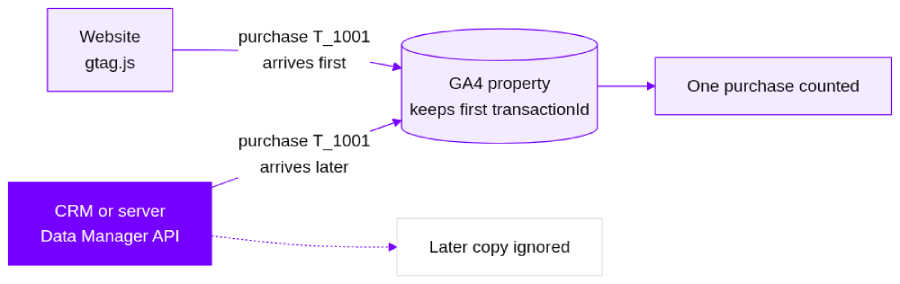
The trade-off is deduplication. GA deduplicates on transactionId per property and keeps the first instance it receives. If gtag.js sends T_1001 and the API sends T_1001 later, the API copy is ignored. Keep identifiers consistent across routes, and decide which source owns each event.
Practical Example: Sending an Offline Purchase to GA4
Picture a hypothetical online store that confirms some orders offline, for example through a call centre or a CRM. It wants those purchases in GA4, tied to the same visitor who browsed on the website. It also wants to know when a send fails.
One-time setup
Both authentication paths need the Data Manager API enabled in a Google Cloud project and Editor or Administrator access on the GA4 property. For servers and scheduled jobs, a service account is the recommended route. It needs no user login and no OAuth app verification.
- Create a service account in the Cloud project and note its email address.
- Grant it the Service Usage Consumer role on the project.
- In GA Admin, add the service account’s email as a user on the property with Editor or Administrator.
- Attach the service account to your resource if you run on Google Cloud. Outside Google Cloud, prefer Workload Identity Federation, and use a downloaded key only if neither option is possible.
- Make a first call with validateOnly: true.
Use OAuth user credentials instead when you act on behalf of users who own the accounts. Apps used by external users need Google OAuth app verification.
Sending the event
Every request needs an access token with the datamanager scope, a destination and the events. This sample validates a web purchase without ingesting it:
curl -X POST “https://datamanager.googleapis.com/v1/events:ingest” \
-H “Authorization: Bearer $ACCESS_TOKEN” \
-H “Content-Type: application/json” \
-d ‘{
“destinations”: [{
“operatingAccount”: {
“accountType”: “GOOGLE_ANALYTICS_PROPERTY”,
“accountId”: “123456789”
},
“productDestinationId”: “G-XXXXXXXXXX”
}],
“events”: [{
“eventName”: “purchase”,
“eventTimestamp”: “2026-10-12T10:15:00+05:30”,
“eventSource”: “WEB”,
“clientId”: “1234567890.1761581763”,
“transactionId”: “T_12345”,
“conversionValue”: 30.03,
“currency”: “USD”,
“cartData”: {“items”: [
{“itemId”: “SKU_1”, “quantity”: 3, “unitPrice”: 10.01}
]}
}],
“validateOnly”: true
}’
Before you run it, change these values:
- Access token: Use a token with the datamanager scope.
- accountId: Your GA4 property ID, not the Measurement ID.
- productDestinationId: The Measurement ID of a web stream in that property.
- eventTimestamp: A real event time within the last 72 hours.
Set validateOnly to false to ingest for real. For an app stream, the destination ID is the Firebase App ID, eventSource is APP and appInstanceId replaces clientId.
Reading the response
- HTTP 200 with a requestId: The request was accepted. Save the ID for Diagnostics.
- HTTP 200 with fieldWarnings: The request was accepted, but an optional field was dropped. Review the warnings.
- HTTP 400 with fieldViolations: Nothing was processed. The field path tells you what to fix.
Next, check Diagnostics for the requestId. Google suggests a first check about 30 minutes after the send, but processing can take up to 24 hours, so a PROCESSING status means check again later, not that the send failed. Then confirm the purchase appears in GA reporting with the expected value, currency and transaction ID.
This example shows the mechanics only. It does not suggest that the API removes every tracking discrepancy by itself.
What to Check Before You Implement
1. Event age and identifiers
The eventTimestamp must fall within the last 72 hours. To join or attribute with gtag.js or Firebase events, send within 48 hours of the client-side event.
Web events need a clientId and app events need an appInstanceId. A web purchase with only a transactionId is invalid, so add a clientId, gclid, userId or userData.
2. Access and permissions
The identity behind the token needs Editor or Administrator on the GA property. A service account that is missing from the property, or added only as Viewer, cannot send events.
Multi-source events with a transaction ID also work only on allowlisted GA properties, so request access through the form on the Events overview page if needed.
3. Deduplication and formatting rules
GA keeps the first instance of a transactionId per property. A corrected resend of the same ID will not replace the original, so validate before the first real send. A few formatting rules catch teams out:
- Never repeat transaction_id, currency or value inside additionalEventParameters. Use the dedicated fields.
- Use an ISO 4217 currency code such as USD, not a symbol.
- Set unitPrice before tax, shipping and event-level discounts. For an item-level discount, use the discounted price.
- Avoid reserved event names such as first_visit. They fail with INVALID_EVENT_NAME.
- Hash email, phone and name with SHA-256 after normalizing, then encode as hex or Base64 and set the request-level encoding to match.
4. Limits and quotas
A request that fails validation is rejected. When the API returns HTTP 400 with fieldViolations, nothing in that request was processed, so fix the field it names and resend. Once a request is accepted, Diagnostics reports results per destination and can show PARTIAL_SUCCESS when only some records fail.
| Limit | Value |
|---|---|
| Events per request | 2,000 |
| User identifiers per event | 10 |
| Destinations per request | 10 |
| Ingestion quota | 300 requests/min and 100,000 requests/day per Cloud project |
| All other services | 300 requests/min and 50,000 requests/day |
| When exceeded | HTTP 429 RESOURCE_EXHAUSTED |
Payload size and an exact QPS value are not published. Throttle client-side and keep concurrency at 10 or below. If you hit a 429, batch more events per request instead of sending more requests.
5. Common errors and fixes
| Error | Fix |
|---|---|
| NOT_FOUND on product_destination_id | Check that the Measurement ID belongs to a web stream of that property and that the account has Editor or Administrator |
| PERMISSION_DENIED (service account) | Grant Service Usage Consumer on the project and add the service account’s email to the property as Editor |
| PERMISSION_DENIED + SERVICE_DISABLED | Enable the API in the Cloud project and wait a few minutes |
| INVALID_EVENT_NAME | Rename the reserved GA event name |
| INVALID_CURRENCY_CODE | Use an ISO 4217 code, for example USD |
| INVALID_HEX_ENCODING / INVALID_SHA256_FORMAT | Hash user data first, then encode it |
| OPERATING_ACCOUNT_LOGIN_ACCOUNT_MISMATCH | Omit loginAccount or make it equal to operatingAccount |
| Old events not showing in GA | The timestamp is older than 72 hours. Send fresh events |
| 429 RESOURCE_EXHAUSTED | Batch more per request and keep concurrency at 10 or below |
| UNAVAILABLE, INTERNAL, DEADLINE_EXCEEDED | Retry with exponential backoff and jitter. Do not retry other client errors without a fix |
6. Consent and privacy
Server-side ingestion does not make tracking compliant on its own. Apply consent signals and data-sharing rules at every step of the flow. Our guide to implementing Google Consent Mode v2 covers the basics.
7. Google Ads bidding hold
Google holds multi-source event data sent to web data streams through the Data Manager API out of conversion bidding for a 14-day trial period. Events sent to app streams are not held, and the hold does not apply to your existing Google tag data source. Plan any bidding changes around the delay.
A strong server-side strategy depends on the technology and on the governance around it. Log the full error, including the requestId, for every failed request, because Google support asks for it.
Key Takeaways: Choosing How to Send Server-Side Events to GA4
- The Data Manager API tells you whether server-side events were accepted, and why not when they were not. Measurement Protocol only confirms receipt with a 2xx response.
- Start with the Data Manager API for new purchase and lead feeds, large batches and multi-destination sends.
- Keep Measurement Protocol for simple integrations that already work or that rely on per-user-property timestamps and standalone user properties.
- Every time: validate first, save the requestId of every real send and start checking Diagnostics about 30 minutes later.
If you are also evaluating how measurement requests are routed through your infrastructure, explore our comparison of Google Tag Gateway and server-side tagging. These approaches address a different part of the measurement setup than the APIs compared in this guide.
Need help with your server-side GA4 pipeline?
Tatvic’s experts can review your GA4 measurement, event quality and server-side architecture. Get a GA4 Measurement Audit to find the gaps and choose the right approach for your business.