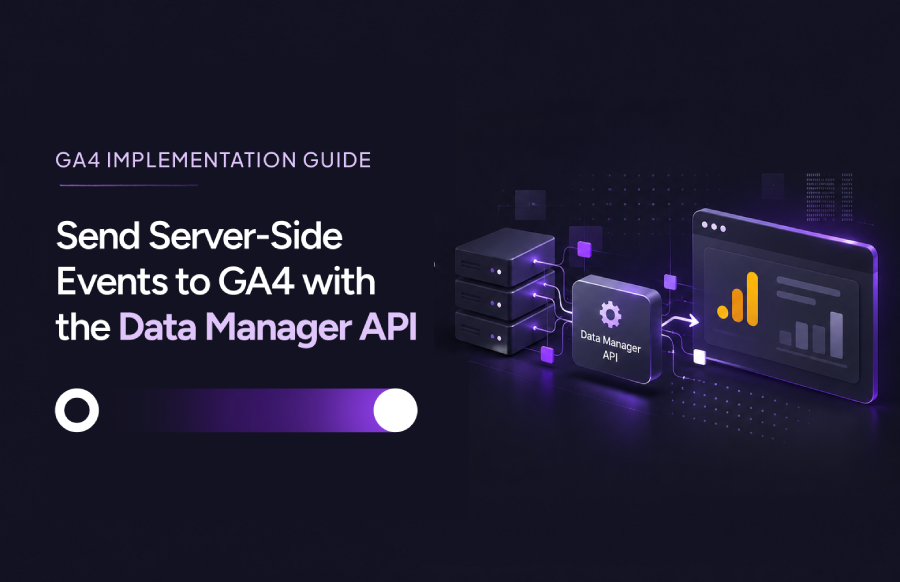
How to Send Server-Side Events to GA4 with the Data Manager API
Not every conversion happens in a browser. in the back office. A sales rep closes a deal in the CRM, a customer confirms an order over the phone, and the back-office team processes a refund. If those moments never reach GA4, your reports undercount revenue and your marketing data tells only part of the story.
The Google Data Manager API is a way to send those events to GA4 directly from your own systems. It checks every request, tells you when something is wrong and lets you confirm what happened afterwards. This guide explains in plain terms what it does, what you need to set up and how to send and verify your first events. It covers GA4 events only, for web and app streams. Refer to our GA4 guide to marketing performance for a step-by-step view of how GA4 data turns into better marketing decisions.
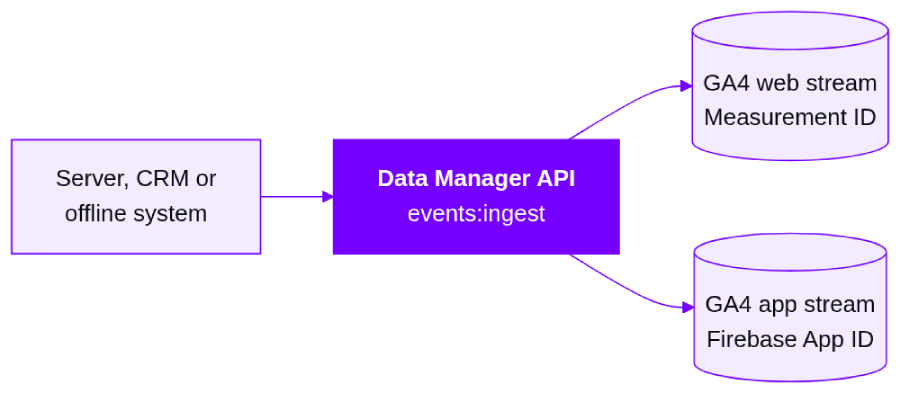
| Quick answer: The Data Manager API lets your server or CRM send events to GA4 and get clear feedback on each one. Set up a Google Cloud project, give a service account Editor or Administrator access to your GA4 property, then send events to /v1/events:ingest. Every time, 1) test with validateOnly: true first, 2) save the requestId of every real send, 3) check the status about 30 minutes later. |
What Is the Data Manager API?
The Data Manager API (DMA) is Google’s single entry point for sending first-party data, meaning data you collect yourself, to Google’s advertising and measurement products. For GA4, it lets you send events such as purchases, leads and refunds from your server, CRM or offline systems straight to a GA4 property.
More importantly, the API provides feedback about each request. Instead of sending data and hoping it arrived, you get an error message when a request is wrong, a request ID you can trace and a status report once Google has processed the data.
In practice you can use it to:
- Send server-side and offline events (purchase, lead, refund) to a GA4 web or app stream.
- Connect offline events to the same person who browsed online, using the web clientId or the app appInstanceId.
- Send the same events to up to 10 destinations in one request.
- Test every request before sending it and check what happened afterwards.
The essentials at a glance
| Item | What it is |
|---|---|
| Where events go | POST https://datamanager.googleapis.com/v1/events:ingest |
| Where you check results | requestStatus.retrieve (one requestId per check) |
| Permission scope | https://www.googleapis.com/auth/datamanager |
| How you sign in | A service account (recommended for servers) or OAuth user credentials. API keys are not supported |
| Where in GA4 | Your GA4 property ID, plus the Measurement ID (web stream) or Firebase App ID (app stream) |
Why teams use it
- Clear errors: A bad request fails with HTTP 400 and tells you which field is wrong. A status report follows once the data is processed.
- Large batches: Up to 2,000 events per request. A nightly file of 50,000 events needs only 25 requests.
- Several destinations at once: One request can reach up to 10 destinations, such as a web stream and an app stream.
- Online and offline together: Offline events such as refunds and CRM leads attach to the same user through the web clientId or the app appInstanceId.
- Hashed customer data: Identifiers such as email and phone can be sent hashed, with encryption of user data supported.
One caution applies. The Data Manager API does not guarantee that every event is counted. Event age, duplicate handling, identifiers and property permissions still decide what lands in your reports.
How It Works, Step by Step
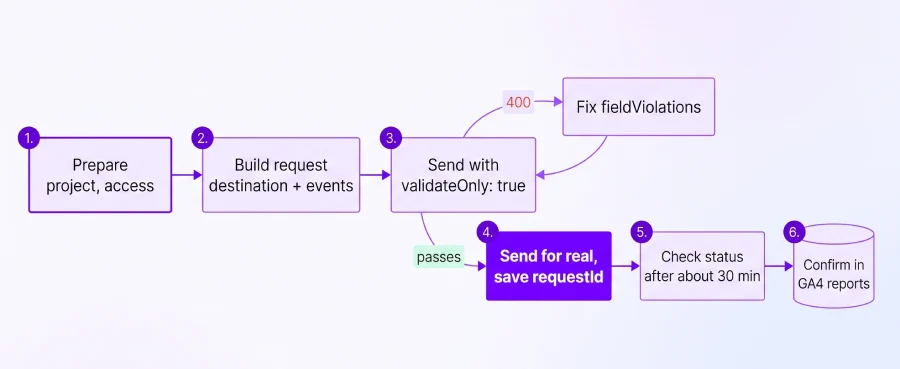
In general, every setup follows the same path. You prepare access, build a request, test it, send it for real and confirm the result.
- Turn on the Data Manager API in a Google Cloud project.
- Give the account that will send the data (a service account or a person) Editor or Administrator access to your GA4 property.
- Build the request. It names where the data goes (your GA4 property plus the Measurement ID or Firebase App ID) and lists the events.
- Send it first with validateOnly: true. Nothing is saved, but you get the same checks as a real send.
- Send it for real and save the requestId in the response.
- Check the request status about 30 minutes later, then look for the events in GA4 reports.
Before You Start: What You Need
Gather these first and the rest of the setup goes smoothly.
- A Google Cloud project where the API is turned on. It also provides the credentials your system uses to sign in.
- Editor or Administrator access on the GA4 property for the account that will send events (GA Admin > Property access management).
- Your GA4 property ID. This is the numeric ID of the property, not the Measurement ID.
- The destination ID. For a web stream this is the Measurement ID (G-XXXXXXXXXX). For an app stream it is the Firebase App ID.
- An identifier for each event. Web events need a clientId (from gtag.js or the GTM Client ID variable). App events need an appInstanceId from the Firebase SDK.
One-Time Setup
Regardless of your chosen authentication method, enable the Data Manager API in your Cloud project and grant the sending account Editor or Administrator access to the GA4 property. Then choose one of the following approaches.
Option A: Service account (recommended for servers and scheduled jobs)
A service account is a robot identity for your system. It needs no person to log in and no OAuth app verification, which makes it the simplest choice for automated feeds.
- Create a service account in your Cloud project and note its email address, for example dm********@****************************nt.com.
- Give it the Service Usage Consumer role (roles/serviceusage.serviceUsageConsumer) on the project.
- In GA4, add the service account’s email as a user on the property with Editor or Administrator access.
- Set up its credentials. If your system runs on Google Cloud, such as Cloud Run, Compute Engine, or GKE, attach the service account to your workload to complete the authentication setup. Outside Google Cloud, prefer Workload Identity Federation. Use a downloaded key file only if neither is possible, and keep it in a secret manager.
- For local testing, give yourself the Service Account Token Creator role on it and impersonate the service account instead of using a key file. Your developer can use the commands below.
gcloud auth application-default login \
-impersonate-service-account=SERVICE_ACCOUNT_EMAIL \
-scopes=”https://www.googleapis.com/auth/datamanager, https://www.googleapis.com/auth/cloud-platform”
gcloud auth application-default print-access-token \
-scopes=”https://www.googleapis.com/auth/datamanager”
Option B: OAuth user credentials
Choose this when you act on behalf of people who own the accounts. Create an OAuth client (Desktop for testing) with the datamanager scope and generate a refresh token. Apps used by external users need Google OAuth app verification.
Once access is in place, make a first call with validateOnly: true.
Sending Your First Event
Every request has three parts: an access token that proves who you are, a destination that says which GA4 property and stream receive the data, and the events themselves. The sample below tests a web purchase without saving anything, which is the safest way to start.
curl -X POST “https://datamanager.googleapis.com/v1/events:ingest” \
-H “Authorization: Bearer $ACCESS_TOKEN” \
-H “Content-Type: application/json” \
-d ‘{
“destinations”: [{
“operatingAccount”: {
“accountType”: “GOOGLE_ANALYTICS_PROPERTY”,
“accountId”: “123456789”
},
“productDestinationId”: “G-XXXXXXXXXX”
}],
“events”: [{
“eventName”: “purchase”,
“eventTimestamp”: “2026-10-12T10:15:00+05:30”,
“eventSource”: “WEB”,
“clientId”: “1234567890.1761581763”,
“transactionId”: “T_12345”,
“conversionValue”: 30.03,
“currency”: “USD”,
“cartData”: {“items”: [
{“itemId”: “SKU_1”, “quantity”: 3, “unitPrice”: 10.01}
]},
“userProperties”: {
“customerType”: “NEW”,
“customerValueBucket”: “HIGH”,
“additionalUserProperties”: [
{“propertyName”: “plan_tier”, “value”: “pro”}
]
}
}],
“validateOnly”: true
}’
What to change in the sample
| In the sample | Replace it with |
|---|---|
| $ACCESS_TOKEN | An access token with the datamanager scope, from your service account or OAuth credentials |
| 123456789 | Your GA4 property ID (not the Measurement ID) |
| G-XXXXXXXXXX | The Measurement ID of a web stream in that property |
| eventTimestamp | The real time of the event, within the last 72 hours |
| validateOnly | Keep it true while testing. Set it to false to save the data for real |
Sending events from an app
App streams use the same address and sign-in. Three details change: the destination ID is the Firebase App ID, eventSource is APP and appInstanceId replaces clientId. For example, the destination becomes “1:1234567890:android:abcd1234ef567890” and the event carries “appInstanceId”: “5A1B2C3D4E5F60718293A4B5C6D7E8F9”.
Reading the response
| What you get back | What it means |
|---|---|
| HTTP 200 with a requestId | The request was accepted. Save the requestId so you can check the status later |
| HTTP 200 with fieldWarnings | The request was accepted, but an optional field was dropped. Review the warnings |
| HTTP 400 with fieldViolations | Nothing was processed. The field path in the message tells you what to fix |
A successful response provides a brief confirmation, while a warning identifies any optional fields the API dropped. By contrast, an error identifies the field that failed. A shortened error looks like this:
{
“error”: {
“code”: 400,
“status”: “INVALID_ARGUMENT”,
“details”: [{
“@type”: “type.googleapis.com/google.rpc.BadRequest”,
“fieldViolations”: [{
“field”: “destinations[0].product_destination_id”,
“description”: “NOT_FOUND Resource not found”
}]
}]
}
}
Which fields each event needs
| Field | Required | What to put in it |
|---|---|---|
| eventName | Yes | A GA4 event name, under 40 characters. Reserved names fail with INVALID_EVENT_NAME |
| eventTimestamp | Yes | The event time in RFC 3339 format. It must be within the last 72 hours (48 hours to join client-side events) |
| clientId / appInstanceId | Yes | clientId for web (from gtag.js or the GTM Client ID variable). appInstanceId for app (from the Firebase SDK) |
| transactionId | For purchases | The order ID. GA4 uses it to avoid double counting and keeps the first one it receives |
| cartData.items | For ecommerce | itemId, quantity and unitPrice for each item |
| conversionValue, currency | Recommended | The order value, always together with a currency |
Sending to More Than One Destination
One request can feed up to 10 destinations. When you use more than one GA4 destination, give each a short reference name and tag every event with the reference it belongs to. This keeps each event going only where you intend. For example, name your destinations ga_web and ga_app, then tag a web purchase with [“ga_web”].
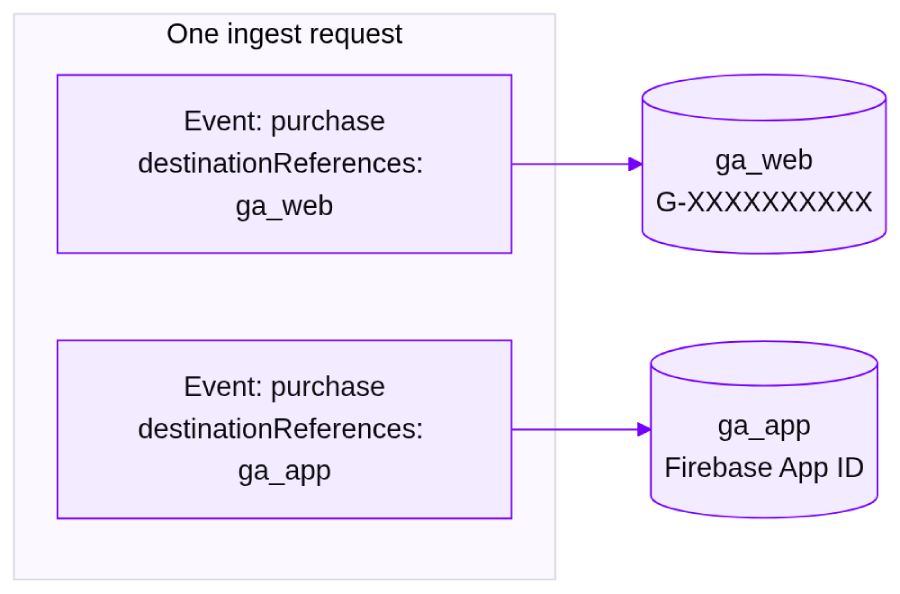
If you set a loginAccount, it must be identical to the operatingAccount, or you can leave it out. Otherwise the request fails with OPERATING_ACCOUNT_LOGIN_ACCOUNT_MISMATCH.
Web stream vs app stream
| Aspect | Web stream | App stream |
|---|---|---|
| Destination ID | Measurement ID (G-XXXXXXXXXX) | Firebase App ID (iOS or Android) |
| eventSource | WEB | APP |
| Required identifier | clientId | appInstanceId |
| App-only events | None | ad_impression, screen_view, in_app_purchase |
| Google Ads bidding | Multi-source events held out for 14 days | No hold |
Adding Parameters, User Properties and Customer Data
In addition to the required fields, an event can carry extra details. These optional additions make your GA4 data richer.
- Event parameters: Extra details on the event, sent as name and value pairs in additionalEventParameters. Use GA4 parameter names and text values. Example: shipping = “4.99”.
- Item parameters: Extra details on a product, such as item_name, item_brand and item_category, in additionalItemParameters. GA4 allows up to 27 custom parameters per item. Example: item_brand = “Acme”.
- User properties: Details about the customer, such as customerType (NEW, RETURNING or REENGAGED), customerValueBucket (LOW, MEDIUM or HIGH) and additionalUserProperties. They travel only inside an event. Example: customerType = NEW.
- Customer identifiers: userId and userData are optional. To protect the data, trim and lowercase emails, write phone numbers in E.164 format, hash the value with SHA-256, then encode it as hex or Base64 and set the request-level encoding to match.
Checking That It Worked
You get three layers of feedback, from instant to final.
| Layer | What it tells you |
|---|---|
| validateOnly: true | Runs the same checks as a real send but saves nothing. One bad event fails the whole request. A pass does not guarantee processing will succeed |
| fieldWarnings in the response | An optional field was dropped. The request itself was accepted |
| requestStatus.retrieve | The final result for each destination. Check about 30 minutes after sending, then back off (multiply the wait by 1.3, up to 60 minutes, and stop after 24 hours). For example, check at about 30, 39 and 51 minutes, then hourly |
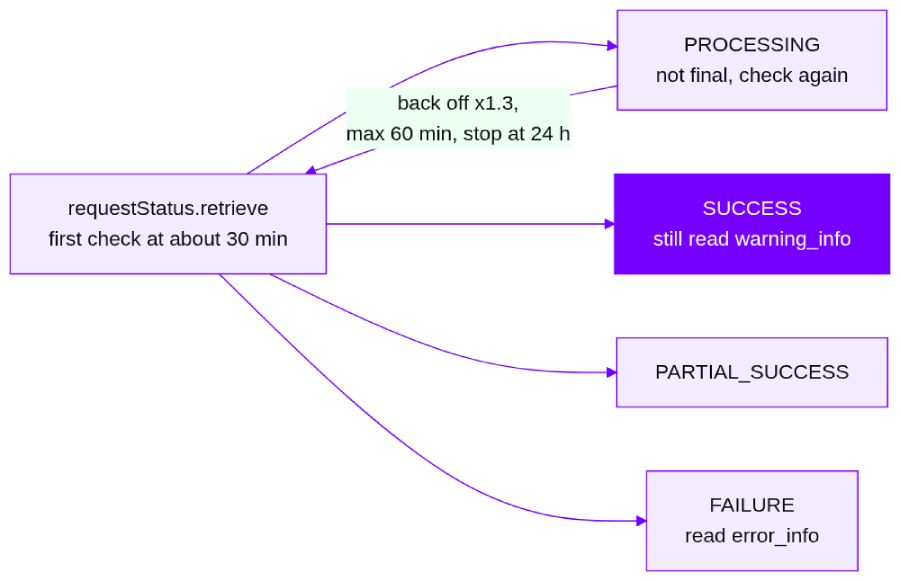
The status is one of four values: PROCESSING (not final, check again), SUCCESS (read warning_info anyway), PARTIAL_SUCCESS and FAILED (read error_info). Test-only requests sent with validateOnly have no status to check.
| Confirming in GA4: When the status shows SUCCESS with no unexpected warnings, look for the events in GA4 reporting. A corrected resend of the same transactionId will not replace the original, so test before the first real send. Keep the full error, including the requestId, for every failure, because Google support asks for it. |
Common errors and how to fix them
| Error | What to do |
|---|---|
| NOT_FOUND on product_destination_id | The ID does not match your account. Check that the Measurement ID belongs to a web stream of that property (not another property’s G- ID), that the account or service account email has Editor or Administrator, and, for transaction-ID events, that the property is allowlisted |
| INVALID_EVENT_NAME | You used a reserved GA4 event name. Rename it |
| INVALID_CURRENCY_CODE | Use an ISO 4217 code: USD, not US$ |
| INVALID_HEX_ENCODING / INVALID_SHA256_FORMAT | Customer data is plain text (first error) or encoded but not hashed (second). Hash it, then encode it |
| OPERATING_ACCOUNT_LOGIN_ACCOUNT_MISMATCH | Leave out loginAccount or make it equal to operatingAccount |
| PERMISSION_DENIED (service account) | The service account is missing the Service Usage Consumer role on the project, or has not been added to the GA4 property. Grant the role and add its email as Editor |
| PERMISSION_DENIED + SERVICE_DISABLED | The API is not turned on in the Cloud project. Enable it (the error includes an activation link) and wait a few minutes |
| Old events not showing in GA4 | The timestamp is older than 72 hours. For example, an event from 4 days ago will not appear. Send fresh events |
| 429 RESOURCE_EXHAUSTED | You hit a usage limit. Put more events in each request and keep at most 10 requests running at once. For example, send 1 request of 2,000 events instead of 2,000 requests |
| UNAVAILABLE, INTERNAL, DEADLINE_EXCEEDED | A temporary problem on Google’s side. Retry with increasing waits and some randomness. Do not retry other client errors until you fix them |
Usage Limits in Plain Terms
Importantly, limits apply to your Google Cloud project rather than to an individual GA4 property. For most analytics feeds they leave plenty of room.
| Limit | Value | What it means in practice |
|---|---|---|
| Events per request | 2,000 | 5,000 events take 3 requests (2,000 + 2,000 + 1,000) |
| User identifiers per event | 10 | One event with 2 emails and 1 phone number uses 3 of the 10 |
| Destinations per request | 10 | The same events sent to 2 GA4 properties use 2 destinations |
| Sending (ingestion) | 300 requests per minute and 100,000 per day, per Cloud project | 1 million events a day at 2,000 per request is 500 requests, far under the cap |
| Everything else | 300 requests per minute and 50,000 per day | Account and resource management calls count here, not against sending |
| If you go over | HTTP 429 RESOURCE_EXHAUSTED | The error names which quota you hit, for example the daily or per-minute write limit |
| Analytics 360 | Quotas are per Cloud project. No higher limits for 360 are documented | A 360 and a standard property sent from one Cloud project share the same limits |
| Not published | Payload size and an exact requests-per-second value | Pace your sending. Google’s best practice is up to 10 requests at a time |
Google separates limits by service and by reading versus writing, which gives four separate pools: Ingestion write, Ingestion read, Other write and Other read. Each has its own per-minute and per-day count. Google does not say which calls count as read or write, so treat sending events as writing and status checks as likely reading.
Rules to Remember Before Sending Events
To reduce failed sends, check the following rules before going live. Check these before you go live.
| Area | The rule | Example |
|---|---|---|
| Event age | The timestamp must be within the last 72 hours. To join or attribute with gtag.js or Firebase events, send within 48 hours of the browser or app event | Sent now (Oct 12, 10:00), an event from Oct 9, 09:00 is rejected. One from Oct 10, 09:00 (49 hours old) is accepted but may not join its gtag.js event |
| Access | The sending account (a person or a service account) needs Editor or Administrator on the GA4 property | A service account that is not added in GA4, or is only a Viewer, cannot send events |
| Identifiers | Web events need a clientId and app events need an appInstanceId. Transaction-ID events need a transactionId, and on web at least one of clientId, gclid, userId or userData | A web purchase with only a transactionId is invalid. Add a clientId |
| Duplicates | For the same transactionId and property, GA4 keeps the first one it receives | gtag.js sends T_1001, then the API sends T_1001: the API copy is ignored |
| Allowlist | Multi-source events with a transaction ID work only on allowlisted GA4 properties | Not allowlisted? Request access through the form on the Events overview page |
| Ads bidding hold | Multi-source events sent to web streams stay out of Google Ads conversion bidding for 14 days. App streams are not held | A web purchase sent through the API today can feed bidding after 14 days |
| Event names | Reserved GA4 names are rejected, and the 40-character limit applies | first_visit is rejected. Use crm_signup instead |
| User property names | Reserved: first_open_time, first_visit_time, last_deep_link_referrer, user_id, first_open_after_install. No google_, ga_ or firebase_ prefix | ga_tier is invalid. plan_tier is fine |
| Dedicated fields | Never repeat transaction_id, currency or value in additionalEventParameters, or quantity, price or item_id in additionalItemParameters | Send the order value in conversionValue, not as a parameter named value |
| Item prices | unitPrice excludes tax, shipping and event-level discounts. For an item-level discount, use the discounted price | A $20 item with a 10% item discount: unitPrice 18 |
| Value formats | currency is a 3-letter ISO 4217 code. Region is a 2-letter ISO 3166-1 code. eventSource, if set, must match the stream | “USD” not “$”. “IN” not “India”. WEB for a G- stream |
| Hashing | Email, phone, name and street: normalize, hash with SHA-256, then encode as hex or Base64. City, state, postal code and country: normalize but do not hash. Send userId together with userData | ” John.Doe+*@***il.com ” becomes jo*****@***il.com, then SHA-256 |
| Not supported | Linked data partners as GA4 destinations, and standalone uploads of user data or user properties | A request with only userProperties and no event is not possible. Attach them to an event |
| All or nothing | One invalid event fails the whole request | 2,000 events with 1 bad name: none are processed. Fix it and resend all 2,000 |
Putting It Together: A CRM Purchase
Picture a hypothetical online store that confirms some orders by phone and records them in its CRM. It wants those purchases in GA4, tied to the visitor who first browsed the website. Here is how it would use the API.
- The team creates a service account, gives it Editor access to the GA4 property and turns on the API in its Cloud project.
- When a customer confirms an order, the CRM exports the order ID, value, currency, items, and the visitor’s
clientIdcaptured on the website. - A small script builds the request with those details and sends it with validateOnly: true.
- Once the test passes, the script sends the request for real and stores the requestId.
- After that, the script checks the status about 30 minutes later and logs any warnings or errors.
- An analyst confirms in GA4 reports that the purchase shows the right value, currency and transaction ID.
However, this example illustrates the mechanics; it does not mean the API will resolve every tracking discrepancy.
Not sure your server-side setup is ready for this? Tatvic’s Google Tag Manager services team can review your GA4 setup, event sources and current infrastructure, then recommend the right architecture.
Consent and Privacy
Sending data from your server does not make tracking compliant on its own. To protect user privacy, apply consent signals and data-sharing rules at every step of the flow, and hash customer data before it leaves your systems. Our guide to implementing Google Consent Mode v2 covers the basics.
Key Takeaways: How to Get Started with the Data Manager API
- The Data Manager API sends server-side and offline events to GA4 web and app streams. As a result, you can also identify issues through the feedback it provides.
- For automated feeds, use a service account with Service Usage Consumer on the project and Editor or Administrator on the GA4 property.
- Every request needs a destination, events and an access token with the datamanager scope.
- Keep events within 72 hours, send the right identifier for the stream and include a transactionId on purchases.
- Batch up to 2,000 events per request and pace your sending to stay within 300 requests per minute.
- For every real request, test first, save the requestId and then check the status about 30 minutes later.
Need help with your server-side GA4 pipeline?
Tatvic’s experts can review your GA4 measurement, event quality and server-side architecture. Get a GA4 Measurement Audit or explore Tatvic’s Google Analytics 4 Services to find the gaps and choose the right approach for your business.