reCAPTCHA v3 Integration with GA4: How to Score Bot Traffic and Clean Up Your Data
Your GA4 reports might show a spike in traffic, more form interactions or an unexpected change in conversion rates. But how much of that activity is coming from genuine visitors?
Automated traffic can interact with website pages and trigger events, making it harder to understand what real users are doing. This creates a problem for marketing teams that rely on GA4 data to evaluate campaigns, understand user journeys and make optimization decisions.
reCAPTCHA v3 offers a way to assess website interactions without interrupting visitors with CAPTCHA challenges. By connecting its risk scores to GA4 through Google Tag Manager (GTM), you can gain additional visibility into potentially suspicious traffic.
In this guide, we’ll explore how the integration works, what data you can send to GA4, when it makes sense to use it and how to implement it.
| Quick answer: Choose reCAPTCHA v3 when you want invisible protection and a traffic-quality score across pages and actions, with no checkbox for the user. Your site requests a token, your backend asks Google for a score from 0.0 to 1.0, and GA4 records a recaptcha_verification event with the score, a risk level and a user type of human or bot. |
What Is reCAPTCHA v3?
reCAPTCHA v3 is Google’s invisible, score-based bot detection. It does not ask visitors to prove anything. Instead, it analyses how they interact with your site, such as clicks, mouse movements and other signals, and decides in real time how likely they are to be human.
Every interaction receives a score between 0.0 and 1.0. A high score, such as 0.9, means the visitor is very likely human. A low score, such as 0.1, suggests bot activity. Scores around 0.5 are suspicious and may call for extra validation or monitoring.
How reCAPTCHA v3 works
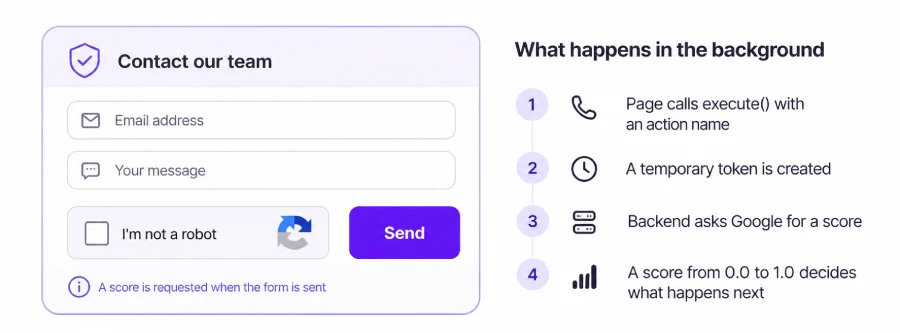
- The page loads Google’s reCAPTCHA script with your score-based site key.
- When a visitor loads a page or submits a form, your code calls execute() with an action name, such as page_view.
- Google analyses the interaction and returns a temporary token.
- Your site sends the token to your backend, which asks Google to assess it.
- Google returns a risk score, and your backend decides what happens next.
Unlike v2, there is no checkbox and no image challenge, so genuine users keep a smooth journey. The score is a signal, not a verdict. How you act on it is your decision, and you can set different rules for different actions.
How reCAPTCHA v3 Data Reaches GA4
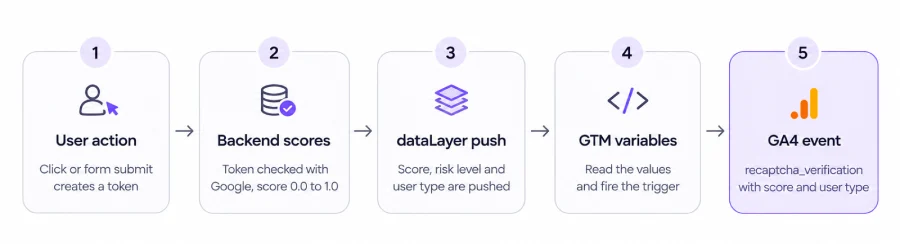
reCAPTCHA v3 feeds GA4 through a simple pattern. The website pushes the score into the dataLayer. Google Tag Manager (GTM) reads it and sends it to GA4 as a custom event.
The flow looks like this: user action, reCAPTCHA score, dataLayer push, GTM variables, GA4 event and user properties.
Score, risk level and user type in GA4
With v3, the backend returns a score. Your site turns it into a risk level and a user type, then pushes all three values to the dataLayer. GTM sends a recaptcha_verification event to GA4 with these values and also stores them as user properties, so you can segment human and bot traffic.
| What GA4 receives | Detail | Notes |
|---|---|---|
| Event name | recaptcha_verification | Sent by the GA4 event tag in GTM |
| Score | recaptcha_score | Raw score from 0.0 to 1.0, kept for analysis |
| Risk level | recaptcha_risk | LOW_RISK, MEDIUM_RISK or HIGH_RISK, for segmentation |
| User type | recaptcha_user_type | human or bot, set by your score rule |
Register all three as user-scoped custom dimensions in GA4 so they appear in your reports. The risk level and user type come from simple rules in your code. Here is an example you can start from.
Example score thresholds
| Score | Risk level | What it means |
|---|---|---|
| 0.7 to 1.0 | LOW_RISK | Very likely human |
| Above 0.3 to 0.7 | MEDIUM_RISK | Suspicious: validate or monitor |
| 0.0 to 0.3 | HIGH_RISK | Likely bot |
In this example, any score below 0.5 is labelled bot and everything else human. These cut-offs are a starting point, not a rule. Review your score distribution in the reCAPTCHA console, then tune them to your traffic and risk tolerance.
You can then compare human and bot sessions, and see how many conversions come from low-risk users, next to your other GA4 reports.
Is reCAPTCHA v3 the Right Fit for You?
The right implementation depends on the type of interaction you want to protect, the user experience you want to maintain and the technical resources available to manage score-based decisions.
Choose reCAPTCHA v3 when:
- You want protection that does not interrupt the user journey.
- You want to score traffic quality across many pages and actions, not just one form.
- You want to compare human and bot behavior in GA4.
- You can decide what to do with a score, such as allow, verify or block.
Think twice when:
- You want a clear pass or fail gate on a single form, where v2 is simpler.
- You cannot dedicate developer time to backend verification and score logic.
- Your traffic is high and verifying every page view would push assessment costs up.
Quick decision guide
| If your priority is… | reCAPTCHA v3 fit |
|---|---|
| A journey with no extra steps | Strong fit |
| Scoring traffic quality across the whole site | Strong fit |
| Segmenting human and bot behavior in GA4 | Strong fit |
| Stopping bot submissions on a single form | Possible: you must set the score threshold yourself |
| Simple pass or fail reporting | Weak fit: v3 returns a score that you need to interpret |
Implementing reCAPTCHA v3 with GA4: Step-by-Step Setup
The integration uses reCAPTCHA Enterprise and follows one clear path, from Google Cloud to your website, your backend and finally GA4. Your developers handle the code. Your analytics team handles GTM and GA4.
- Activate reCAPTCHA Enterprise. Sign in to Google Cloud, accept the terms, then choose or create a project. Open APIs & Services, then Library, search for reCAPTCHA Enterprise API and click Enable. Without it, nothing works.
- Create a site key. Add your domain and select the Score-based key type, which is what makes it v3. The site key identifies your website to Google and goes into your front-end code. Create separate keys for different domains or environments, such as testing and live, and check that the domain is correct before you move on.
- Install reCAPTCHA on your website. Add Google’s enterprise.js script with your site key to the head of your page. Then call grecaptcha.enterprise.execute() with your key and an action name, on page load or when a form is submitted. It returns a token, which your site sends to your backend. Google expects the token to be assessed within two minutes.
- Verify the token on your backend. Create an endpoint, such as /verify-recaptcha, that creates an assessment through the reCAPTCHA Enterprise API with the token and your site key. Google’s response includes the risk score. Never trust the browser alone.
- Create a service account. It lets your backend authenticate securely with Google. In Google Cloud, open IAM & Admin, then Service Accounts, create the account, give it only the reCAPTCHA Enterprise permissions it needs and download its JSON key. Keep that key on the server, never in front-end code or public folders.
- Check the score before connecting GA4. Run your front end and backend, trigger an action and confirm that the backend returns a valid response with a risk score. If the score is missing, fix that first.
- Push the result to the dataLayer. Read the score from the backend response, work out the risk level and user type, and push a recaptcha_verification event with recaptcha_score, recaptcha_risk and recaptcha_user_type.
- Configure GTM. Create Data Layer Variables for the three values, a Custom Event trigger for recaptcha_verification and a GA4 event tag with the same event name. Add the values as user properties through a Google tag event settings variable and attach it to the tag.
- Register the values in GA4. Create user-scoped custom dimensions for recaptcha_score, recaptcha_risk and recaptcha_user_type so they appear in your reports.
Before you publish, test the whole path in GTM Preview, DebugView and Realtime, and confirm that the three values reach GA4 as expected.
Keep in mind that the dataLayer values exist for reporting. Any allow, verify or block decision should be made on your backend, based on the verified score.
Monitoring traffic quality in the reCAPTCHA console
The reCAPTCHA Enterprise console shows how many requests were processed over time and how risk scores are distributed. Check it after launch to see whether traffic is mostly human or bot-driven, and use what you learn to adjust your thresholds.
Pros and Cons of reCAPTCHA v3 with GA4
Pros
- Better data accuracy: scores let you separate bot traffic from real users, so reports reflect genuine behavior.
- Better conversion quality: focusing on genuine users helps marketing teams make stronger optimization decisions.
- No user friction: it works in the background without interrupting the journey.
- Advanced segmentation: the score, risk level and user type let you compare human and bot behavior in GA4.
Cons
- Developer dependency: the script, token handling, backend verification and service account need developer support.
- Probabilistic scores: a score is not 100% accurate, so some real users may look suspicious and some bots may pass.
- Ongoing monitoring: you need to confirm that scores reach GA4 correctly and that your thresholds still fit your traffic.
- Assessment volume: every verified token is an assessment, so triggering it everywhere can raise costs.
Billing: What an Assessment Costs You
reCAPTCHA Enterprise bills by assessment. An assessment is a request to Google that evaluates a token and returns a result.
For v3, an assessment is created each time your backend submits a token for scoring, whether the visitor is human or a bot. If you verify on every page view, every page view counts. Google currently provides up to 10,000 free assessments per calendar month per organization. The allowance is aggregated across the organization’s accounts and sites. Usage above that is billed in slabs, so decide which pages and actions really need a score and check Google’s current pricing before you launch.
Key Takeaways: reCAPTCHA v3 and GA4
- reCAPTCHA v3 is invisible and scores each interaction from 0.0 to 1.0.
- GA4 receives the score, a risk level and a user type, so you can separate human and bot traffic.
- v3 suits sites that want protection without friction and traffic-quality insight across pages and actions.
- The score travels from backend to dataLayer to GTM to GA4 as a recaptcha_verification event.
- It depends on backend verification, sensible thresholds, careful GTM setup and regular monitoring.
Want cleaner GA4 data and more reliable reporting?
Tatvic’s experts can review your bot exposure and GTM setup, then implement the reCAPTCHA integration that fits your business. Explore Tatvic’s Google Tag Manager services or our Google Analytics 4 services or talk to our team.