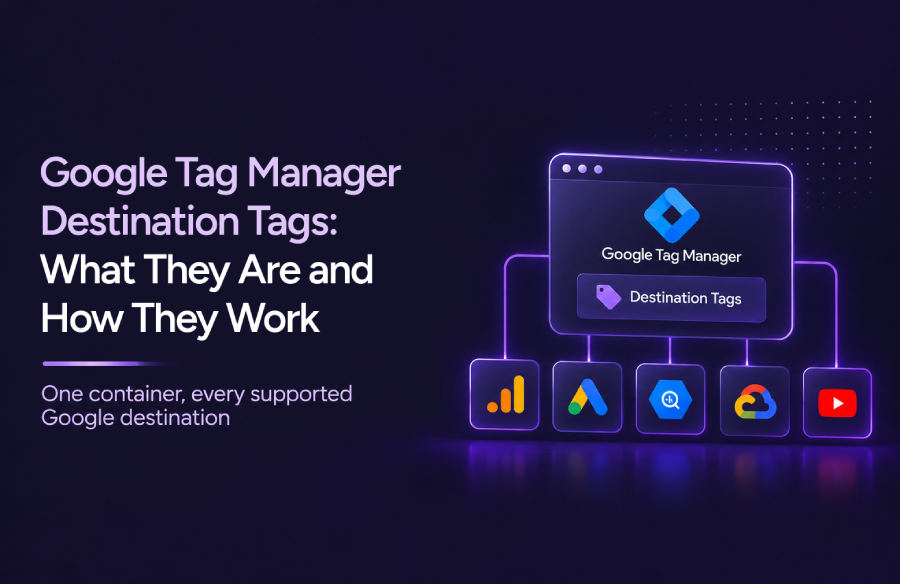
Google Tag Manager Destination Tags: How They Work
Google Tag Manager destination tags provide a way to connect Google measurement products such as Google Analytics 4 (GA4), Google Ads and Floodlight directly to a Google Tag Manager (GTM) container.
Instead of relying on a separate Google tag configuration for each product, destination tags establish a direct connection between your GTM container and the Google destinations receiving your measurement data. This brings destination management, shared settings and access permissions closer to the container.
For teams using GA4 and Google Ads through GTM, this change can simplify how measurement configurations are managed. It also introduces new considerations around page views, consent settings, permissions and existing tracking implementations. If you’re new to GTM or reviewing your existing setup, start with our guide to Google Tag Manager implementation
In this guide, we’ll explain what Google Tag Manager destination tags are, how they work, how they differ from Google tags, and what to review before adopting them.
| Quick answer: A destination tag connects one Google product account, such as a GA4 web data stream or a Google Ads account, directly to your GTM container. Your event tags, triggers and variables stay in place. Adoption is optional, and no changes are applied until you review and publish them. |
What Are Google Tag Manager Destination Tags?
Destination tags are a Google Tag Manager capability that links Google measurement products to your container. A destination is a Google measurement product account that shares configuration with, and receives data from, a Google tag or Google Tag Manager. A destination tag is the GTM tag that connects that destination to your container.
Once connected, the destination can send data directly from the container. Its settings and permissions are governed at the container level.
Four destination types are currently supported:
- Google Analytics 4: a web data stream.
- Google Ads: an account, identified by its Conversion ID.
- Floodlight: a configuration used in Campaign Manager 360 and Display & Video 360.
- Merchant Center: a conversion source, with an ID that starts with MC-.
The destination tag types you see in a container can vary, because these updates are rolling out through 2026.
Why Google Introduced Destination Tags
The change is part of a broader effort to unify the Google tag and Google Tag Manager. Google tags are being upgraded to full GTM containers, and each Google destination gets its own tag.
In the older model, a Google tag in a container could load extra gtag.js code alongside GTM’s own library. This extra loading could cause latency in measurement transmission. Destination tags let the container send data to Google destinations directly instead.
The second problem is clarity. Destinations and tags now have a clear, explicit relationship, and a new Settings tab holds shared options, such as automatic event detection and consent defaults, in one place.
Where Destination Tags Fit in the Google Measurement Ecosystem
A typical website measurement setup has three main layers:
- Website: Generates user interactions and events, such as page views, product views, form submissions and purchases.
- Google Tag Manager: Processes these events and determines which tags should fire using triggers, variables and configuration rules.
- Google measurement destinations: Receive the data for reporting, advertising measurement and conversion tracking.
Destination tags establish the connection between the GTM container and the Google products receiving the data. To understand what happens after data leaves your website, explore how GA4 data moves from collection to reporting
Destination tags sit between the second and third layers. They make the link between your container and each Google product explicit, rather than leaving it implied by a shared tag ID.
How Google Tag Manager Destination Tags Work
How a Destination Tag Connects to Your Container
You add a destination tag with the product’s ID. GTM then treats that product as a connected destination, and it appears in the Google destinations table on the container’s Settings tab.
Adding a destination tag also sends a page view event for that destination. If you add an event tag for a destination that has no connected tag, GTM automatically provisions a destination tag for it.
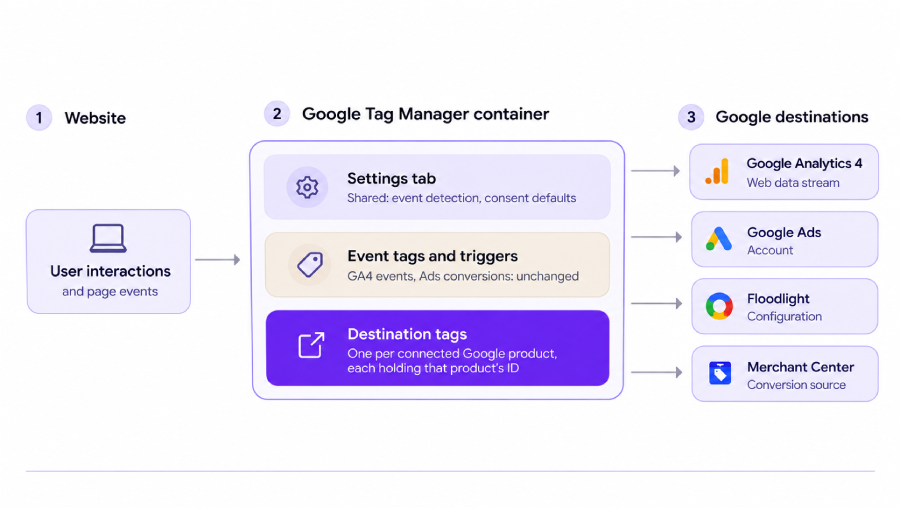 The diagram shows the flow. Your website generates events, the container holds your tags and shared settings, and each destination tag links one Google product to the container.
How Data Reaches the Destinations
Event tags work as before. A GA4 event tag or a Google Ads conversion tag still fires on its trigger and sends its data to the destination it belongs to.
What changes is the path. The container sends data to connected destinations directly, so it does not need to load a separate gtag.js library for each product. One dependency to note: if automatic event detection is turned off, destinations connected through destination tags do not receive the data associated with it.
Managing Multiple Destinations
The Settings tab lists every Google destination connected to the container. It also holds the shared options that these destinations inherit:
- Automatic event detection, such as scrolls, outbound clicks and file downloads.
- Domains for cross-domain measurement.
- User-provided data capabilities.
- Internal traffic definitions and unwanted referrals.
- Session timeout and cookie overrides.
- Consent mode defaults and overrides.
Individual destination tags can override some parameters. Because these settings are shared, destinations that need different behaviour, such as two GA4 properties, deserve a closer review.
Example: One Purchase Reaching GA4 and Google Ads
Consider a store that measures purchases in both products. The flow looks like this:
- A visitor completes an order, and the site records a purchase event.
- A GA4 event tag fires on that trigger and sends the event to the GA4 destination.
- A Google Ads conversion tag fires on the same trigger and sends the conversion to the Ads destination.
- Both destinations inherit shared settings, such as consent defaults, from the Settings tab.
Destination Tags vs. Google Tags: Understanding the Difference
The two terms are related, but they are not interchangeable. The Google tag is the shared tagging layer. A destination tag is your container’s connection to one specific Google product.
Four Important Terms to Understand:
| Term | What it is | Role in the tracking ecosystem |
|---|---|---|
| Google tag | A single tag, identified by a tag ID, that can be linked to several destinations. Tag IDs use prefixes such as GT-, G- and AW-. | Loads on the page and shares one configuration across the destinations linked to it. |
| Destination tag | A GTM tag type that connects one Google destination to a container. | Lets the container send data to that destination directly, with settings governed at container level. |
| Destination ID | The identifier of the product account, such as a GA4 Tag ID, a Google Ads Conversion ID or a Merchant Center ID starting with MC-. | Tells the container which account should receive the data. |
| Connected measurement destination | The Google product account itself, such as a GA4 web data stream or a Google Ads account. | Receives and processes the data. Reporting and conversion logic live here. |
How the Two Differ in Practice
The clearest difference is where settings live. For destinations connected through destination tags, shared settings sit in the container’s Settings tab.
There is a clear boundary here. If you load a Google tag in your container and use it to send data to a destination, the central settings do not apply. Destinations added directly to a Google tag also do not appear in the Google destinations table.
The loading behaviour also differs. Practitioner write-ups of the update report that the older Google tag and the Conversion Linker are now marked as legacy in GTM. They still work, and a legacy Google tag still loads its own library.
How This Relates to Your Existing GA4 and Google Ads Setup
Optimizing a container affects the setup layer. It does not rebuild your tracking.
What can be affected:
- The Google tag that holds your GA4 or Google Ads connection.
- The Conversion Linker’s role, which destination tags take over.
- Where shared settings, such as consent defaults and cross-domain domains, are managed.
What stays independent:
- GA4 event tags, Google Ads conversion tags, triggers and variables. Existing event tags are preserved.
- Your GA4 property settings and Google Ads conversion actions, which live inside those products.
- Non-Google pixels such as Meta or LinkedIn, which are not Google destinations.
The upgrade also does not change the in-page behaviour of existing Google tags, and optimization is optional. For the wider picture of how GA4 data supports marketing decisions, see our GA4 guide to marketing performance.
Key Benefits of Destination Tags and Which Setup Fits Your Business
Key Benefits
- Centralized destination management: Every connected Google destination is listed in one table, with shared settings in one tab.
- Simpler Google tag management: Each destination has its own tag, so you track fewer separate Google tags across properties and accounts.
- Easier administration: Account links are created during optimization. They carry Read access by default, and you can adjust this in user management.
- Improved maintainability: Optimization changes go through the normal workspace, Preview and publish flow, so you can review them before they go live.
- Scalability across supported destinations: Adding another supported Google destination means adding a tag that inherits the container’s shared settings.
- Potential page speed improvement: Destination Tags can help reduce the need for separately loading multiple Google tag scripts. Since destinations can share the existing Google tag configuration, the setup can avoid additional gtag.js script loads, potentially reducing script overhead and improving page loading performance.
Direct sending also offers a possible performance benefit. It avoids loading extra gtag.js code, which Google says could delay measurement transmission. The gain is not quantified, so measure it on your own site rather than assuming it.
Which Setup Is Right for Your Business?
The right approach depends on how many Google destinations you run and how your tags are set up today.
| Scenario | How well destination tags fit | What to evaluate first |
|---|---|---|
| GA4 only | Useful for central settings, but the gain is modest with one destination. | Whether GA4 is configured through GTM, and how automatic event detection is set. |
| GA4 and Google Ads | Strong fit. Both destinations can share cross-domain, consent and linker settings. | Conversion Linker behaviour, existing conversion tags and who has access to each account. |
| Multiple Google destinations | Strong fit, with a settings review. Shared settings apply across all connected destinations. | Whether any destination needs different settings, and who administers each one. |
| Existing Google tag implementations | Optional migration. Nothing changes until you review and publish. | An inventory of Google tags, any hardcoded gtag.js and destinations you cannot administer. |
On that last point, practitioner write-ups report that a destination you do not administer, such as an agency-owned Floodlight, stays as a legacy tag.
Practical Recommendations
- Move one destination at a time when settings differ between products. It keeps any problem easy to trace.
- Audit access before you optimize. Linking a destination can grant existing Google tag users Read access to the container.
- Treat Preview as the gate. Confirm hits in Tag Assistant before you publish, and keep the previous container version available for rollback.
Practical Example, Implementation Considerations and Best Practices
Example: A Retailer Using GA4 and Google Ads
Picture a hypothetical online home-goods store. Its GTM container has a Google tag for its GA4 web stream and a Google Ads conversion tag with a Conversion Linker. GA4 event tags cover product views, add to cart and purchase.
The setup grew over time. GA4 and Google Ads were added by different teams, consent and cross-domain settings are defined in more than one place, and an old hardcoded gtag.js snippet still sits in the checkout template.
Destination management helps here because the container becomes the single place where both products are connected. After optimization, a GA4 destination tag and a Google Ads destination tag sit in the container. Shared settings move to the Settings tab, and the existing event tags stay as they are.
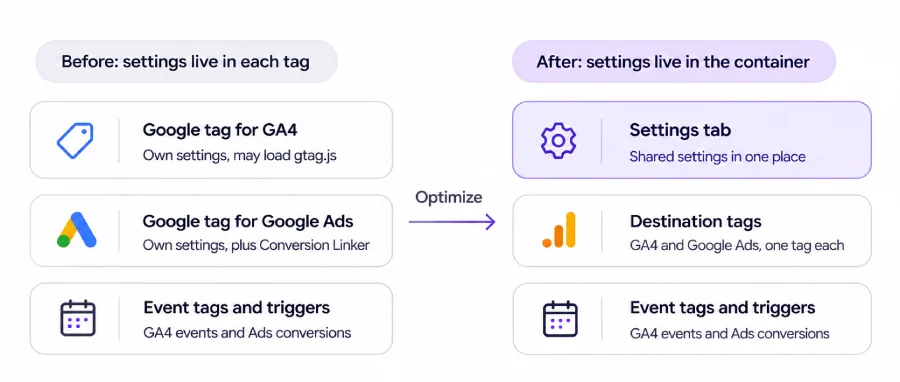 The purchase still reaches both products the same way. One trigger fires the GA4 event tag and the Ads conversion tag, and each sends its data to its connected destination.
What to Review Before Making Changes
- Tag inventory: List every Google tag, Conversion Linker, hardcoded gtag.js snippet and tag ID in use.
- Access: Check who can reach each GA4 property, Ads account and the container. Linking can grant Read access to the container.
- Settings: Compare current event detection, cross-domain and user-provided data settings with what the Settings tab will apply.
- Tag IDs (Measurement IDs & Conversion IDs set by variables): Practitioners report that IDs set through lookup table variables can interrupt the optimization wizard, so check these early.
How to Avoid Duplicate Tracking and Conversion Events
Duplicates usually come from two sources of the same data. Duplicate on-page configuration can cause duplicate data or mixed settings.
- Remove or reconcile any hardcoded gtag.js snippet that sends to the same destination as your container.
- Do not leave the old Google tag and the new destination tag both active for the same ID. Retire the old one once testing confirms the new path.
- Add event tags deliberately. GTM auto-provisions a destination tag when an event tag has no connected destination.
- Decide which source counts each conversion, particularly if you also import GA4 key events into Google Ads.
Consent Mode and Privacy Considerations
Destination tags do not switch on Consent Mode for you. You still need a consent management platform or Google’s consent API. Consent mode must also be active before you can use the data transmission controls.
The Settings tab offers consent defaults and an override. The override sets the default to denied for the regions you choose, and it applies only to destination tags connected to that container. Rules for non-Google pixels still need separate handling.
For a deeper look at configuring consent signals correctly, see our guide to Google Consent Mode v2 implementation
What to Validate After Implementation
- Tag firing: In Preview and Tag Assistant, confirm each destination receives each event once.
- GA4 events: Check DebugView and reports for matching event names, parameters and volumes.
- Google Ads conversions: Compare conversion counts against your pre-change baseline, and look for duplicates.
- Consent states: Test denied and granted states, and confirm tags respect them.
- Server-side setups: If you use a server container, confirm the browser-side change did not alter what it receives.
Key Takeaways
- Destination tags connect Google products such as GA4, Google Ads, Floodlight and Merchant Center directly to a GTM container.
- Event tags, triggers and variables stay in place, and optimization is optional.
- Shared settings live in the Settings tab, so destinations connected through a legacy Google tag do not inherit them.
- The strongest fit is a container that sends data to more than one Google product.
- Duplicate configuration, access changes and consent behaviour deserve the most attention.
- Any performance gain is a stated benefit rather than a measured one, so verify it on your own site.
Final Thoughts: Treat Destination Tags as a Measurement Change
Destination tags make the link between GTM and Google’s measurement products clearer. They are a settings and governance change, not a new tracking method.
A short audit before you optimize prevents most problems. Review what is live, test in Preview, and move one destination at a time.
Looking to simplify your tracking setup and improve data distribution across Google destinations?
Tatvic’s experts can help you evaluate your existing Google Tag Manager setup, identify opportunities to leverage Destination Tags, and ensure your tracking architecture is configured for accurate and efficient data collection. Explore Tatvic’s
Google Tag Manager services or our Google Analytics 4 services or talk to our team.