Google Consent Mode Implementation Guide
Every visitor can say no to cookies. If your site has no plan for that, you either lose the data behind your conversion reports, remarketing audiences and campaign bidding, or you keep collecting it and put your privacy compliance at risk.
Google consent mode is how you handle that across Google products. It lets your site tell Google tags what each visitor has agreed to, so the tags adjust their behavior instead of simply running or not running.
This guide explains what consent mode is, what it gives you, how many types there are, how it works and how to implement it. For the bigger picture on turning GA4 data into decisions, see our GA4 guide to marketing performance.
| Quick answer: Google Consent Mode is a framework that communicates visitors’ consent choices to Google tags, allowing them to adjust how they collect and process measurement data. It supports two implementation approaches: Basic Consent Mode, which blocks Google tags until consent is granted, and Advanced Consent Mode, which loads tags with consent defaults and allows cookieless measurement signals when consent is denied. It supports seven consent types, including the four key signals used for advertising and analytics: ad_storage, analytics_storage, ad_user_data and ad_personalization. |
What Is Google Consent Mode?
Google consent mode is a framework that communicates each visitor’s consent choice to Google tags, so the tags change their behavior to match. Google Consent Mode does not provide its own consent banner.
Instead, it integrates with your existing consent banner or consent management platform (CMP) to capture visitors’ choices and communicate them to Google’s products, including Google tag, Google Analytics, Google Ads (for conversion tracking and remarketing), Floodlight and Conversion Linker.
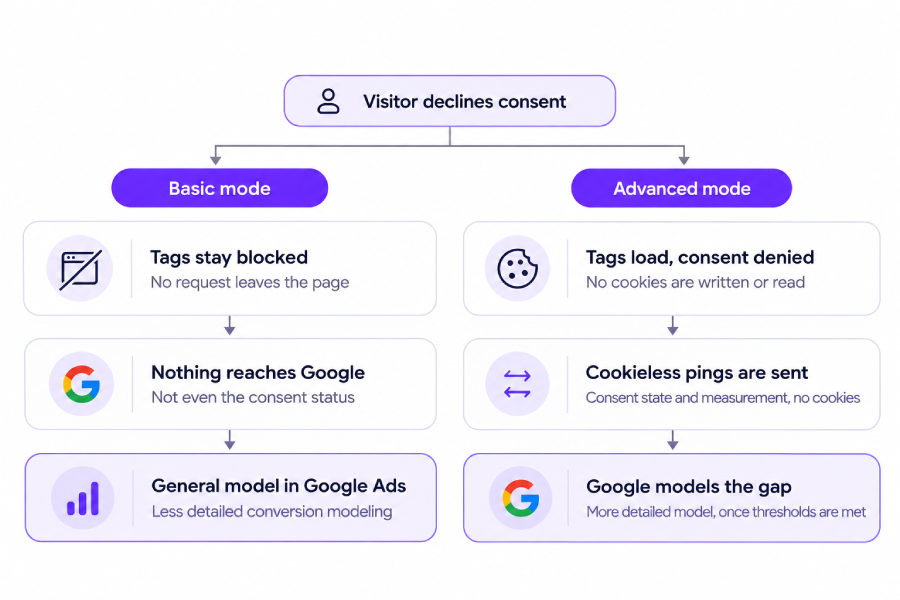
Each choice is stored as a consent type set to granted or denied. When a visitor denies a type, the related tags stop using cookies for that purpose. In Advanced mode they still send cookieless pings, which Google uses to fill measurement gaps with modeling.
Why it matters
Privacy rules such as GDPR expect consent before cookies and personal data are used for analytics and advertising. For visitors in the European Economic Area, Google also needs the ad_user_data signal for measurement such as enhanced conversions and tag-based conversion tracking. Personalized advertising needs both ad_user_data and ad_personalization to be granted. Consent mode is how you send those signals.
Consent mode is a technical tool, not legal advice. Your legal team decides which consents you must ask for.
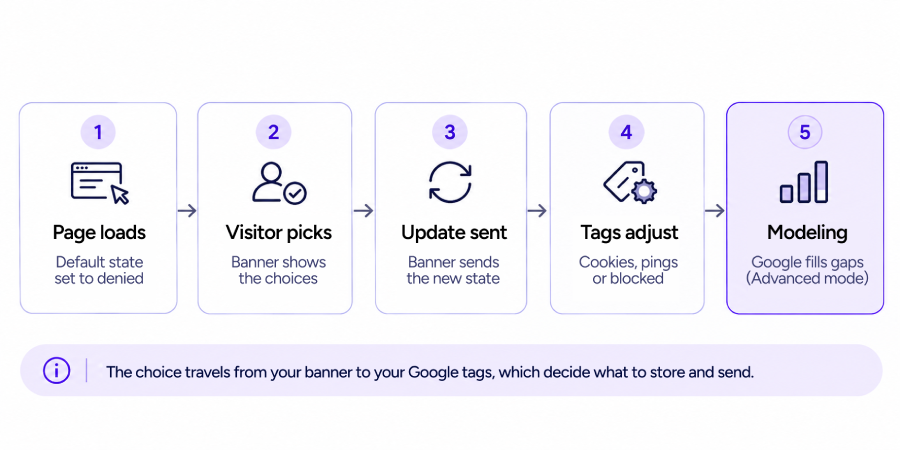
How consent mode works at a glance
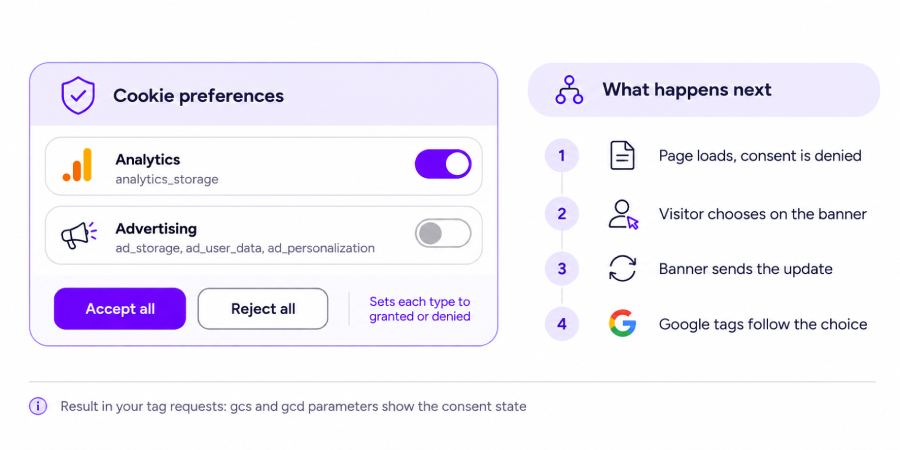
- The page loads and your default consent state is set, usually denied, before any Google tag runs.
- The visitor makes a choice on your consent banner.
- The banner sends an update with granted or denied for each consent type.
- Google tags adjust. They store cookies and send full data, send only cookieless pings (Advanced), or stay blocked (Basic).
The consent state also travels with every request your Google tags send, so you can read it in the gcs and gcd parameters when you test.
Benefits of Google Consent Mode
Consent mode gives you a way to respect visitor choices without switching off measurement for everyone who says no. The benefits below are strongest with Advanced mode, as the types section explains.
- Compliance with privacy rules: Google tags use cookies and personal data only as the visitor allowed, which supports your GDPR and similar obligations.
- Measurement that survives a “no”: In Advanced mode, cookieless pings from visitors who decline feed conversion modeling in Google Ads and behavioral modeling in GA4. Reports do not go blank for those visitors, although the numbers are estimates.
- Better campaign optimization: Google Ads can use modeled conversions to fill gaps. Advanced mode enables an advertiser-specific model, while Basic mode relies on a general one.
- Google advertising features stay available: The ad_user_data and ad_personalization signals keep enhanced conversions, remarketing and personalized ads working for visitors who agree to them.
- Visitor trust: Clear choices and tags that honor them show people you respect their privacy.
- One setup across Google products: Google tag, Google Analytics, Google Ads, Floodlight and Conversion Linker all read the same signals. In Google Tag Manager you can see every tag’s consent settings in one place.
- Works with the banner you already have: Consent mode interacts with your existing consent banner or CMP rather than replacing it.
The trade-off is that data for visitors who decline is limited and modeled, and the setup needs ongoing care. We cover both in the pros and cons below.
How Many Types of Consent Mode Are There?
There are two consent modes, Basic and Advanced. Separately, there are seven consent types that tell each tag what it may store or send. People often mix the two up, so we cover both.
Basic vs Advanced consent mode
The difference is what your Google tags do before the visitor has made a choice.
| Basic consent mode | Advanced consent mode | |
|---|---|---|
| Tag loading | Blocked until the visitor interacts with the banner | Load when the page opens, with consent denied by default |
| Data sent before consent | None, not even the consent status | Consent state and cookieless pings |
| If the visitor denies | Nothing is sent to Google | Only cookieless pings are sent |
| If the visitor grants | Tags load, send the default then the updated consent state, and send full measurement | Cookies are written and full measurement is sent |
| Modeling | General model, less detailed | Advertiser-specific model, more detailed |
| Setup effort | Simpler | More technical |
The seven consent types
A consent type is a category of storage or data use that the visitor can grant or deny. Google splits them into four consent mode parameters and three further privacy parameters.
| Consent type | What it covers |
|---|---|
| ad_storage | Storage related to advertising, such as cookies on the web or device identifiers in apps |
| ad_user_data | Sending user data to Google for online advertising purposes |
| ad_personalization | Personalized advertising, such as remarketing |
| analytics_storage | Storage related to analytics, such as cookies that record visit duration |
| functionality_storage | Storage that supports site functionality, such as language settings |
| personalization_storage | Storage related to personalization, such as video recommendations |
| security_storage | Storage related to security, such as authentication and fraud prevention |
ad_storage and analytics_storage are the original pair. Consent mode v2 added ad_user_data and ad_personalization. Most sites set all four, and add the other three only if they use storage for those purposes.
What happens when each of the four is denied:
- ad_storage denied: No new advertising cookies or identifiers are written, and existing ones are not read.
- analytics_storage denied: Analytics cookies are not read or written. Cookieless pings still go to Google Analytics for basic measurement and modeling.
- ad_user_data denied: Personal data for online advertising is not collected, including user_id and the hashed first-party data used by enhanced conversions.
- ad_personalization denied: Personalized advertising is off, and remarketing in Google Ads, Display & Video 360 and Search Ads 360 receives no data.
Basic or Advanced: Which Fits You?
The right choice depends on your legal position, your traffic and how much you rely on Google advertising.
Choose Basic when:
- Your legal team wants nothing sent to Google before a visitor consents.
- You want the simplest setup and the most cautious position.
- Your traffic is too low to reach Google’s modeling thresholds, so Advanced would add little.
Choose Advanced when:
- You want modeled conversions and behavioral modeling for visitors who decline.
- You depend on Google Ads for optimization and want the more detailed advertiser-specific model.
- Your legal team has approved cookieless pings while consent is denied.
Think twice about Advanced when:
- Your legal team does not accept any request to Google before consent.
- You cannot dedicate technical time to setup and testing.
One limit applies to both: Advanced mode works only with Google tags. Tags from other platforms do not read consent mode, so they need their own consent conditions and behave like Basic mode.
Quick decision guide
| If your priority is… | Best fit |
|---|---|
| Nothing sent to Google before consent | Basic |
| Modeled conversions and behavioral modeling | Advanced |
| The simplest possible setup | Basic |
| The most detailed Google Ads optimization | Advanced |
| Low traffic where modeling will not activate | Basic |
How Google Consent Mode Works
Consent mode follows one loop: set a default, wait for the visitor, update on their choice and let the tags adjust. Your banner handles the first three steps. Google tags handle the last.
The two commands behind it
Consent mode uses two commands. The default command sets the consent state when the page loads, before any Google tag fires. The update command changes that state after the visitor makes a choice, and it should also run on later pages when the visitor has already chosen. Your CMP sends both for you if it supports consent mode, or your developers can send them directly.
What your Google tags do in each state
- Consent granted: Tags write cookies and send full measurement data, in both modes.
- Consent denied, Basic mode: Tags stay blocked. Nothing reaches Google, not even the consent status.
- Consent denied, Advanced mode: Tags load and send cookieless pings. These can include a timestamp, user agent, referrer, the consent state, a random number generated on each page load and whether an ad click ID was in the URL. They carry no cookies.
- Consent granted later on the same page, Advanced mode: Hits collected earlier on that page are reprocessed with the granted status. Hits from earlier pages are not, because Google cannot link them without cookie identifiers. In Basic mode, data collection starts only when consent is granted.
How modeling fills the gap
Google uses cookieless pings to model the behavior and conversions of visitors who decline. Google Ads uses conversion modeling. GA4 uses behavioral modeling, which estimates the behavior of visitors who decline analytics cookies from similar visitors who accept them.
Modeling has data thresholds. For GA4 behavioral modeling, your property needs to meet all of these:
- Consent mode runs on all pages, with tags loading before the consent dialog appears.
- At least 1,000 events per day with analytics_storage denied, for at least 7 days.
- At least 1,000 daily users sending events with analytics_storage granted, for at least 7 of the previous 28 days.
Meeting these does not guarantee that Google can train the model, and it can take longer than 7 days. Modeled numbers are estimates, so use them alongside your observed data.
What you see in GA4 and BigQuery
With Advanced mode, events from visitors who deny consent do not appear in GA4 reports until behavioral modeling is active. In our tests, those events did appear in the BigQuery export with an empty user_pseudo_id. Because no client ID or session ID is collected for them, they cannot be counted as users or sessions.
Implementing Google Consent Mode: Step-by-Step Setup
There are two ways to set up consent mode. Choose the one that matches how the Google tag is added to your site.
Setting Up Consent Mode with Google Tag Manager (GTM)
Best if you manage your tags in GTM. No code changes are needed beyond the banner.
- Pick your mode and defaults. Agree on Basic or Advanced with your legal team. Set every consent type to “denied” until the visitor chooses.
- Use a consent banner (CMP) with a GTM template. Consent mode has no banner of its own. Choose a banner that supports it and map each choice (analytics, marketing) to the matching consent type.
- Set the default state first. Add the banner’s tag in GTM and fire it on the Consent Initialization - All Pages trigger. This makes sure consent is set before any other tag runs.
- Send the update when the visitor chooses. The banner does this automatically. Check that it also sends the saved choice on every later page, so returning visitors aren’t treated as undecided.
- Turn on the consent overview. Go to Admin → Container settings → Additional settings and enable it. It shows which tags still need consent settings.
- Set consent on each tag (Advanced settings → Consent settings):
- Advanced mode, Google tags (GA4, Google Ads, Floodlight, Conversion Linker): choose No additional consent required. They check consent on their own.
- Basic mode: choose Require additional consent and select the type, such as ad_storage or analytics_storage.
- Non-Google tags (Meta, LinkedIn, custom HTML): these ignore consent mode, so always add your own consent condition.
- Optional settings. Turn on ads_data_redaction to hide ad click IDs while ads are denied. URL passthrough keeps campaign data between pages without cookies, but it adds parameters to your URLs, so check with your site owner first.
- Server-side setup (if you have one). In Advanced Consent Mode, configure the client-side Web GTM container to allow requests to reach the Server GTM container without requiring additional consent. In Basic Consent Mode, configure the Web GTM container to send requests only after the user grants the required consent. The Server GTM container should respect the consent signals received from the Web GTM container.
- Test in Preview mode before you publish.
Setting Up Consent Mode with gtag.js (No GTM)
Best if you add the Google tag directly to your site code. Hand this section to your developer.
- Pick your mode and defaults. Agree on Basic or Advanced with your legal team. Default everything to “denied”.
- Use a banner (CMP) that supports consent mode. It must be able to run the default and update commands below.
- Add the default command above your Google tag. It must run before the tag loads. wait_for_update (in milliseconds) gives your banner a moment to pass on a returning visitor’s saved choice.
<script>
window.dataLayer = window.dataLayer || [];
function gtag(){dataLayer.push(arguments);}
gtag(‘consent’, ‘default’, {
‘ad_storage’: ‘denied’,
‘ad_user_data’: ‘denied’,
‘ad_personalization’: ‘denied’,
‘analytics_storage’: ‘denied’,
‘wait_for_update’: 500
});
</script>
<!- Your Google tag (gtag.js) snippet goes here, after the code above ->
- Send the update when the visitor chooses. Your banner calls this with their choice. It must also run on every later page, so returning visitors keep their saved setting.
<script>
gtag(‘consent’, ‘update’, {
‘ad_storage’: ‘granted’,
‘ad_user_data’: ‘granted’,
‘ad_personalization’: ‘granted’,
‘analytics_storage’: ‘granted’
});
</script>
- Choose how the tag loads.
- Advanced mode: load the Google tag on every page. It adjusts to the consent state.
- Basic mode: don’t load the Google tag until the visitor consents.
- Optional settings. Add these lines after the default command:
- gtag(‘set’, ‘ads_data_redaction’, true); hides ad click IDs while ads are denied.
- gtag(‘set’, ‘url_passthrough’, true); keeps campaign data between pages without cookies. It adds parameters to your URLs, so agree it with the site owner first.
- Test before you publish. Use Google Tag Assistant to confirm the default state loads first and the update fires after the visitor chooses.
How to Test Your Consent Mode Setup
Test every consent scenario: accept all, deny all, and accept analytics only. Your tags should respond to each one. Two Google tools cover most of the checks.
Google Tag Assistant
- Clear the cookies for your domain and open your site in Tag Assistant without choosing anything on the banner.
- Open the Consent tab and select a page. You should see the default state, denied for each type you set.
- Accept on the banner and check that the state changes to granted for the types the visitor allowed.
- In Basic mode, a tag whose consent is missing appears under Tags Blocked by Consent Settings. After consent it moves to Tags Fired.
- In Advanced mode, Google tags can appear under Tags Fired even while consent is denied. That is expected, because they send cookieless pings and no cookies.
Chrome DevTools network tab
Open the network tab and look for requests that carry the gcs or gcd parameter. They show the consent state your tags sent.
- In Advanced mode, requests appear even when consent is denied, so read the parameters to see what was granted.
- In Basic mode, you should see no Google requests at all until the visitor grants consent.
The gcs parameter covers ad_storage and analytics_storage:
| gcs value | Meaning |
|---|---|
| G100 | No consent granted |
| G110 | ad_storage granted, analytics_storage denied |
| G101 | analytics_storage granted, ad_storage denied |
| G111 | Both granted |
The gcd parameter goes further and covers all four signals, ad_storage, analytics_storage, ad_user_data and ad_personalization. Each signal appears as a letter. For example, q means denied by default and still denied, r means denied by default then granted, and v means granted by default and still granted.
What normal looks like
These can look like faults, but they are normal in Advanced mode:
- A Google Ads tag shows as still running while ad_storage is denied. It has sent an anonymous ping. If the visitor then agrees on the same page, it sends a second, full request and its status changes to succeeded.
- You may see requests to googlesyndication domains after a visitor denies ad consent. They carry cookieless pings used for modeling in Google Ads.
- Hits sent after the visitor consents on the same page carry the granted status, with no manual resend needed.
How Consent Mode Affects Your Reporting
Consent mode changes what you can measure, and it is best to tell your stakeholders before launch. When a visitor denies consent in either mode, GA4 cannot collect a client ID or session ID for them. That lowers your counts of users and sessions directly. It also affects bounce rate and other session-based metrics, such as average session duration and pages per session.
| Scenario | Analytics | Ads |
|---|---|---|
| Visitor grants all consent | Full data, as before consent mode | Full data for targeting, personalization and conversions |
| Visitor grants analytics only | Full analytics data | Limited or no ad tracking data, so gaps appear after ad interactions |
| Visitor denies everything, Basic | No data collected | No data collected |
| Visitor denies everything, Advanced | Cookieless pings are sent for modeling, but no visitor-level data appears in reports | Cookieless pings feed conversion modeling |
| Visitor changes their choice | Volumes can shift depending on when people grant or withdraw consent | The same applies, so compare periods with care |
Modeled conversions in Google Ads are estimates of conversions that likely happened among visitors who declined. They help fill the gap, but treat them as estimates, not as counted events.
Pros and Cons of Google Consent Mode
Pros
- Respects visitor choice: Google tags follow what each visitor allowed, so cookies and personal data are used only with permission.
- Recovers insight in Advanced mode: Cookieless pings feed modeling, so reports and bidding keep some signal from visitors who decline.
- Keeps Google advertising features usable: The consent signals keep remarketing, enhanced conversions and personalized ads working for visitors who agree.
- Fits your existing stack: It works with your current banner and GTM, and the consent overview shows every tag’s status in one place.
- Builds trust: Clear choices show visitors that you respect their privacy.
Cons
- Limited data for visitors who decline: What you get is minimal and modeled, so behavior is harder to understand and target.
- Modeling has thresholds: Small sites may never reach them, and modeled numbers are estimates, not counted events.
- Setup and upkeep: Defaults, updates, tag conditions, server-side settings and testing all need developer and analytics time.
- Google tags only: Other platforms’ tags do not read consent mode, so they need their own consent conditions.
- Lower counts: Users and sessions drop for visitors who decline, and session-based metrics such as bounce rate can shift.
Key Takeaways: Google Consent Mode
- Consent mode passes your visitors’ consent choices to Google tags, which then adjust how they store and send data.
- There are two modes, Basic and Advanced, and seven consent types. Most sites set four: ad_storage, analytics_storage, ad_user_data and ad_personalization.
- Basic blocks tags until consent. Advanced loads tags with consent denied and sends cookieless pings that Google uses for modeling.
- The setup needs a default state before any Google tag runs, an update when the visitor chooses, and the right consent condition on every tag.
- Modeling has data thresholds and gives estimates, so test carefully and tell stakeholders that user and session counts will drop.
Make Your Consent Mode Implementation Work for Your Measurement Strategy
Implementing Google Consent Mode requires more than configuring consent signals. Your CMP, Google Tag Manager, GA4 and advertising tags must work together to ensure visitor choices are respected without creating unnecessary gaps in measurement.
Tatvic helps businesses assess their consent architecture, configure Google Consent Mode and validate their measurement implementation.
Explore our Google Tag Manager services and Google Analytics 4 services, or talk to our team about your implementation requirements.