Hello There!

Lorem ipsum dolor sit amet, consectetur adipiscing elit,

 About Sarjak Patel

Sarjak is a GAIQ certified consultant in the capacity of AVP - Customer Delivery at Tatvic Analytics. He comes with a rich experience of working with major e-commerce companies in the Indian market. Apart from his expertise in Google Analytics, he also has an extensive experience of over 8 years in IT industry. He is a digital analytics enthusiast and has a knack of understanding client requirements.

Web & App Measurement in a Single Google Analytics Property with the all-new User Unification Update

The wait is finally over! 

Google has launched a new beta version of Google Analytics where we can now uniquely track users across the Web and App without userId implementation. 

Yes, you read that right. Isn’t that a game-changer?

With Firebase as the backbone of this platform, Google has changed its lens to measure user data. Reporting will now be more focused on Users and Events

Google had given signals for Users and event-centric reporting in the past with the release of User-Centric reporting in Google Analytics and Firebase Platform. It was the perfect move by Google I would say, for setting an expectation for users like us!

Being a business user, If you are wondering what changes will it bring to your analytics reporting, then you are in the right place! In this blog, I am going to provide an overview of this new update and what it means for the business focussed team rather than delving into the technical bit of the same.

What is additional in the newly launched Google Analytics

Here are the Enhancements of the newly launched version of Google Analytics (Web+App)

  • User Unification across platforms (Mobile Web + App)

This is by far the biggest ask of business users.

How Google will identify users. According to Its standard documents, It will use Device ID. If the App and Website are being opened on the same device (mostly mobile, Tablets), using a Device ID, Google will unify the users. So insights for Cross-platform single devices can be generated 

If we are using both Device ID and User ID (UserID was earlier available), It will give us the ability to generate insights for users cross-device, and cross-platform.

Image 1: Data Collection Mechanism

Source: Google Standard Document

The insights that we generate in the current Web analytics, for e.g.Direct conversion channels, Channels assisting the final conversion & Channels acquiring quality traffic have a direct relation to the marketing budget but now that we get additional insights into the platform with these channels, the marketing budget will be optimized to the level of platforms. It will be a combination of channels and platforms.

Let us read exactly what Google says about the data collection mechanism for this update

Image 2: Data collection Method

Source: Google Standard Document

  • Event and Custom Event Parameters

The reporting in this version of Google Analytics will have Events only. No pageviews and Sessions. 

The event will have custom event parameters to enrich the reporting.

  • User Properties

Custom Dimensions and Metrics will not be available. User Properties can be set with event data being sent to Google Analytics

  • Enhanced Measurement Mechanism

Tracking and implementation which were common across the customers were included in the initial setup part.

Data collection will be started without any code once we enable it from the UI

Image 3: Enhanced measurement

Source: Google Standard Document

Bonus: Analysis Feature

This is THE motivation to use this platform. The analysis is Only the GA360 feature but is available for free under the new version of Google Analytics There are 6 different features under the analysis tab that will make every marketer’s life productive. 

  • Access to analysis hub [Data studio Module]
  • Segment Overlap
  • User Explorer
  • Exploration

Image 4: Exploration

Source: Google Analytics blog website

  • Funnel analysis

Image 5: Funnel

Source: Google Analytics blog website

  • Path Analysis [will become the most popular and most asked a feature]

Image 6: Path analysis

Source: Google Analytics blog website

To know more about setup, implementation, and reporting, please refer to this link.

Tatvic’s Recommendations on How to best use the User Unification Feature

  • Replicate the data collection in this property by following the best practices as per the standard document
  • Use this property as additional property for user unification insights. 
  • Play with the Analysis module to get more granular-level insights

This property is in beta and expected to have more features. It is better if we have replicated our reporting to this property, We will be able to take benefits of existing features and new feature updates in the future.

Happy Learning, experimenting, and improving!!

Google Analytics-JS Error Tracking Using Google GTM Events

javascript error tracking

javascript error tracking

What? How? Why? Was that your reaction when you read the title of my blog? Well, as a developer, it is important for us that the code we have written, should not break or should not be blocked by other scripts. Users are very creative these days - if at all tester misses some use cases, users will encounter some of those for sure. So, you need to make sure that your website is working well with every release and every publish of GTM.

It gives me immense pleasure to introduce Google Tag Manager’s unsung hero “Javascript error tracking feature”. GTM has this beautiful trigger named JavaScript Error ( also known as gtm.pageError dataLayer event ) enabled when any JS error occurs on the page.

Google Tag ManagerImage: javascript inbuilt variable in GTM

And to complement that trigger, it has built-in variables like

  • Error Message ( also known as gtm.errorLineNumber dataLayer variable : It will give value which represents the error description in string format
  • Error Url ( also known as gtm.errorMessage dataLayer variable ): It will give third party js file URL or any file URL which from which error occurred.
  • Error Line ( also known as gtm.errorUrl dataLayer variable ): This is an integer value that shows which line number has caused an error.

When javascript error occurs on site, GTM pushes a dataLayer which contains above-mentioned information with it and voila, you can now track errors in Analytics. Resolve those errors to improve the website performance.

Javascript Error Tracking

GIF: js error tag configuration

Precautions while implementing JavaScript Error Tracking:
  • Create a separate view to record these errors. Exclude them from Master view and the reason behind creating a new view for such tracking is that it will affect the actual user data by adding javascript error events in user’s session.
  • You can also restrict the JavaScript Error tracking to fire on specific conditions only
Usage of JavaScript Error Tracking:
  • Set alerts if your error rate reaches tocertainlevel. This will enable you tominimisethe risk in case of any important functionality on your website breaks down or gets affected via a third party script.Google Analytics Javascript error tracking

Image: Custom Alert for javascript error in google analytics

  • Know which third party scripts are causing issues. Fix them. Below screenshot shows which files are causing these errors.dataLayer variable in GTM

    Image: Custom Alert for javascript error in google analytics

JavaScript Error tracking provides a whole new avenue in which we can use data in Google Analytics. This data will help you identify glitches on the website and you will get a notification over mail or on phone based on the configuration set in custom alerts. The faster you act in such cases, the less damage takes place. Most importantly, improve your website performance by resolving the errors which block important scripts execution.

So, start tracking errors on website and get to know the culprits who are affecting your website performance and most importantly, act faster in disaster cases. Feel free to reach out to us in case of any query or leave a comment in the section below. We also provide Google Tag Manager & Google Analytics

Online E-commerce Products Internal Promotion Google Analytics Tracking Guide

Internal Promotion Report

Internal promotions are the promotion of your products on your own eCommerce Store. Like you put a banner ad on your homepage to promote a particular product listed on another part of your website.

Using Enhanced Ecommerce, we can now record the number of impressions of these internal promotional banners, how many users clicked on these promotions, their click-through rate, and then how many ultimately purchased after seeing or clicking the promotion. The report will ultimately help you learn which Internal Promotion is driving maximum revenue for your eCommerce store.

How to Implement Internal Promotion Tracking?

Earlier we used to create customized events in Google promotion analytics to track the performance of internal promotions banners of the store. The solution earlier included implementing event tracking to track No. of clicks on each banner.

[Tweet “With Enhanced Ecommerce, Internal Promotion Tracking is simplified!”]

But now with Enhanced E-commerce, we can track the performance of each of the banners in terms of Impressions, Clicks, CTR, position, and sequence wise by implementing the following two codes on the promotion page:

Here’s the official Google Documentation for implementing the code.  Also before implementing the code, kindly make sure that you have Enabled Ecommerce in your eCommerce settings. Once you have enabled Enhanced Ecommerce tracking for your view, you can add the code below to track the internal promotion data.

Code for Product Impression:

ga('ec:addPromo', {               // Promo details provided in a promoFieldObject.

  'id': 'PROMO_1234',             // Promotion ID. Required (string).

  'name': 'Summer Sale',          // Promotion name (string).

  'creative': 'summer_banner2',   // Creative (string).

  'position': 'banner_slot1'      // Position  (string).

});

Code for Promotion Clicks:

// Identify the promotion that was clicked.

ga('ec:addPromo', {

  'id': 'PROMO_1234',

  'name': 'Summer Sale',

  'creative': 'summer_banner2',

  'position': 'banner_slot1'

});

// Send the promo_click action with an event.

ga('ec:setAction', 'promo_click');

ga('send', 'event', 'Internal Promotions', 'click', 'Summer Sale');

Once you have implemented the code, you shall see the data in Ecommerce> Marketing> Internal Promotion Report.

Quick Walkthrough of Internal Promotion Report:

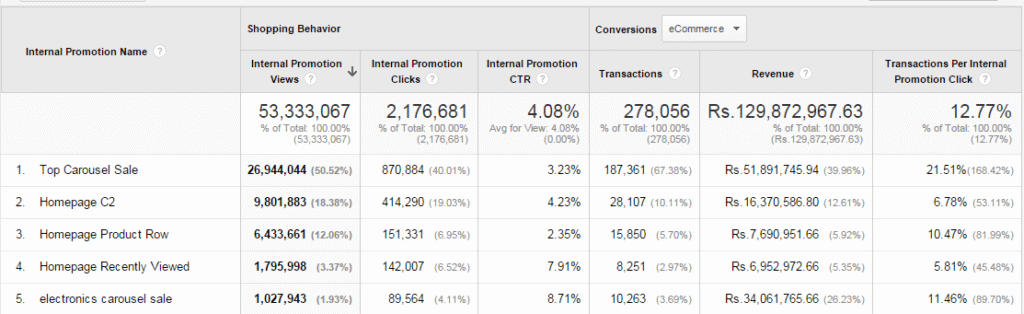
Image of Internal Promotion Report in Enhanced Ecommerce

The Internal Promotion report lets you see how your internal promotions performed in terms of the following metrics:

  • Views (number of times users viewed internal promotions)
  • Clicks (number of times users clicked internal promotions)
  • CTR (Ratio of No. of views/clicks)
  • Transactions generated from a given internal promotion banner
  • Revenue generated from a given internal promotion banner
  • Transactions per internal promotion click (The overall number of transactions per each click on an internal promotion)

 Using the Internal Promotion tracking with Google Analytics report, you can generate the following valuable insights:

  • Which internal promotion banner is performing better in terms of CTR
  • How the positioning of your internal promotion banner affects the CTR
    • For example, it would be wise to learn if an internal promotion placed on top is performing better than the one on the side.

[Tweet “Generate Valuable Insights from Internal Promotion Report in Enhanced Ecommerce”]

 Additionally, it will help you take the following actions:

  • Decide which product should be highlighted in the banner
  • Decide the position of the product image in the banner to get a higher CTR
  • Improve the Design & Copy of the banner with lower CTRs
  • Optimize your site: Analyze how internal promotions impact sales, and act immediately on the results.

Summary:

Enhanced Ecommerce in Google Analytics has introduced tons of new features like Internal Promotion that enable eCommerce store owners to better understand customer behavior. We highly recommend store owners implement Enhanced Ecommerce to generate actionable insights for their stores. You can implement Enhanced Ecommerce manually or by using our Plugins for Magento, WooCommerce & Shopify.

Analogy of Tag Management Elements

Here is the simplest way to understand elements of Google Tag Manager. The below mentioned image shows that how you can correlate elements of GTM with real life object for better understanding.

You may also want to have a look at the explanation that has been given during our webinar:

Bot Icon
Bot Icon

Tatvic Bot

Explore About Tatvic and Services