Hello There!

Lorem ipsum dolor sit amet, consectetur adipiscing elit,

Optimize Ad Serves in DoubleClick For Publishers (DFP) Using Customized Audience with Google Analytics 360

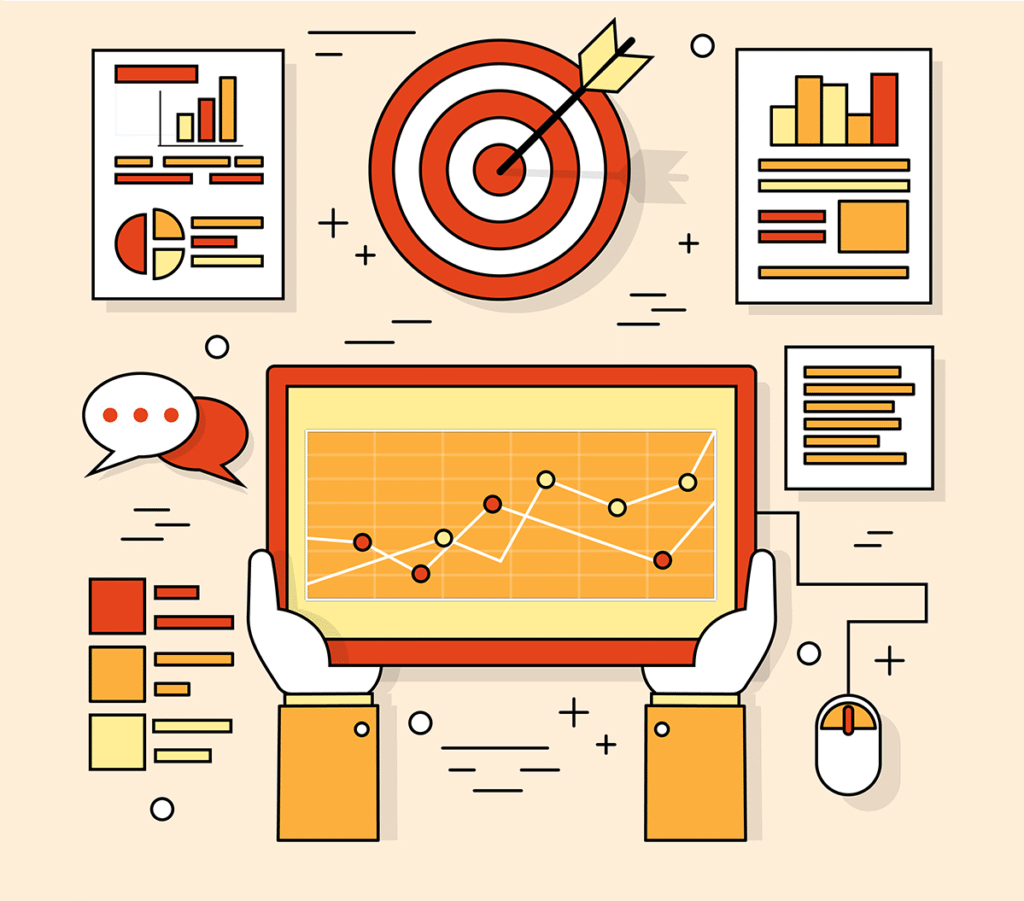
Majority of leading digital publishers are having a hard time identifying & capturing the interests of their audience while also retaining them through various touch points - the most important ones being Optimized Ad Serves. Our previous blog on DoubleClick For Publishers (DFP) discussed ways to create audience segment and exporting it to DFP.

In this blog we shall discover different ways to optimize ad serves through DFP Ads by targeting high intent users on digital platform based on their affinity and interaction with specific type of content. This gives space to publishers for optimizing it in a personalized manner. Targeted audiences yield benefits by increasing the revenue or by narrowing the cost to publishers. This is best achieved by blending tools like Google Analytics 360 and Doubleclick For Publishers.


Standard Audience vs Customized Audience
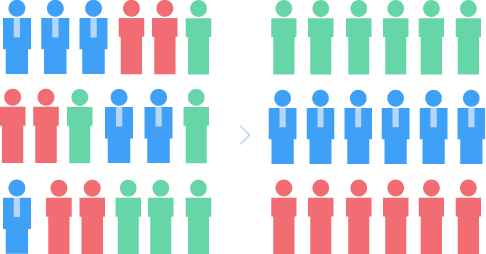
Standard Audience: These are the set of audiences who are available with us or who are visiting our website.  For this audience you have no further information. For this audience you have no further information. There is a lack of information about their interests or geographical location, or even the content they consume.

                                                                 Image 1: Standard Audience


Customized Audience: These audiences shares some similar traits. Like, similarity in browsing location, device, and skewed interests in particular set information. For example, interests in insurance related news, or crime news based, etc. reflects on their behavioral attributes . This audience represents a uniform group or segment sharing similar characteristics.
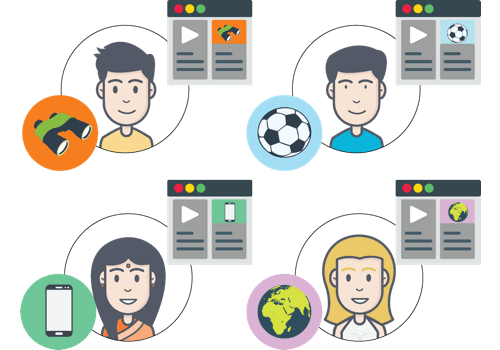


                                  Image 2: Customized Audience
Why Customized Audience is so Much More Effective Than the Standard Audience?

Every advertiser is looking for their own users’ behavioral pattern. This is because every company is now focused towards personalized Ads instead of showing generic Ads to the mass audiences. To do such personalized targeting, we need audience’s personal attributes. This includes age group, gender, etc. which will fetch us more information about their behavior.

Publishers may fail to generate the expected revenue when the Ads are too generic for large mass of audiences. To avoid this, you can identify user’s interest to target only relevant Ads. This results in high probability of conversion and thereby witness increment in revenue. Below are a few examples of different types of audience segments that you can define and take into consideration.

Types of Audience Segments:

  • Video Consuming Users: Users who consume video content more than textual content on the website
  • Cross Content Viewers: Users who are reading more than one type of content
  • Peak time: Users who are heavily engaged at a particular time on website
  • High end users: Users who have an affinity toward premium gadgets or luxury products. For ex. Users who are currently using high-end smartphones like Apple X or Google Pixel 2.
Use Cases to understand the benefits of audience segmentation to optimize ad serve using DoubleClick for Publishers

Two of our digital publishing clients from the leading news and media companies in India, had been facing an issue in optimizing ads serves cost vs. revenue through their ads serving. Also there was a need to reduce the advertiser expenditure which was keeping them from achieving their desired results.

  • Increase in Impressions:

Problem faced: Our publisher client had large sets of audiences visiting from the mobile site as opposed to their desktop site. The digital publisher also had their ad serving strategy in place to target the cohort of their high end users. But, it failed to create value for a defined set of critical DFP business metrics.

Solution: After understanding their problem, our team identified various audience segments from the historical data. We discovered that majority of users were high-end smartphone users like iPhone or Google Pixel. Majority of the user engagement occurred during a particular time of the day, between 1:00PM to 5:00PM. This analysis helped them to channelize their marketing efforts to the right set of audience.

The above use case is based on analyzing the audience behavior and their interests. Such analysis on past events help us to identify the user requirements. This results into a subset of audience segments that are actually interested and hold a higher potential to convert as compared to others.

Result: Sudden rise in impressions of the ads by 2.5X as compared to the previous month.


  • Personalized targeting:
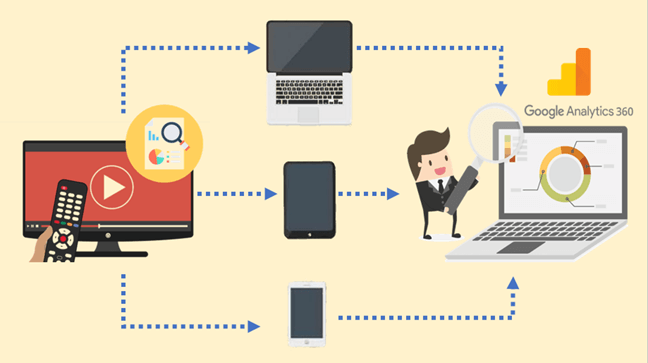
                                  Image 3: Personalized Targeting

Problem faced: Our other digital media clients was struggling with serving relevant ads to different sets of users. The key parameters of this ad serving strategy needed to consider the users’ demographics, interests and affinities. Being a data driven company, their vision was to drive actionable insights based on the first party audience and to also create a better engagement by serving personalized ads.

Solution: After having analyzed the user behavior, we discovered that a majority of the client’s users were from an Indian metro city from a particular source, Facebook. First, these set of users were searching for a topic under entertainment and were then engaging in related discussions on Facebook. We categorized them as high intending users. Later, we segmented those users as interested in entertainment and coming from metro cities i.e. our required audience. Now, to derive the set of audience to be targeted, we separated the said cohort from the publisher client’s universal audience.

Result: 1.5X increase in click through rate within 1 month

Concluding Thoughts:

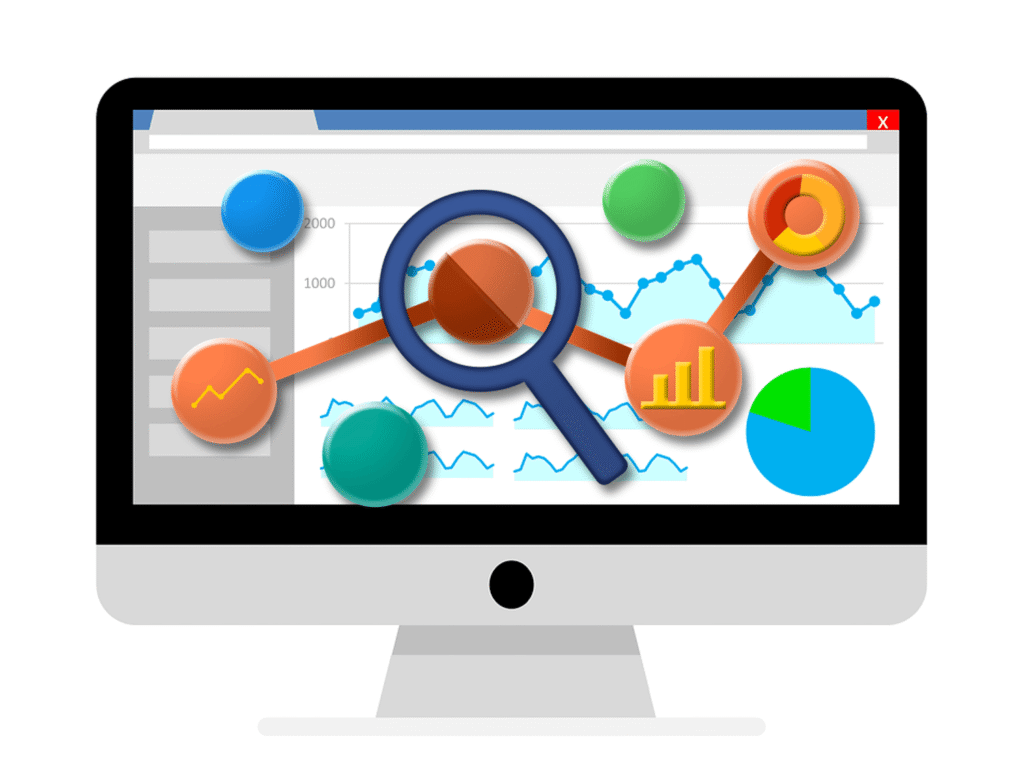
Using the focused audience segmentation based on user behavior by Google Analytics 360, you can create a segmented audience and then export it to DFP. You can then use it for an optimize ad serve strategy.

Are you a digital publisher on the lookout for consultation to create a highly effective segmented audience to optimize ad serve? Tell us about it and we’ll help you out.  

In case of any queries or doubts, please leave a comment below, and our team will get back to you with a quick solution.

A Quick Guide to Adding Multiple Google Tag Manager Containers In A Single Android App


Introduction

If you work with Android Apps, you know for a fact that there are situations where you might want to add multiple Google Tag Manager (GTM) containers. One of our clients was in this very situation and an added problem that they were facing was that their GTM container was full.

We were now facing a situation where we had to remove the extra tags and triggers, but this fixed the problem only for a short time. Hence, my team and I were determined to find a long-term solution for this which could be helpful for other clients and Google Tag Manager users like you as well. We started off by trying to add multiple Google Tag Manager containers at once, and guess what? It worked like magic!

This blog post is an ultimate guide that’ll help you add multiple containers inside your Android Application.

Implementation

I assume that you already have one Google Tag Manager container installed as per How to implement Google Tag Manager for Android.

To add the second container, follow the below three steps:

1. Download the binary file from the new Google Tag Manager container as below:

     Inside GTM, Go to the Versions tab-> Action -> Download.

Image 1: Downloading the binary file from the new GTM container

2. Add the downloaded file to the raw folder.

Image 2: Adding downloaded file to raw folder

3. Create an object of PendingResult with a new Google Tag Manager id and call setResultCallBack in your Application Class.

Image 3: Creating an object of PendingResult

Now, you can get the following DataLayer Singleton anywhere in the application :

Make sure that you use the same Data Layer object across your Application.

Now you can push any dataLayer event for both containers. The only thing you need to take care of is to check whether both containers do not contain the same tags. If that’s the case, then, 2 similar tags will be fired even though you push the event only once.

Conclusion

In 3 simple steps, you will be ready to use the second container for tracking the events. When compared to the web, app implementation is simpler since you do not need to add the new container snippet on all the screens.

We hope this blog post proved to be a useful guide to you. We would love to hear from you if you have any feedback for us or even if there are any workarounds that you might have derived. Tell us all about it in the comment section below.

Click here to know more about our Google Analytics Audit Solutions. Feel free to reach out to us in case you need any assistance with Google Tag Manager.

Learn How to Play with Google Analytics Data and Get the Most Valuable Insights

Google Analytics Data Blog Image

Google Analytics Data Blog Image

Introduction

Once we implement the tracking code on a website, the Google Analytics data starts flowing in a particular Google Analytics property. Therefore, it is important to know how various data points can be accessed by understanding the various offerings of the Google Analytics Reporting Interface. Also, in the time-bound schedules of digital marketers and analysts, it becomes essential to identify which information will be accessible from which reporting section. Once the appropriate report is there in front of users it is essential to know various Reporting Features so as to make the data more meaningful and customized according to user’s requirement. In this blog, we are covering the basic features of Google Analytics Reports along with a few use cases.

About Reports

One can avail over 80 reports using the Google Analytics data that are chiefly divided into the below-mentioned parts.

What my users are doing right now?

Who are my users?

From where are my users coming to the Website/App?

What are they doing on my Website/App

How many of them are driving conversion and how?


Basic Features of Google Analytics Report

To get an idea about the basic features of Google Analytics Report, we are considering Source/Medium along with Browser and OS report as a base. You can write the name in a search box available on the left top corner of the Google Analytics Interface. You will get the below-mentioned output upon clicking that icon.


Google Analytics Dashboard UI


    1. Date Range

You can select the date range for which you want to access the Google Analytics data. Over here, the compare function is available - allowing you to compare a particular date range with the other one. It gets really simple and quick to avail daily, weekly, monthly, and yearly data from this feature. It is also possible to fetch the event data for any custom date range.


The custom date range for September 2017


The custom date range for September 2017 compared to August 2017


    2. Segment

You can add various segments to analyze the Google Analytics data for a particular set of audiences. Here are a few examples of segment definitions:

  • The user Type exactly matches “Returning User”
  • Country/Territory does not matches “United States”
  • E-commerce Conversion Rate > “0.2%”

You can create different types of segments based on your need to analyze the Google Analytics data. While creating a segment, multiple dimensions and metrics are considered. The segment remains as it is even if you open another Google Analytics Report after applying a particular segment.

    3. Metrics Line:

It is the line showing the Metrics trend for a particular period. By default, this is set to daily frequency for the date range selected. You can get this line chart with a frequency set to week and month as well. The line chart for any particular metrics is also available from the metrics drop-down option.

    4. Dimension Tab

This tab is useful in changing the value of the primary dimension. E.g. If you want to pull data based on the Operating System instead of Browser then this tab becomes useful.

    5. Secondary Dimension: This feature is essentially used for adding another dimension along with the primary dimension. E.g. if you want to add gender along with the browser then a secondary dimension becomes useful. You can also add a tracked custom dimension using this feature. In case you want to use more than one custom dimension, then there is an option to create a custom report where you can select up to five dimensions/custom dimensions. For this, you simply need to perform the drag-and-drop actions to add or remove dimensions/metrics.


    6. Plot Rows Checkbox

In case you want to see a metrics line (as mentioned in point 3) for a particular dimension value (e.g. only for Chrome and Mozilla browsers from the list of all browsers)you need to tick on the checkbox(es) and then what you get is the line chart only for those dimension values.

    7. Search

Marketers can search for a particular dimension value using the search feature to fetch the Google Analytics data that is limited to the selected dimension value.

    8. Visualization Tab:

This tab allows you to generate the report output in the form of a percentage chart, comparison chart, pivot table, etc. It comes in handy when you or your team require dynamic outputs of Google Analytics data in a particular format.

    9. Other features:

  • Sort:

You can simply click on the top of this metric column to sort your Google Analytics data in a particular metric, either in ascending or descending order

  • Save:

This feature lets you save a particular report by clicking on the Save option available at the right top of the Google Analytics Interface. You can access the same from Customization > Saved Reports.

  • Export:

One can generate Excel, spreadsheet, .csv, and .pdf versions of the reports created using Google Analytics Data by clicking on the Export option available at the top-right corner of Google Analytics Interface.

  • Edit:

You can edit the dimensions and metrics by clicking on the Edit option available at the top-right corner of the Google Analytics Interface. Click here to know more about the usage of this button.

  • Share:

With this feature, share the report configuration by clicking on the Share option available at the top-right corner of the Google Analytics Interface.

Frequently Encountered Questions

Here we are addressing a particular set of questions that you would generally encounter while trying to obtain Google Analytics data based on pre-determined data points.


  1. Is there any report available from which I can get data for the number of drop-offs from a particular conversion funnel?
  • Yes, there is a report called Funnel Visualization which helps in getting such data. One needs to define a destination goal with funnel steps to obtain Google Analytics data in this particular report.
  1. Can filters be applied to real-time data? Also is it possible to automate this process daily?
  • Yes, one can always create a real-time dashboard from Customization > Dashboards with filters. The same can be automated using the email option with daily frequency.
  1. How to access a custom dimension sent with an event?
  • A custom dimension sent with an event can either be taken as a secondary dimension in a particular report or one can opt to create a custom report for the same.
  1. Can someone use offline data in a Google Analytics Report?
  • Yes, one can always use the data import feature available in Google Analytics and once the offline data flows in Google Analytics Custom Dimensions, it is best put to use by a secondary dimension or a custom report where your offline data will merge with the Google Analytics data.
  1. Can someone get data for different segments at the same place?
  • Yes, you can either apply up to four segments for the same report or dashboards with many reports with different filter condition that are possible to create.

Conclusion

Let us conclude with a few general points that one should remember about the data that is available in Google Analytics Reports:

  • Google Analytics data can migrate to the data studio, adwords,  tableau, and Bime. Since it has a free API with additional custom development, it is possible to integrate the same with any other visualization tool.
  • All the user interaction data (hit level) can be sent to Google Analytics and can be accessed through Reports available under the Behavior Section.
  • Apart from Real Time Reports, for other reports, it takes 4 hours to process the data for Google Analytics 360 and 24-48 hours for Google Analytics Standard.

This blog is aimed to deliver to you, the importance of each report as you navigate through various reports. This will enable digital marketers to derive desired data points with the knowledge of various reporting features.

TV Ads Analysis: Measure Second Screen Impact with Google Analytics


Need for TV ad analysis for advertising & marketing in today’s data-driven world

Before we move on to understand the concept and working of TV ad analysis let us consider the scenario and need of having a data driven solution like TV Ad analysis.

The digital world has drastically leveled up. Plenty of different strategies are executed for effective marketing that helps reaching  out to the end customers for an increased conversion rate. At the same time, owing to multiple touch points, the user behavior is more diversified than ever. A lot of digital businesses across domains like ecommerce, lead generations and digital publishing strives to break the silo format of the data that they receive pertaining to how their users are interacting with them. 

So, if you as a marketer, ask a question - “What are the impacts of my marketing efforts?” You’ll get an insight into your paid campaigns, search traffic, your email marketing campaigns as well as your social campaigns. Data across digital touchpoints like the website, mobile apps, kiosks, etc has become quick-to-implement and easy-to - access. But what if your marketing strategy is not purely digital? What about the offline media like your TV ads? When such a medium falls into the mix, it gets complicated to identify campaigns’ performance in terms of ROI and outreach?

In today’s fast-evolving digital era, where you have the power to measure everything, this gap should be treated as an opportunity to understand the interplay and relationship between your online and offline marketing activities. In this blog post, I am going to talk about how you can measure the impact of your “Second Screen Impact Analysis” or to simply put up- analysing the impact of TV advertisements on your online traffic. You can plot this data against your other online campaigns to drive greater results.

Let’s dive into why’ we need TV ad analysis and how do we measure the impact of the online traffic driven due to these TV ads?

Advertising in India :

Based on a recent market research, more than 85% users are on their mobile phones while watching TV. One of the leading media agencies, GroupM, elaborates that though the digital advertising will increase at its highest rate ever in 2017, TV ads are here to dominate as a highly preferable medium for marketing.


GroupM Estimates TV ads to hold their dominance in marketing


When planning your annual or semi-annual marketing budget, especially for TV ads, wouldn’t it be just the ideal scenario, if you could take data-backed decisions on the level of investments you commit across the big buckets of TV channels? The TV Ad Analysis tool helps you determine your market spendings for a certain set of channels, how much ROI can you expect and also follow-up with the impact your TV ad campaigns have been able to create.

Objective of TV Ad Analysis

To assess the impact of ad spots on target demographics & provide recommendations for ad spots yielding maximum impact.

Prerequisite:

  1. Google Analytics 360 and BigQuery account set up with at least 3 months of data
  2. TV Ad Report with ad slot timing, channel, channel spend, channel gross reach, ad duration, channel geography

Benefits:

   1. Measure Effectiveness of Your TV Ad Cost

TV Ad Analysis identifies the sweet-spots and weak performers down to the level of the channels, name of the program as well as the program category

   2. TV Ad Cost Optimization

You can derive focused recommendations for increasing effectiveness of TV Ad Spends and ration the non-performing spots.

   3. Estimate the Impact

With the help of this analysis, you shall be able to quantify the effectiveness of each TV ad-spot spend based on the impact on acquisition metrics.

TV Ad Analysis Report


a. This report provides us with insights on those channels that are more effective in terms of spends and acquiring the traffic.

b. It also helps to decide the channels where we need to increase or  decrease the spends.


  • %Visit Channel wise
Channel-wise analysis


a. The above report shows which are the most effective timings along with best preferred channel to show our ads.

  • %Visit Region wise - Program Category wise
Region-wise report


Concluding:

Since there is huge money involved in TV advertisement it is important to understand the impact of such offline marketing on our websites online traffic. This will augment in decision making for the marketing strategies like which channel, what time slot and what cost should we put in to get the valuable traffic and increase our ROI.

Tatvic has developed a similar solution. Click here to read more about the TV Ad analysis.

How Google Analytics Client ID is a Boon for Marketers and Its Step-by-Step Implementation in Android


Google Analytics Client ID offers infinite possibilities for marketers 

Google Analytics Client ID is one of the most important and core concepts in Google Analytics. It ensures that we get deep insights into understanding user behavior and user journey. Before moving ahead, it is essential to understand what is Client ID. In simple terms, it is a part of the Google Analytics cookie which is generated by default to track users. Google Analytics Client ID plays an instrumental role in deriving cross-domain tracking reports and a unique way to identify users. Insights from cross-domain tracking help us to de-duplicate users across domains for businesses with multiple websites. Marketers can also study user behavior and user journey for effective re-marketing with user classification.

A broader outlook on the utilization and implementation of Client ID on Websites

The ga_cookie gets updated when any user returns to a particular website that has Google Analytics implemented on it. For every new user, a new cookie is created along with the new Client ID. The cookie is valid for 2 years (and so is the Client ID). If a user deletes the cookie, then a new one is generated along with a new Client ID such that the user will be considered new.

De-duplication of Users with Client-ID

For websites with multiple domains, remarketing is nothing short of a nightmare when it comes to targeting users across the said domains. When you target the same person multiple times, the budget doubles, and the ROI is slashed by half. With the help of Google Analytics Client ID, one can determine which of these users are moving across domains and are the same ones.  This way, it’s possible to de-duplicate targeted users and run highly efficient re-marketing campaigns.

Client ID - Attribution modeling

How it works:

The attribution of the source depends on the client ID. Google Analytics uses the last click (non-direct) model by default. For example, if a user lands directly on a website, Google Analytics checks for the cookie to identify whether the user is new or an existing one and applies the last known source through which the user has landed on the website.

It is important to note that in case if the user does not have any source information then the user source will be attributed to a direct channel.

Offline remarketing for conversion

There are many digital businesses that use a 2 step completion process. One is online data collection and the second is offline conversion. Typically, for lead generation websites, the flow is such that traffic lands on your website from different sources and shows interest. Hence, a lead is generated. Post lead generation, the sales activity starts and CRM tracks the sales funnel.

The primary requirement for GA and CRM integration is the availability of a common key between the two data sets. This can be done in either of two ways: -

  1. Expose the CRM ID onto the website and pass it to GA as a custom dimension.
  2. GA generates a unique Client ID for each unique visitor. Pass this Client ID to your CRM for every user.

Once the data integration has been uploaded to GA, we can create a segment in Google Analytics based on the ClientID as a dimension and can use it for remarketing purposes.

Tracking Google Analytics Client ID and Implementation for Android

While you can also track Client ID in iOS, over here we shall understand how to track Google Analytics Client ID from Android devices. This can be done either in a custom dimension or an event through Google Tag Manager using the data layer method.

Follow the below-mentioned steps to implement:

In-App Implementation

There are two approaches to fetching ClientID in Android:

  • In the App, create an AsyncTask and retrieve Client ID using GoogleAnalytics Object.
Retrieve Client ID using Google Analytics


  • If it is not possible to create the “GoogleAnalytics” object then create a function as shown below. This function will return clientID that is stored within the Android device.


Google Analytics will thus help in gathering a lot of data on top of Client Id at an initial level.

Concluding Thoughts

One can draw a conclusion on how to effectively measure the audience behavior through client Id. Evidently, user acquisition cost is very high and companies spend big amounts on audience acquisition. This marketing expenditure can be optimized if companies have access to precise data points regarding the user behavior and user journey performed on the website or app. Analyzing such near-to-precise data can help them understand their audience more precisely and know about the user journey stage-wise. Based on such analysis, companies can take an informed decision on performing cost reduction processes and learn how to prioritize their marketing spend or future campaign expenses.

Bot Icon
Bot Icon

Tatvic Bot

Explore About Tatvic and Services