Hello There!

Lorem ipsum dolor sit amet, consectetur adipiscing elit,

 About Saikat Ghosh

Saikat is a Senior Business Development Manager at Tatvic. He headed business development in couple of other IT organization before joining Tatvic. He studied management at IIM Calcutta where he honed his skills as a manager. In his spare time, he loves to read books, listen to music and watch movies.

Top-5 Top Mobile Application Analytics Tools Comparison | Infographic

Mobile App Analytics tool comparision


Introduction:

This infographic compares various mobile app analytics tools with the aim to help you select the right analytics tool for your mobile application. Take a look at the feature comparison of the following, popular mobile app analytics tools:


Pricing plans

Update: There’s one more mobile app analytics tool that you can consider - Appsee

Conclusion:

It is ideal to make a choice based on various features and not simply consider cost as a selection parameter. If you’re already using any of these mobile app analytics tools, we’d love to hear your feedback. Let us know your experience in the comments below.

Note: For Google Analytics Integration Support (Firebase Analytics), we can integrate Google Analytics only if we are using Google Tag Manager for Firebase implementation.

Stream & Export your Google Anaytics data to Bigquery Guide

[vc_row][vc_column][vc_column_text]Google Analytics 360 Data BigQuery ExportAs a passionate Google Analytics 360 and BigQuery User, I always want to take quick actions on the current day data within a couple of minutes. And today, I am ecstatic that Google has rolled out a new streaming export feature. Google Analytics 360 users can now export their Google Analytics data in BigQuery within 10 minutes.

This enables you to carry out analysis and take actions six times within one hour using BigQuery which seems almost real-time data export. Aren’t you excited? Let me elaborate on just how awesome this new feature will prove to be!

Power of Unlocking Data Streaming Delivery Feature

All business giants who deal with tons of data points flowing into Google Analytics, require faster data access to identify high intent users, analyse internal promotions and quickly discover anomalies in your critical business metrics. Listed below are the few real-time actions that you can take based on your data:

  • Instant retargeting for higher conversions:
    In today’s fast-paced, dynamic world, every second counts. It is observed from the recent market trends that users are highly likely to convert if they get instant incentives. The sooner they come back to your website, better are the chances of them converting.

    Dynamic and instant remarketing approach will prove to be more promising and effective in driving greater engagements.
  • Real-time Prediction:
    This amazing feature will enable Data Scientist to run predictive algorithms in real-time. With quick download of data, predictions can be tested in a short span of time and new results can be used to retrain for better accuracies. One use case that analysts can make use of, is Predictive Lead Scoring. This will give marketers a score of leads with higher propensity to convert customers within a short span of time. And then automated emailers or push notifications can be sent to the leads where conversion rates can go up due to recency effect. Currently, with the data that is processed, predictions are carried out a day after and chances of conversion become comparatively slimmer.
  • Quick Issue Debugging:
    Frequent data updates in BigQuery will allow organizations to identify issues and help them to fix it quickly.
  • Taking data stitching to the next level:
    Business intelligence tools can also be empowered using raw, hit level, online-behavior data with offline data sources like CRM, call centres and POS data.

4 Easy Steps: Get Started with the all new Data Streaming Feature Now

You can start getting data more frequently by just changing your streaming preference option.

  1. Navigate to your Google Analytics 360 Admin settings
  2. Go to BigQuery Integration Page
  3. Click on Adjust link

You will now see a Streaming Preferences Options. Choose “Data exported continuously” option as shown following:

And voila! You are all set! And that too without any help from your go-to tech guy!

Got questions? Don’t worry, we got you covered!

Once you will opt for this feature, Google Analytics data will start streaming into your BigQuery project as fast as every 10 minutes. Note that this might take few hours to reflect in your BigQuery. As exciting as this is, I am sure this update must have lead to few queries for all of you. I am going to attempt and answer a few FAQs that we’ve experienced from within our team as well as our clients.

  • Is this chargeable? If yes, what is the cost?
    Yes, you will be. The new streaming export uses Google Cloud Streaming Service and that costs a $0.05 per GB. That’s why Google recommends that you choose your own streaming preferences so that you don’t end up with unknown additional cost.
  • Will I see changes in BigQuery?
    Yes, you will start seeing two new tables in your BigQuery cloud platform.
  1. ga_realtime_sessions: In this table, you will get the current day Google Analytics data.
  2. ga_realtime_sessions_view: This is a view - virtual table in BigQuery.

In the detailed section of ga_realtime_sessions_ table, you will also find information regarding the table’s Streaming Buffer if it is present. If there is no data in Streaming Buffer or table is not being streamed to (ga_sessions_intraday_), this section will be absent.

  • What additional data will I see?
    You will able to see updated BigQuery schema under ga_realtime_sessions_view_. Following fields are introduced : 

    1. exportTimeUsec - Unix timestamp when data gets exported to Google Cloud
      For ex. 1505981096384
    2. exportKey - It’s a combination of fullvisitorId, visitStartTime/visitID,
      exportTimeUsec
      Format : fullvisitorId:visitStartTime/visitID: exportTimeUsec
      For ex. 3601279501650676672:1505976859:1505981096384
    3. visitKey -  It’s a combination of fullvisitorId and visitStartTime/visitID
            For ex. 3601279501650676672:1505976859

If you don’t opt for the data streaming feature, then you will continue to see data streaming like you do today, which is about thrice a day i.e. every eight hours.

Concluding Thoughts:

All that which is captured through analytics tracking is included in this streaming export. Although be aware, data sources like AdWords and DoubleClick, Search console will be not included in same.

Happy data streaming!

What do you think about this new data streaming feature introduced by Google? I would love to hear your views and take on it. Please do write to me in the comments section below, I am looking forward to it. 

We at Tatvic also provide BigQuery Training for Corporates & Developers.[/vc_column_text][/vc_column][/vc_row]

Google Optimize 360 : The Power House of Personalization

Google Optimize 360

Google Optimize 360
In our previous blog on 5 UX trends, we covered topics like: What is personalization

  • What is personalization
  • How it works wonders for your user engagement
  • What benefits you reap by implementing personalization on your website and mobile site

Engaging prospects to convert and gaining frequent visitors to create a loyal customer base is a dream come true for every business. But, these trends are not as easy to implement on your website. It requires a right set of skills and an extremely powerful tool like Google Optimize 360 to create, test and adapt what you strategize.

In this blog, we will go through implementation a few of the UX trends mentioned in the earlier blog, using this tool. To know more about Google Optimize 360 features, please refer to this blog that I had written earlier.

1. Location-based Personalization - Geo Targeting with Google Optimize

Location based personalization can enrich the user experience. It is with great excitement that I am taking up this feature first. You can achieve location-based personalization using the geo-targeting feature of Google Optimize 360. India is a land of festivals. Let’s understand how location-based personalization will work in real-time for this scenario. Say in Gujarat and the festival of Navaratri - the world’s longest dance festival - is going on. During the same time in Bengal, the nine-day long Durga Pooja is on. Being an eCommerce store owner selling ethnic-wear, you want to roll out offers to both these sets of customers. With Google Optimize 360, you can customise your homepage slider or banner section to target these sets of users based on their geographical location.

time based personalizationImage 1: Geo-targeting with Google Optimize 360

2. Time-based Personalization - Javascript Variable or custom Javascript

What does the trick is, to implement a javascript variable with the “local day part” value. This gets updated based on the current time of the day. Use this variable to create time-based personalization. Let’s take one real-life scenario. Your e-commerce store experiences heavy traffic between 11 AM to 1 PM but the conversions are very low. To improve conversion rate, you can show banner or a countdown to sale timer with specific offers for this time period. Vice versa, let’s say in another time slot, traffic is lower and you want to increase that with user engagement. This is where you can put to use this time based personalised method in Google Optimize.

role based personalization


Image 2: Javascript Variable with Google Optimize 360

3. Cross-Selling

For running this personalization, you shall require an advanced implementation that enables you to identify user’s spending capacity. Using this information, you can create a “high intent users” segment in Google Analytics. Based on this segment, you can create an audience and use it as your target for cross-selling through Google Optimize 360.

Let’s take one example. You can create a segment of users who are brand conscious and then cross-sell products of similar brand using Optimize 360 audience targeting.

  • You can change sequence of brand filter or you can highlight same in filter section
  • You can also show products of similar brands using advanced implementation

You can also create an experiment which shows above combination in a test using Multivariate test feature of Google Optimize.
location based personalization

Image 3: Audience Targeting  with Google Optimize 360

4. Enhanced Shopping Experience

You can create a segment of users who dropped from, let’s say, for example, the checkout page after adding a product. Now, use this segment as audience targeting in Optimize 360. You now have wide options of getting back to them. Show popups with some offers or deliver product information when that user revisits your site and persuade them to complete their order.

Audience Targeting

Basically, marketers use audiences for remarketing and retargeting. The exciting part of Optimize 360 is to allow you to target your specific audience for your experiments. Using Google analytics segmentation feature, you can able to create audiences and use it in experiment targeting. This will help you to focus on your specific group of users who have some specific behaviour on your website. If you have Google Analytics 360 account, you should try out Optimize 360 to implement experiments and personalised experience by setting up targeting rule for your audiences.

  • High-Value Customer: A Usage of Audience Targeting

    In simple terms, high-value customer is your returning customer who contributes to your revenue growth over and over through repeat businesses or referrals. Personalising their experiences may lead to high conversions and also improve user engagement. You can slice and dice your data to separate your customers based on their actions, demographics and interests. You can the use it as audience targeting and measure the performance of your personalization campaign with Google Optimize 360. Similarly, you can create audiences like “Drop off at Checkout page/cart page”, “Added To Wishlist” and use it to enhance your user’s personalization experience.

What’s Next from Google: Adwords Integration with Google Optimize Account

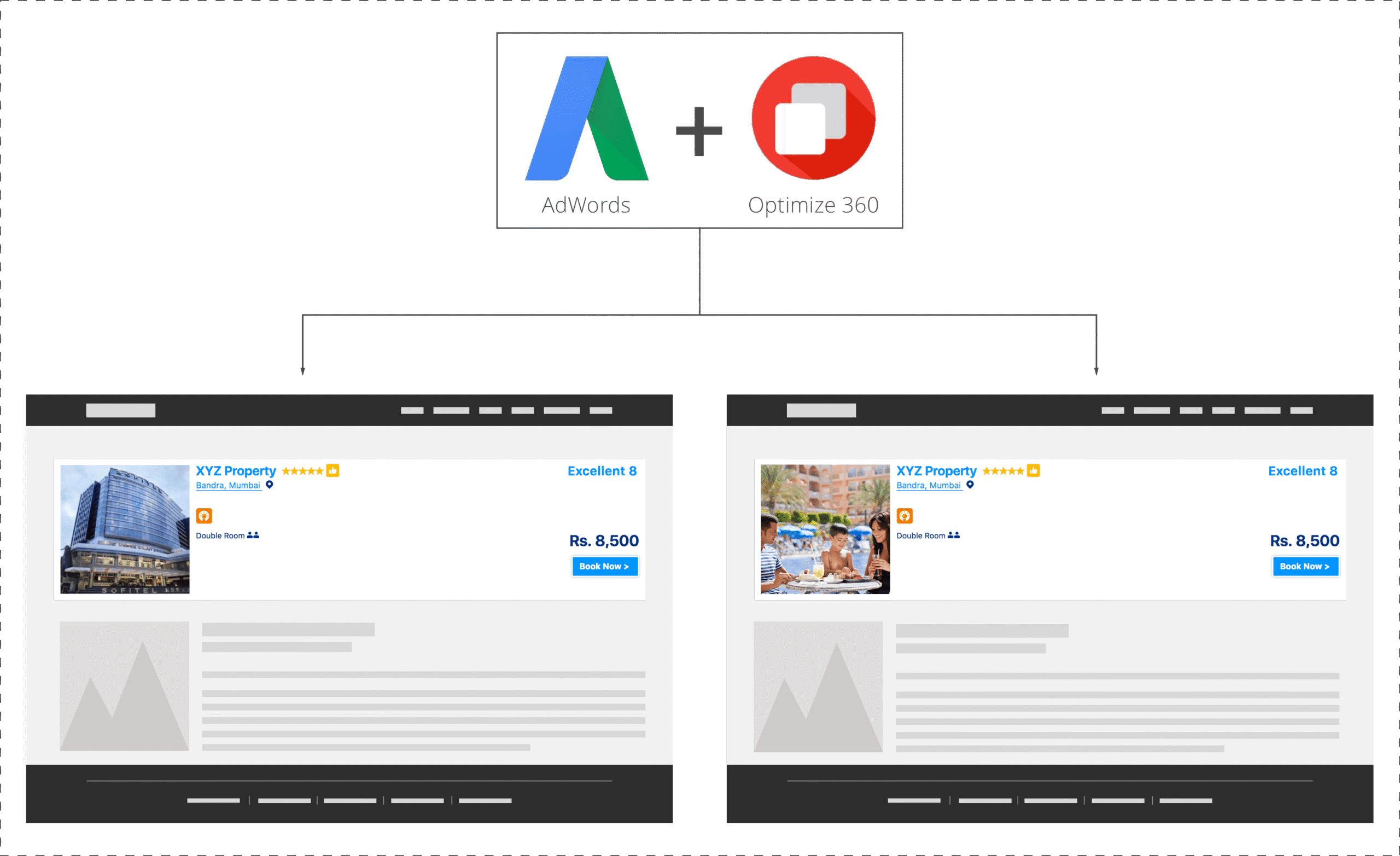
There is an exciting update from Google regarding the upcoming integration between Google Optimize and Adwords. This will help digital marketers and testing teams to test their customized landing pages based on keywords, ad group or campaigns that are associated with ads.

enhanced shopping experience

In marketing next 2017 event, Google gives an example that how it will be beneficial to business that running campaign:

Suppose a hotel wants to improve its landing page for the keyword family friendly hotels. Using Optimize, the hotel can create and test a new variation of the landing page, one that features an image of a family enjoying themselves at the hotel pool, instead of a generic image of the hotel exterior. If the new page leads to more reservations, they’ve got a win.

This integration will be available for Optimize and Optimize 360 and will be launched in a few weeks.

Explore interesting personalization use cases across different domains with our upcoming webinar. Grab the chance of interacting with subject matter experts and get real life insights on implementing website personalization.

Track Progressive Web Apps with Google Analytics and Google Tag Manager

Progressive Web Apps

Progressive Web Apps

In this era of the modern web, there are many new technologies that enable you to work towards improving user experience. You must have heard of or read about PWA (Progressive Web Apps) sites. It provides your users with an app-like experience on their mobiles and also works offline. It has a magic master called “Service Workers” which makes it possible to load and store all the HTML, CSS, and Javascript files on the client’s browser in the first run itself and then requests for the data that needs to be updated from the website. With PWA, you get features like lower bandwidth usage, efficiency, well-supported libraries, and communities for implementation. What else do you need?

Progressive Web Apps


Image: service worker in the developer option menu

Do you find yourself asking questions like what about Google Analytics implementation? How will that work in such dynamic sites? How can I debug my implementation? How GA will handle my offline analytics request?  What about pageviews, sessions, and source/medium? Well, we have all the answers for you in this blog, read on to find out.

Google Analytics in PWA:

PWA sites, one-page sites, or Ajax-based sites - we have invested our time and efforts to get the best GA implementations that support all the Javascript. You can make use of virtual pageviews to track dynamic pages. For detailed GA implementation guidelines, you can follow this link.

In July 2016, Google launched an update called Offline Analytics made easyHere, they have provided a library offline-google-analytics-import.js which supports offline implementation. This library takes advantage of the Service Workers to store Google Analytics hits while the user is off the internet, and once that user connects to the internet, it sends the offline hits to GA.

Regular GA syntax will work just fine in case of tracking events and pageview hits according to the user actions. With extensive research, we also discovered that you can even differentiate the hits on the basis of users’ state (online or offline) when they performed any particular action. You can use Navigator.onLine API which returns true or false values based on the user’s network status.

ga('set', 'HitScope CustomDimension', navigator.onLine);

Use the above syntax to send the said user state in the hit-level custom dimension.  The recommended approach here is to set this custom dimension with each hit. This will help you to understand user behavior or their state (offline or online). Based on this data, you can get insights that will help you improve your user experience by adding relevant offline features or re-arrange them.

Using Google Tag Manager for PWA:

Until here, we have discussed on-page implementation. Now let’s talk about Google Tag Manager and DataLayer implementation on these Web Apps. Read this Google document for quick implementation of GTM on your website and this one for DataLayer implementation. We always recommend creating new containers for PWA sites. This ensures reduced load on the PWA since your existing site container may contain some extra tags that are not useful.
offline tracking

Image: Google Tag Manager container
You can access all the regular GTM features in PWA as well. Only “All Pages” and “Pageview triggers” do not work as expected because GTM will load only once. All your dynamic pages and user interaction can be captured via DataLayer implementation smoothly in such cases. We recommend the implementation of DataLayer in such a way that for all page loads, the gtm.js (All Pages) trigger should fire the pageview whereas, for dynamic pages, DataLayer should be pushed.

I’ve listed a few of the hurdles that we faced when we started implementing GA( via Google Tag Manager) on the PWA site.

  • firing pageviews incorrectly
  • Session breaking in between user journeys due to source/medium changes
  • Higher bounce rate due to session break
  • Tracking offline hits, GA script caching (GA script freshness) in service worker which sometimes stops sending the hits due to the unavailability of a tracker on that particular page.

Every site serves a different purpose and has different business objectives. Hence, accommodating a generalized solution for all issues is not recommended. Owing to this, the PWA implementation may vary.

Google Tag Manager for PWA

Image: Hits from service workers and hits from a live network

Best practices for PWA implementation:

For such a robust Google Analytics implementation, we recommend that you follow a set of best practices like

  • Create a separate GTM container for PWA
  • Implement a library that stores offline google analytics hits, Separate online/offline hits
  • Create a separate view as well for the PWA site
  • If you have implemented GTM, then GA script caching will not be an issue

In the case of GTM implementation, we have implemented many solutions for overcoming such issues by using the tracker name settings, forcing the referrer values to be set as null(“”) to stop the session breaking for all the tags except pageview, forcing document location values in fields to set.

With PWA, one needs to be closely involved while setting up the tracking as it differs from the regular GA implementations. There are certain courses that Google provides to help you understand what PWA is and how you can debug service workers for debugging your tracking. Once you have implemented, for thorough audits, you can use the network tab of the browser’s developer options menu and check how your hits are being sent to Google Analytics.

In the meantime, if you have any questions, please feel free to comment. We would love to answer your queries.

Bot Icon
Bot Icon

Tatvic Bot

Explore About Tatvic and Services