Hello There!

Lorem ipsum dolor sit amet, consectetur adipiscing elit,

Guide to Measure Googe Adwords Campaign Analysis Data

Google Adwords campaign

Google Adwords campaign
Whenever we want to research for information or services on the internet, we open a search engine page, like Google, and we type the words that refer to what we are looking for.

Most of the times when results are listed, we notice that the very first ones are “sponsored links”. These links are advertisements, which are identified through Google Adwords, an advertisement service provided by Google in order to help you market your products and services on its search engine and affiliate websites.

But how does it work and how much does it cost?

Once you create an ad, you need to identify which are the words that you want to be related to it. Then, every time visitors search for phrases or keywords that you have linked to your offer, your ad will be shown to them at the top of the page, as a “sponsored link”. As the payment system is called “Pay per click”, you will only pay for that advertisement if visitors click on the same. This way, you can bid for series of phrases or keywords, but you will pay only for the successful ones.

As a marketer, you need to identify whether visitors come to your website just to collect information (“browsing traffic”) or if they come looking for specific products and services. Google Adwords helps you identify and differentiate these segments of visitor, impacting directly on your website’s revenue.

Moreover, researches indicate that 87% of people who are researching through search engines do not scan past their first page. Google Adwords allows you to decide in which page of search you want your ad to be shown. You can even choose in which order you want your ad to appear, to increase its effectiveness, once visitors are more likely to click on ads that are placed on the top of search page.

Analyzing data from Google Adwords

Internet is the best medium to measure advertisement effectiveness. Marketers need to analyze data of every single online advertisement and for that they need to extract the data from their Google Adwords account to a MS Excel spreadsheet. Tatvic’s Excel Plugin for Google Adwords simplifies this step of data extraction from Google Adwords, saving tons of time for marketers/analysts. It can really make maketers’ lives easier by:

  • Extracting data from multiple accounts simultaneously. There is no need to extract data separately from different accounts.
  • Updating data with changed parameters by “Single click on refresh”.
  • Sharing saved query with your team members, so that they won’t need to spend extra time to generate the same queries again.
  • Being compatible with MAC and DFP.
Tutorial video of Excel Plugin for Google Adwords

Through this video, we explain how to use Tatvic’s Excel Plugin for Google Adwords. Once you have the plugin installed in your computer, this “how to” video will teach you its very first steps, like opening MS Excel and logging in, and its features.

If you need any further information related to this tool, please feel free to contact me!

Would you like to reduce the amount of time you usually spend on data extraction from your Google Analytics / Google Adwords account? We think you may like to watch our Webinar - How to simplify and automate data extraction process using Tatvic Excel Plugin. Watch the Replay Now!
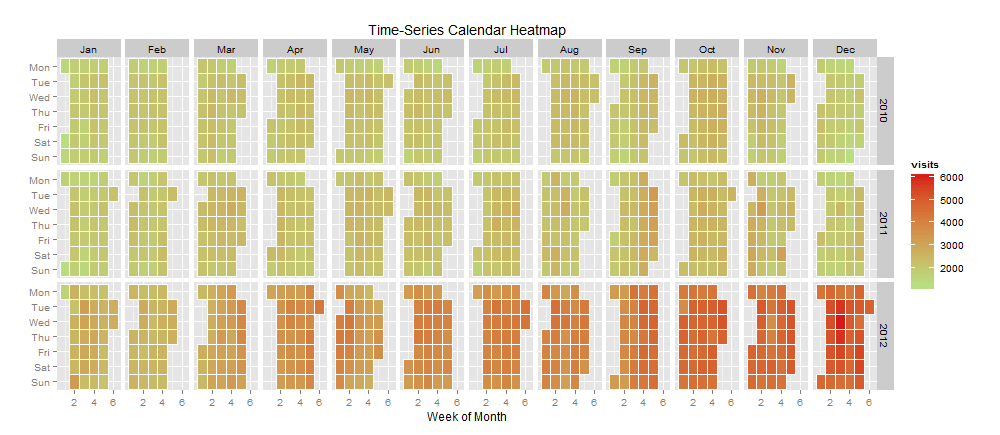
How to Google Analytics Calendar Heatmaps?

visits

As a data analytics consulting firm, we think we are fortunate that we keep finding problems to find. Recently my teammate found a glaring problem of not having any connector for R with Google. With inspiration from Michael, and Ajay O, it soon becomes a worthwhile problem to solve.

With the RGoogleAnalytics package now, we have solved the problem of data extraction into R from Google Analytics a new breed of ideas started emerging primarily around visualization. I have been playing with GGplot2 has been a great package to convert data into visualization. Thanks, Dr. Hadley Wickham. Once you have followed this blog post, you are with the code there in a position to have the data required to get these calendar heatmaps done. Take up the below-given code and paste it into the R console and play around to see if you find it easy to work thru. If you have trouble, feel free to reach out to us.

Here is the code for extracting the Google Analytics data using the R-google Analytics package. Before running the following code, download the RGoogleAnalytics package and install it.

#Load RGoogleAnalytics library
library("RGoogleAnalytics")

# Create query builder object
query

For this example of a Calender heatmap, I am using data from an e-commerce store with data for more than 2 years in business. I will be plotting visits as well as transactions on the calendar so that I’d get perspective on how they interact viz-a-viz timeline.

Here is the code for plotting the heat map after you get data and have it stored in ‘data’. This frame is used to reference the source of data for the visualization below.

# Recommended R version - 2.15.1 or higher 
# install required  library by using the command install.packages(“libraryname”)
# For example install.packages(“ggplot2”)
# Required library
library(“quantmod”)
library(“ggplot2”)
library(“reshape2”)
library(“plyr”)
library(“scales”)

# Set extracted data  to this data frame
data

Once you run the code, you will be in a position to get the output like the below:

Now that we have a calendar heat map for visits, let me pull it off for transactions. In the above code for Google Analytics data extraction, you have to use transactions as well as visits as metrics. Since the data is already available in the ‘data’. we are ready by changing in code of visualization to choose the heat map for the transaction now.

It’s quite interesting now that you can make super nice inferences as I did below:

  • Tuesdays have high visits days but Wed has been the day when most transactions occur.
  • Visits increase towards the end of the year (shopping season) and then slow down towards the year’s start.

Visualization is an interactive process. Based on the feedback received from some of our readers, I tried plotting both KPIs on the same graph. With ggplot2, it was as simple as adding a line of code. Again some minor tweaks in the background colors and we are ready with another heat map.

ggplot(data, aes(monthweek, weekdayf, fill = visits)) +
 geom_tile(colour="white") +
 facet_grid(year~monthf) + 
 scale_fill_gradient(high="steelblue",low="white") +
 theme_bw() + 
 geom_point(aes(monthweek, weekdayf, size=transactions,alpha=transactions),color="firebrick") +
 theme(panel.grid.minor=element_blank(), panel.grid.major=element_blank()) +
 labs(title = "Time-Series Calendar Heatmap") +
 xlab("Week of Month") +
 ylab("")


Would you like to understand the value of predictive analysis when applied to web analytics data to help improve your understanding relationship between different variables? We think you may like to watch our Webinar - How to perform predictive analysis on your web analytics tool data. Watch the Replay now!


Bot Icon
Bot Icon

Tatvic Bot

Explore About Tatvic and Services